

Cart and checkout widget configurations are pre-determined in partnership with the Order Protection development team. Your team will work together with OP to set up the initial widget configuration for your store.
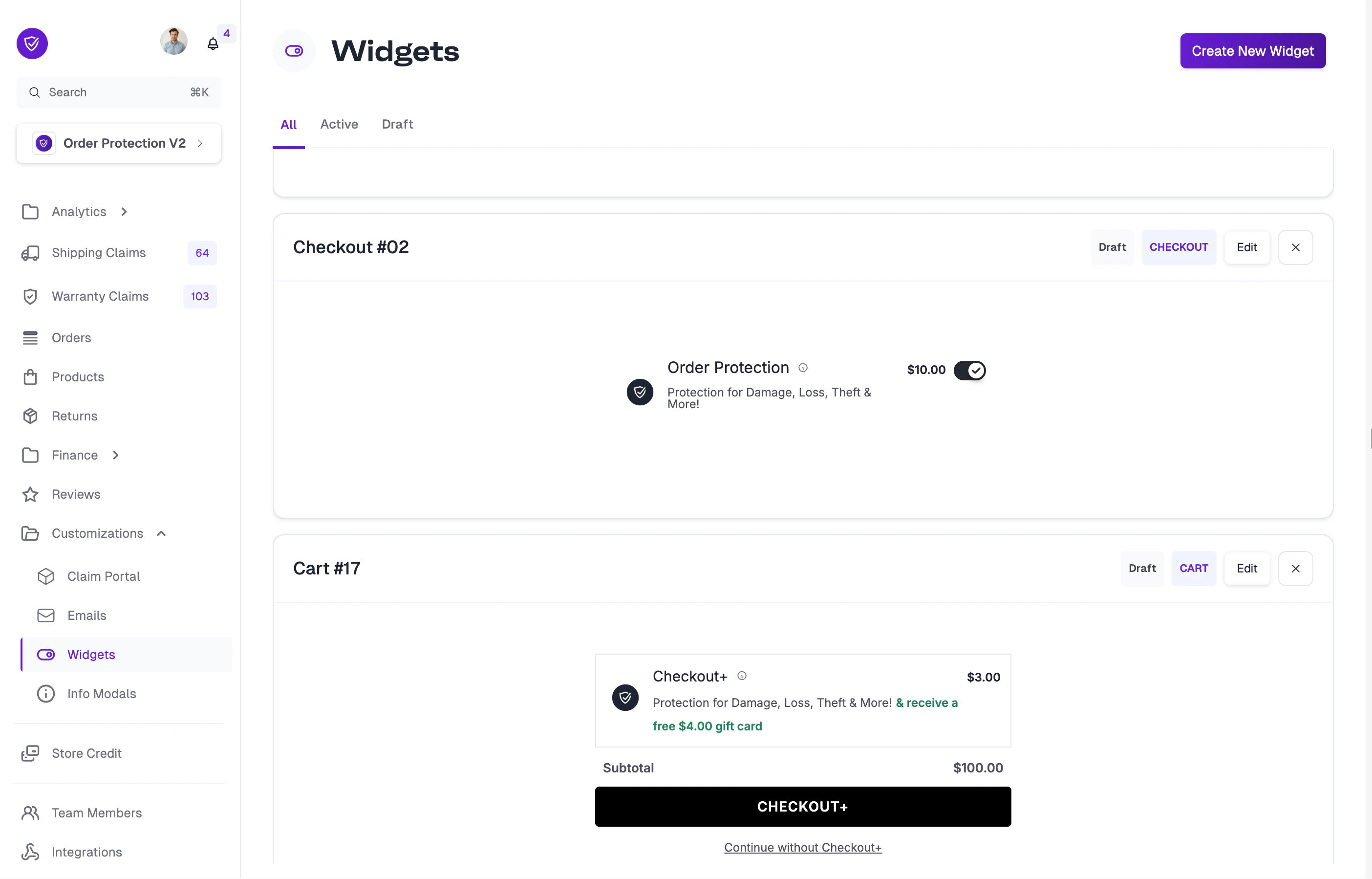
Widget Types
OrderProtection.com supports two primary widget types:| Type | Description |
|---|---|
| Cart | Appears on the shopping cart page. Uses a web component that can be embedded anywhere on your site. |
| Checkout | Appears on the checkout page. Configured for the Shopify checkout experience. |
Editing a Widget
Click Edit on any widget card to open the editor. The editor uses a split-screen layout: the Customizer sidebar on the left and a live widget preview on the right.Checkout Widget Configuration
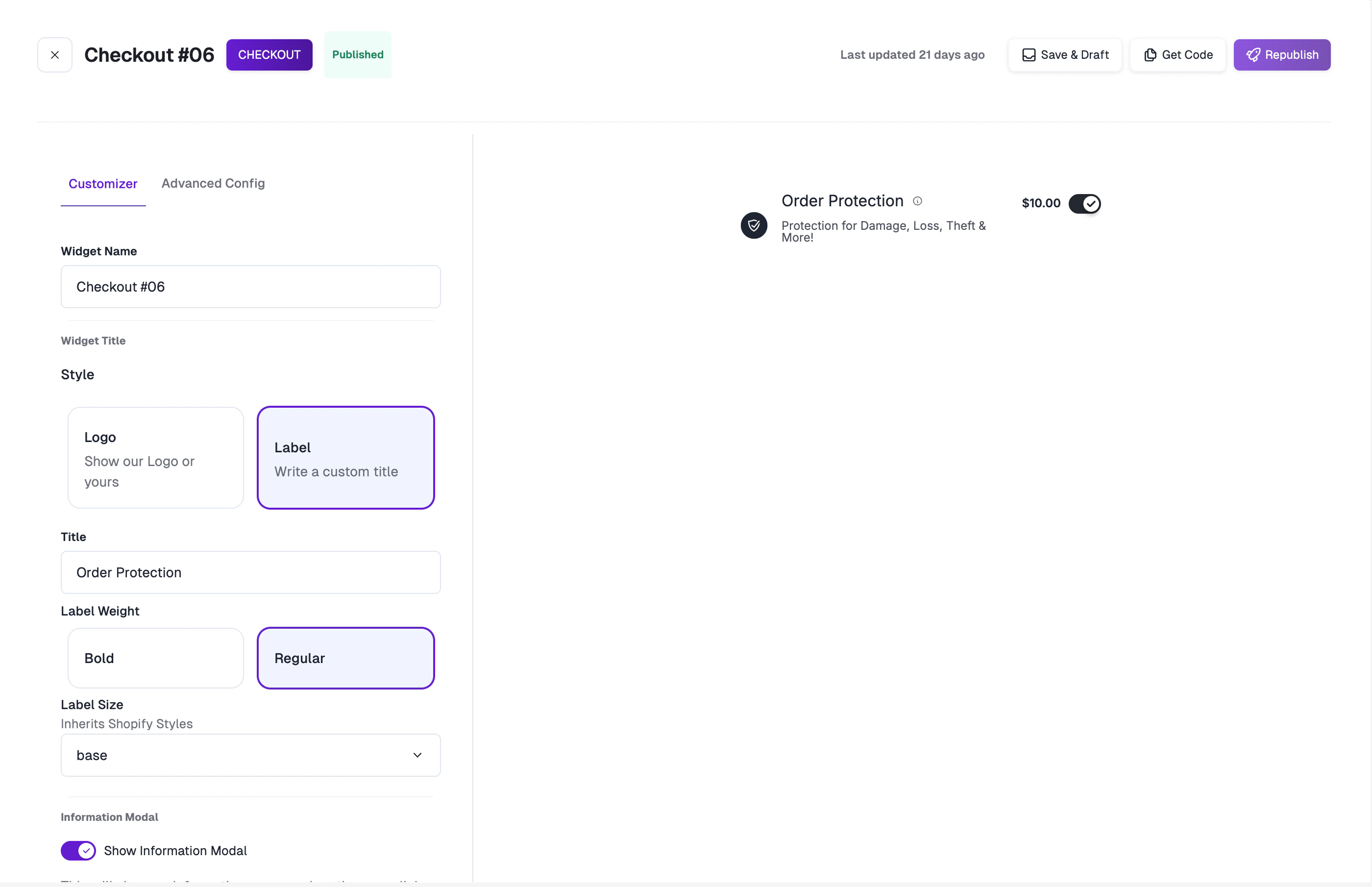
- Widget Name: A descriptive name for internal identification (e.g., “Checkout #06”).
- Widget Title Style: Choose between:
- Logo — Display your store’s logo or the Order Protection logo.
- Label — Use a custom text title with typography controls:
- Title text
- Label Weight (Bold / Regular)
- Label Size (inherits Shopify styles)
- Information Modal: Toggle to show a “What’s this?” link that opens an informational overlay. See Info Modals to configure these.
Cart Widget Configuration
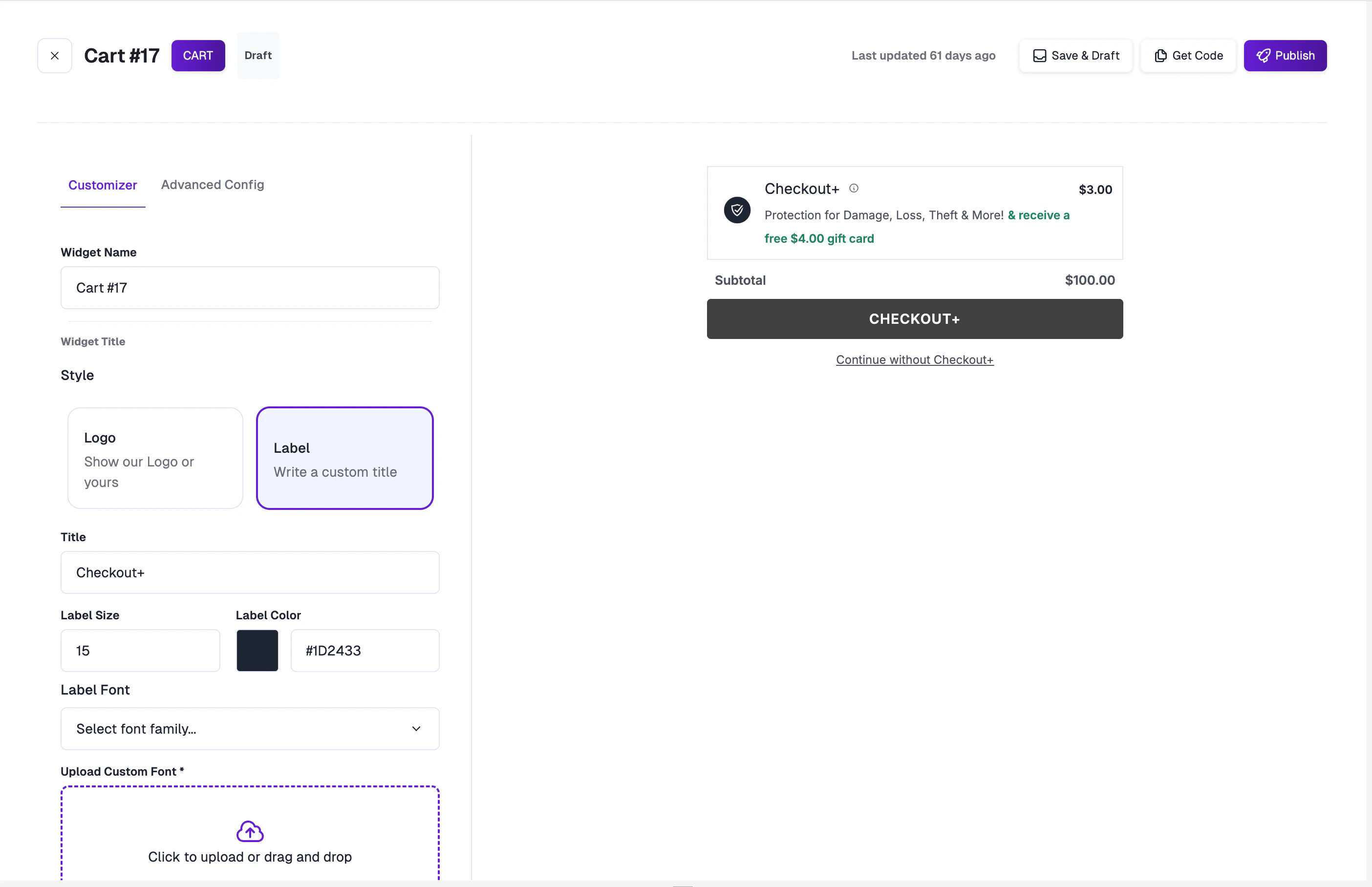
- Label Size: Set the font size in pixels.
- Label Color: Choose a custom color via the color picker.
- Label Font: Select from available fonts or upload a custom WOFF font file.
Advanced Configuration
For cart widgets only, the Advanced Config tab provides a JSON editor for direct manipulation of the full widget configuration. Import your config by pasting it into the editor, or click Open Full Screen for an expanded editing view.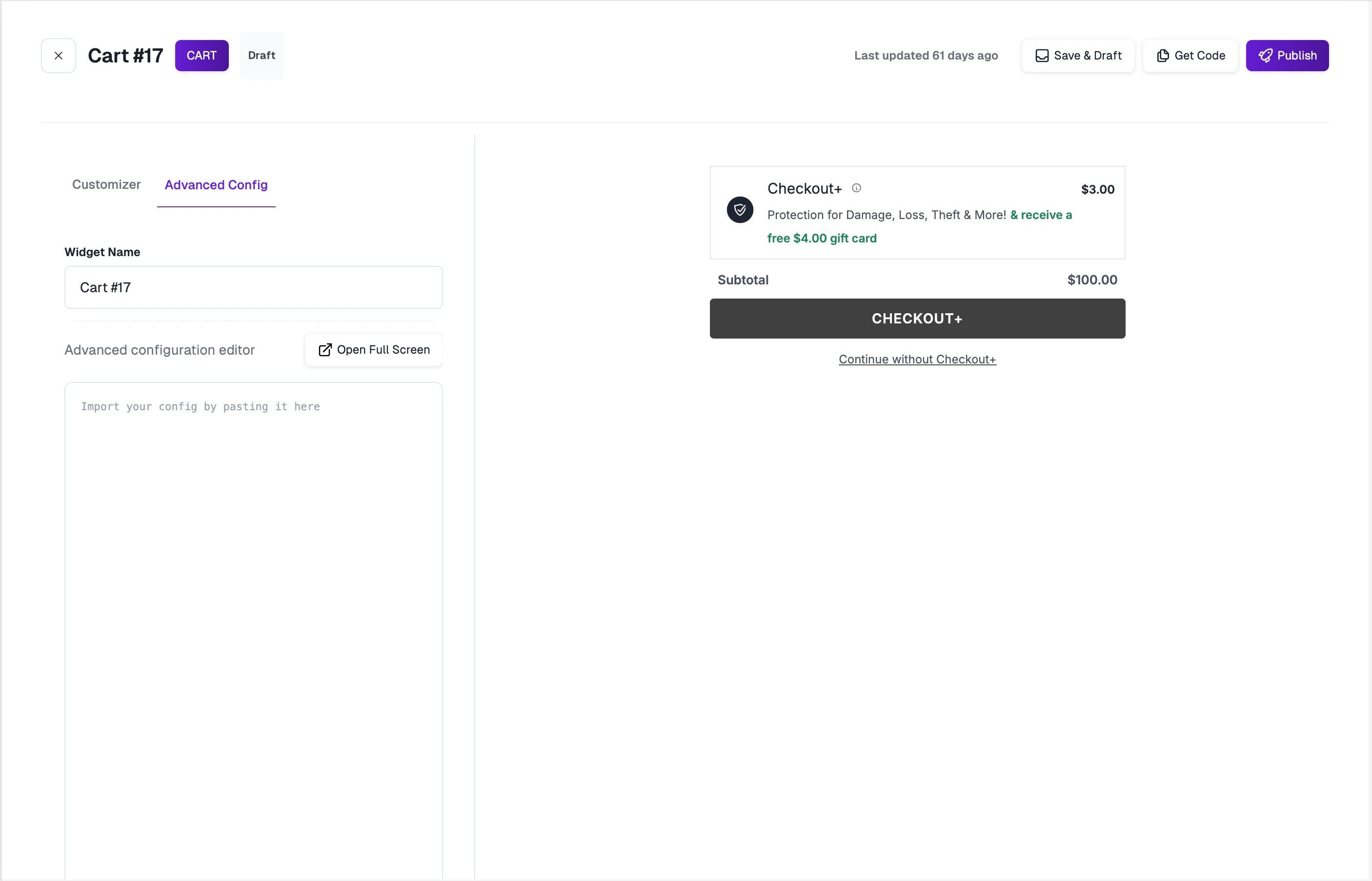
Getting the Widget Code
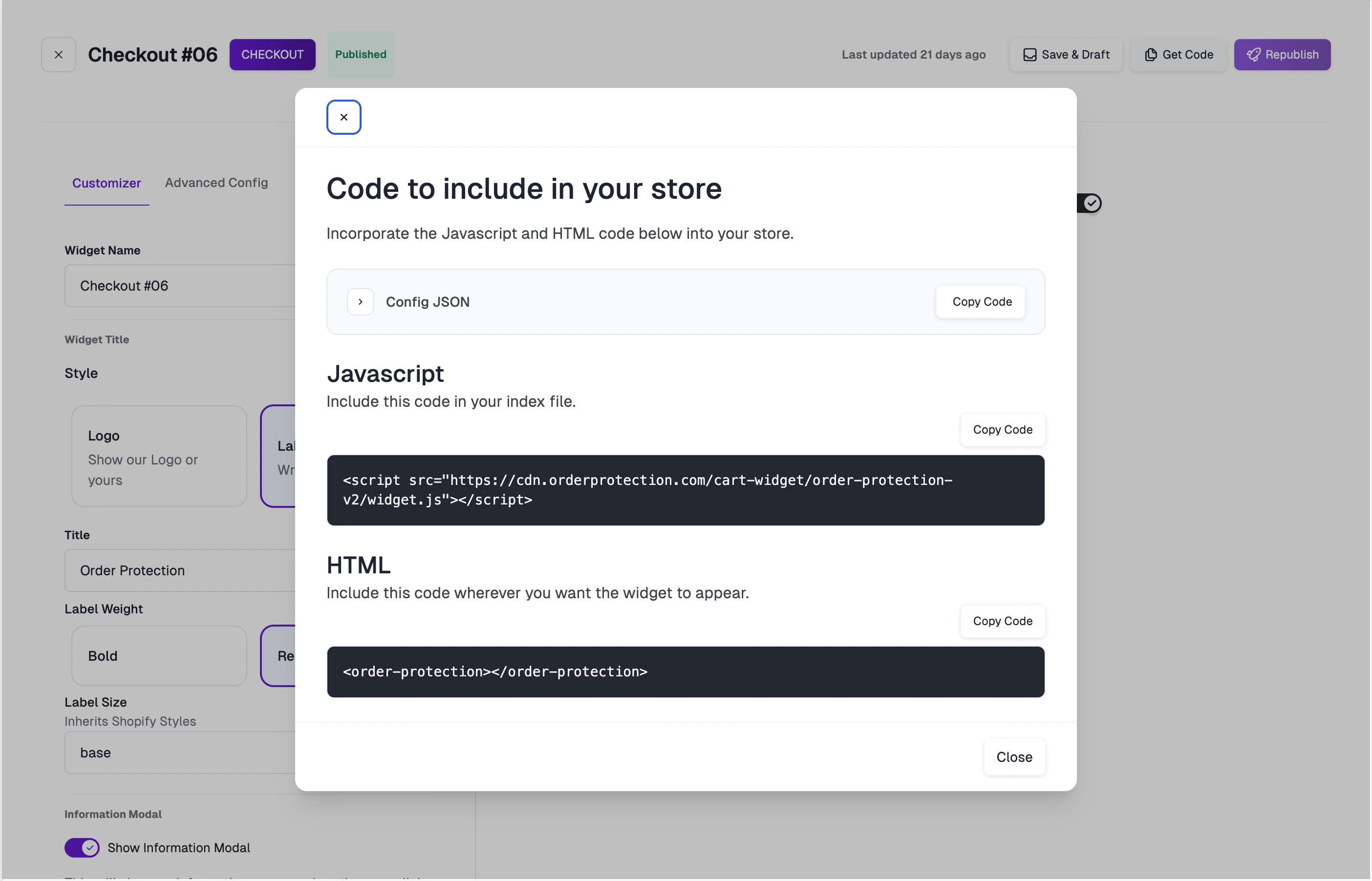
After publishing your widget, click Get Code to view the embed code for your store. The modal provides:- Config JSON — Your widget’s configuration object.
- JavaScript — A
<script>tag to include in your site’s index file. - HTML — The
<order-protection>web component tag to place wherever you want the widget to appear.
Publishing and Drafts
| Action | Description |
|---|---|
| Save & Draft | Saves your changes as a draft. The widget will not be visible to customers. |
| Publish | Pushes your widget live. Customers will see the updated widget immediately. |
| Republish | Available after making changes to a published widget. Pushes updates live. |