Below is a quick guide on how the Claim Queue at OrderProtection.com works, including what each status means and how claims typically progress. This helps you stay organized and know exactly what actions are needed to move claims forward.
How the Queue Is Organized
When you open the Claims page, you’ll see tabs at the top for each claim status. These statuses reflect where a claim currently sits in the resolution process:
| Status | Description |
|---|
| To Do | These claims require a response or action. It might be the first time a claim is filed, or it could be waiting on your final decision. |
| On Hold | OrderProtection.com is waiting on additional information from you (the brand). Until you respond or provide the requested details, the claim remains on hold. |
| Pending | We are waiting to hear back from the customer. If the customer needs to provide photos, confirm details, or otherwise respond, the claim stays pending. |
| Approved | The claim has been approved and the resolution (refund or reshipment) has been issued to the customer. |
| Denied | The customer’s issue was not covered under OrderProtection.com policies. The customer has been notified of the denial. |
| Closed | The customer is no longer responding or the claim has reached a point where no clear resolution is possible (e.g., the customer withdrew their request). |
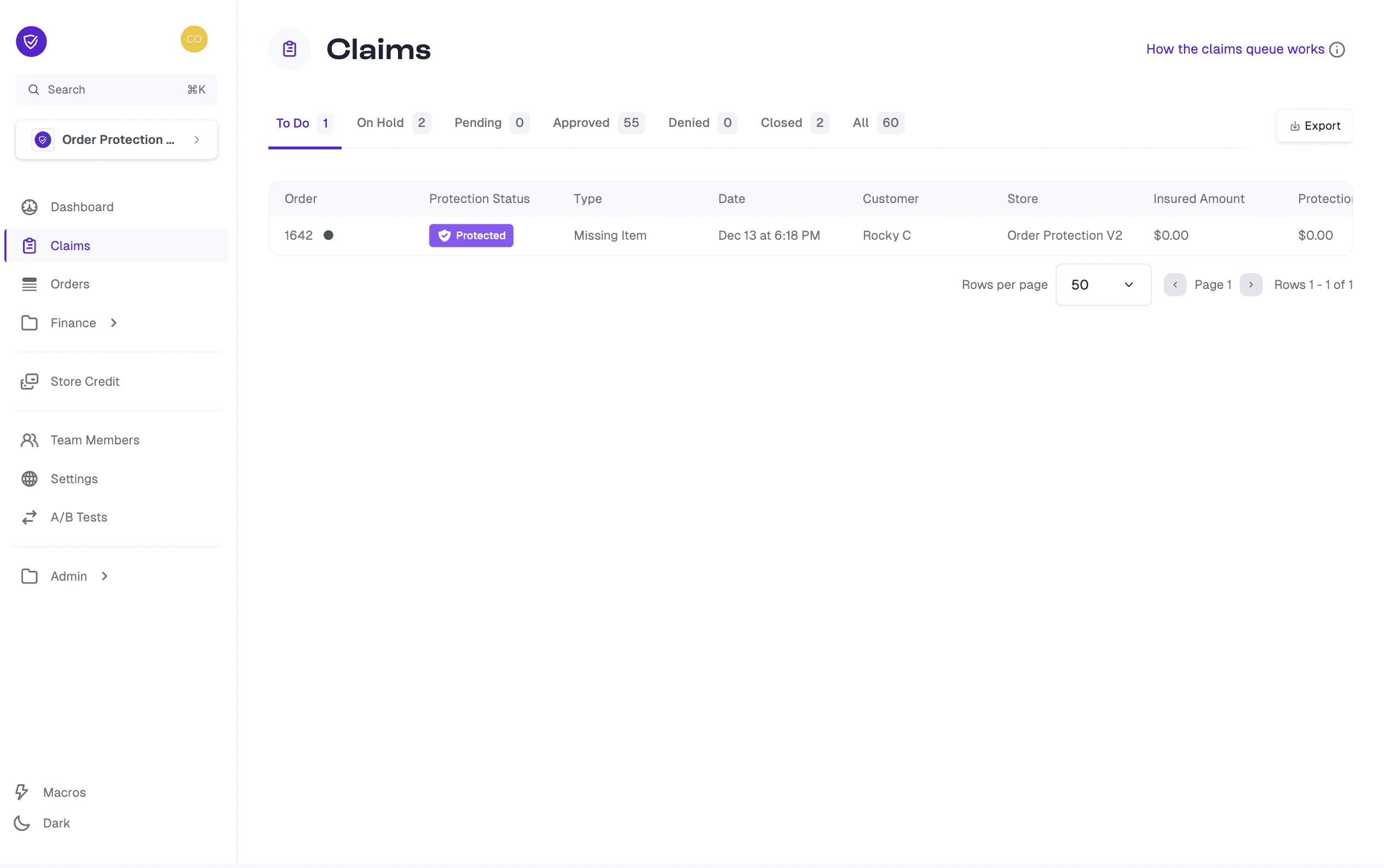
Moving Through the Claim Stages
Claims typically start in To Do when first created. Depending on what’s needed to move forward, claims can shift to On Hold or Pending until the required information is received.
- If approved, the claim moves to Approved, triggering a reshipment or refund.
- If the issue isn’t covered by our protection policies, it becomes Denied.
- If no further action can be taken (e.g., no response from the customer), it is marked Closed.
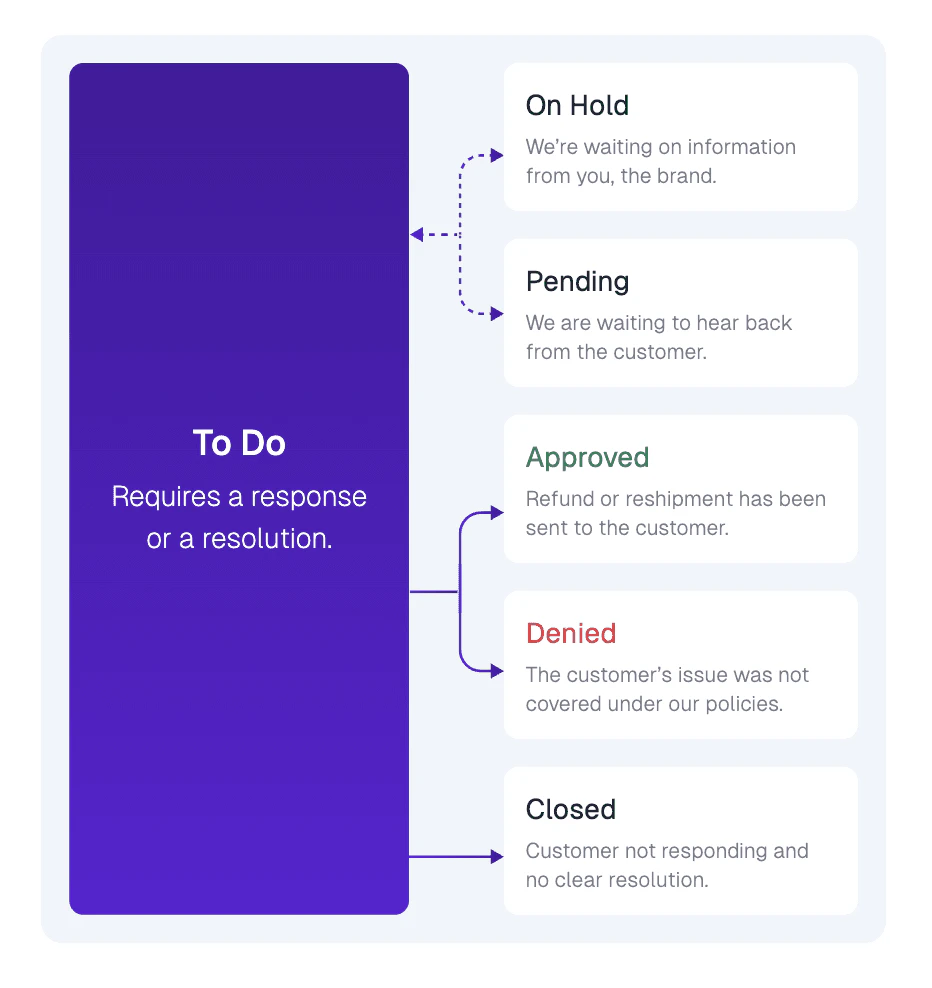
You can reference this workflow directly in your dashboard by going to the Claims page and clicking the link “How the claims queue works” in the top right.
Exporting Claim Data
If you’d like to download a list of claims for your own records or analysis:
Navigate to Claims
Navigate to the Claims page.
Select a status filter
Select the specific status (or All) you’d like to export.
Export to CSV
Click the Export button in the top-right corner to generate a CSV file of the visible claims.

