Monthly Payouts
We issue payouts on a monthly basis, comparing:- Revenue Share — Your contracted percentage of Order Protection fees generated.
- Claim Reimbursements — The total reimbursement amount credited to you for approved claims.
Claim Types Typically Covered
We strive to handle a broad range of shipping and delivery issues to reduce your workload. Commonly covered issues include lost, stolen, damaged, or wrong items. To learn more about each eligible claim type and what may fall outside of standard coverage, see the Claim Types Credited article.Coverage specifics vary by contract. Be sure to review your agreement or consult with your CSM if you have any questions about what is covered for your store.
Viewing Payouts Each Month
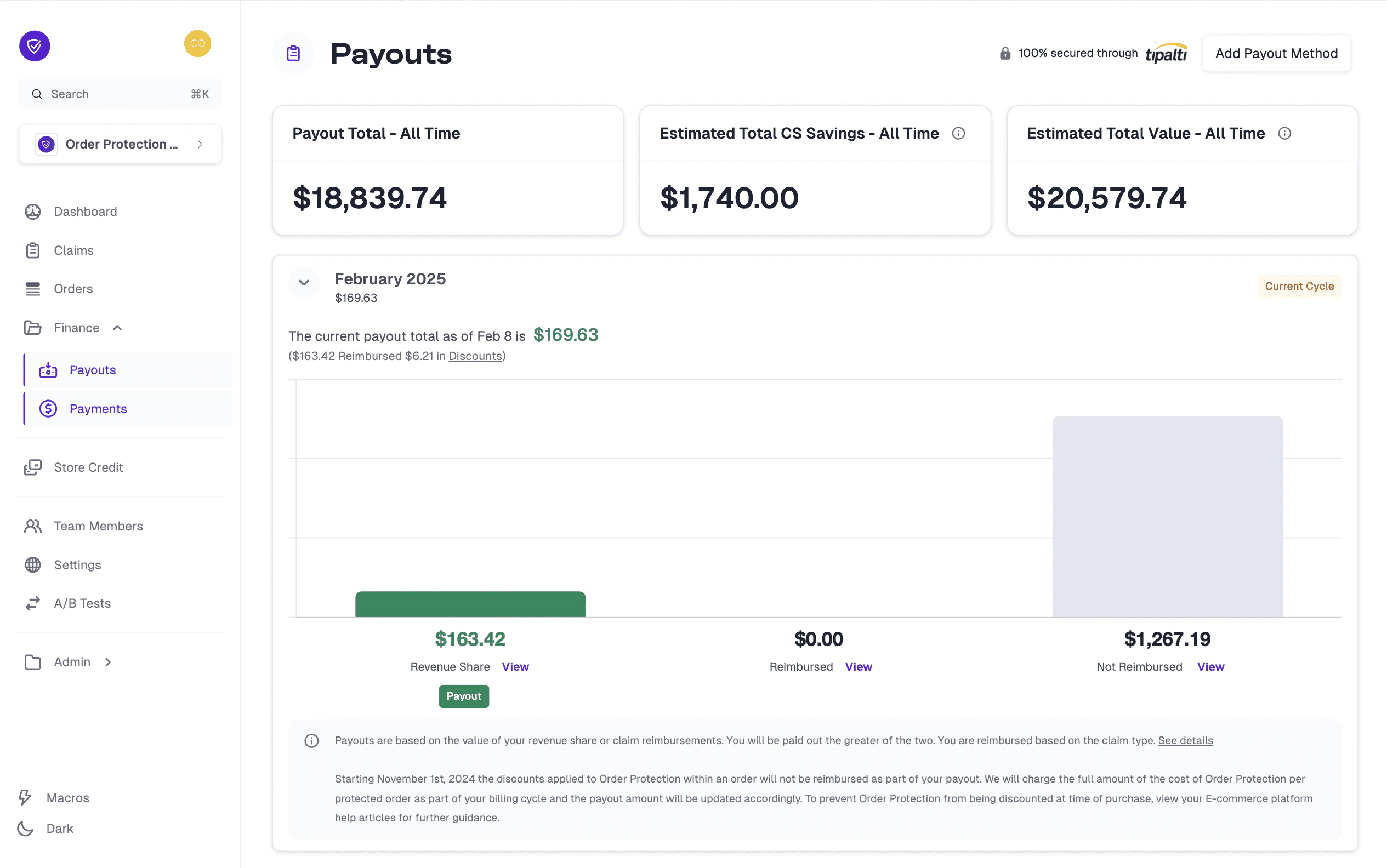
On the main Payouts screen, you’ll see a summary of your payout totals, including a breakdown by month. By expanding a specific month (e.g., “January 2025,” “February 2025,” etc.), you can view:- Current Payout Amount — The total of your expected payout so far for that month.
- Revenue Share — A quick look at your total revenue share for that period.
- Claim Reimbursements — The total value of approved claim reimbursements.
- Not Reimbursed — The total value of claims that were not reimbursed.
| Status | Description |
|---|---|
| Current Cycle | The payout period is still in progress; funds are not yet finalized. |
| Processing | Funds are being processed and will soon be disbursed. |
| Paid | Funds have already been disbursed and should be reflected in your account. |
| Failed | There was an issue disbursing your funds (e.g., invalid payment method). Contact your CSM to resolve. |
How to View Detailed Breakdowns and Export CSVs
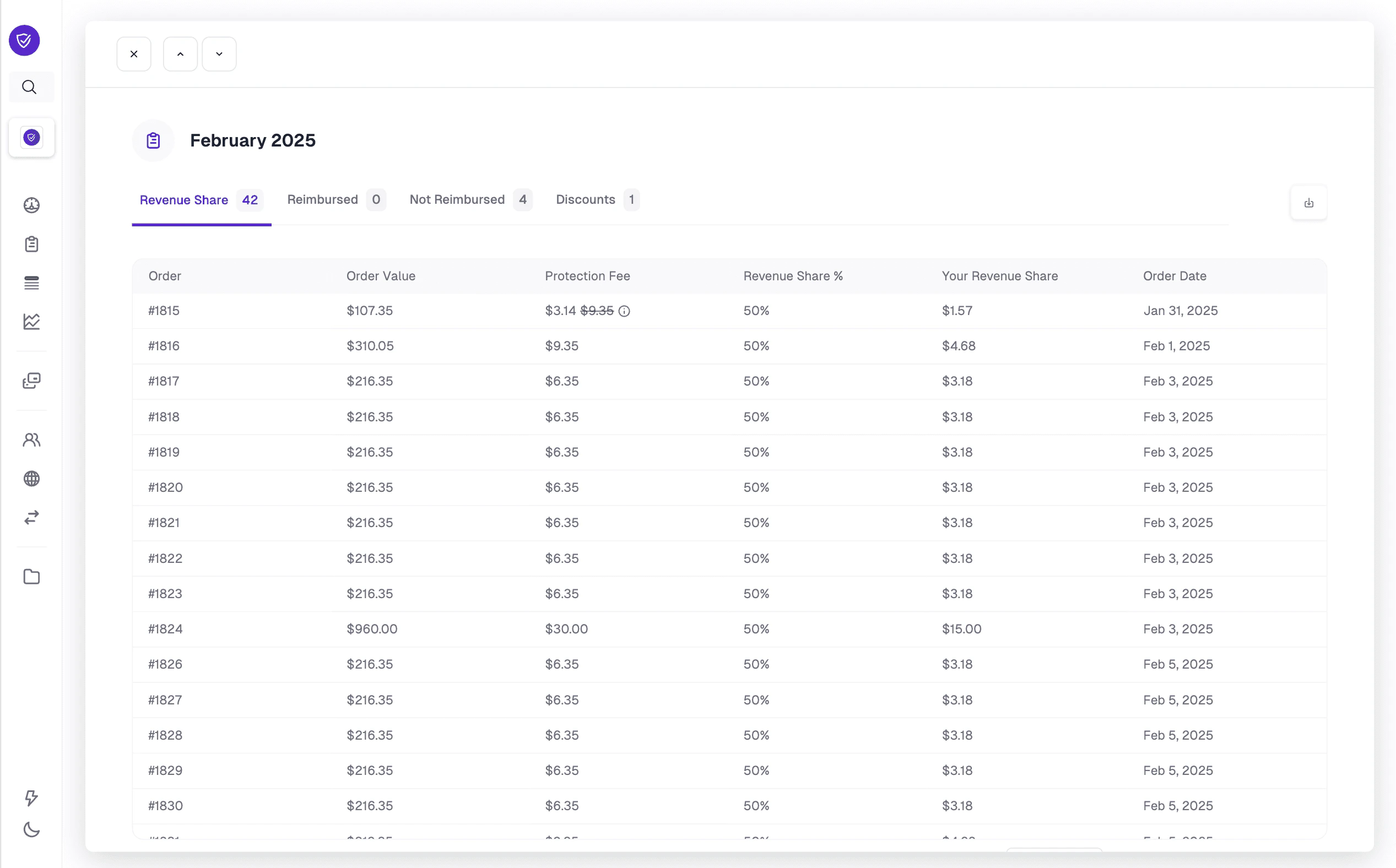
From your Payouts page, you can click on View beside the label for each respective section for an in-depth look at your current or past payouts:- Revenue Share View — Shows each protected order, its protection fee, and your share based on your contracted percentage.
- Reimbursed View — Details every claim that has been approved and reimbursed, along with the reimbursement amount and resolution type (e.g., reship or store credit).
- Not Reimbursed View — Lists the claims that have been filed but were ultimately not reimbursed, with a clear indicator of why or how it was resolved.
How to Manage Payout Methods
Add a payout method
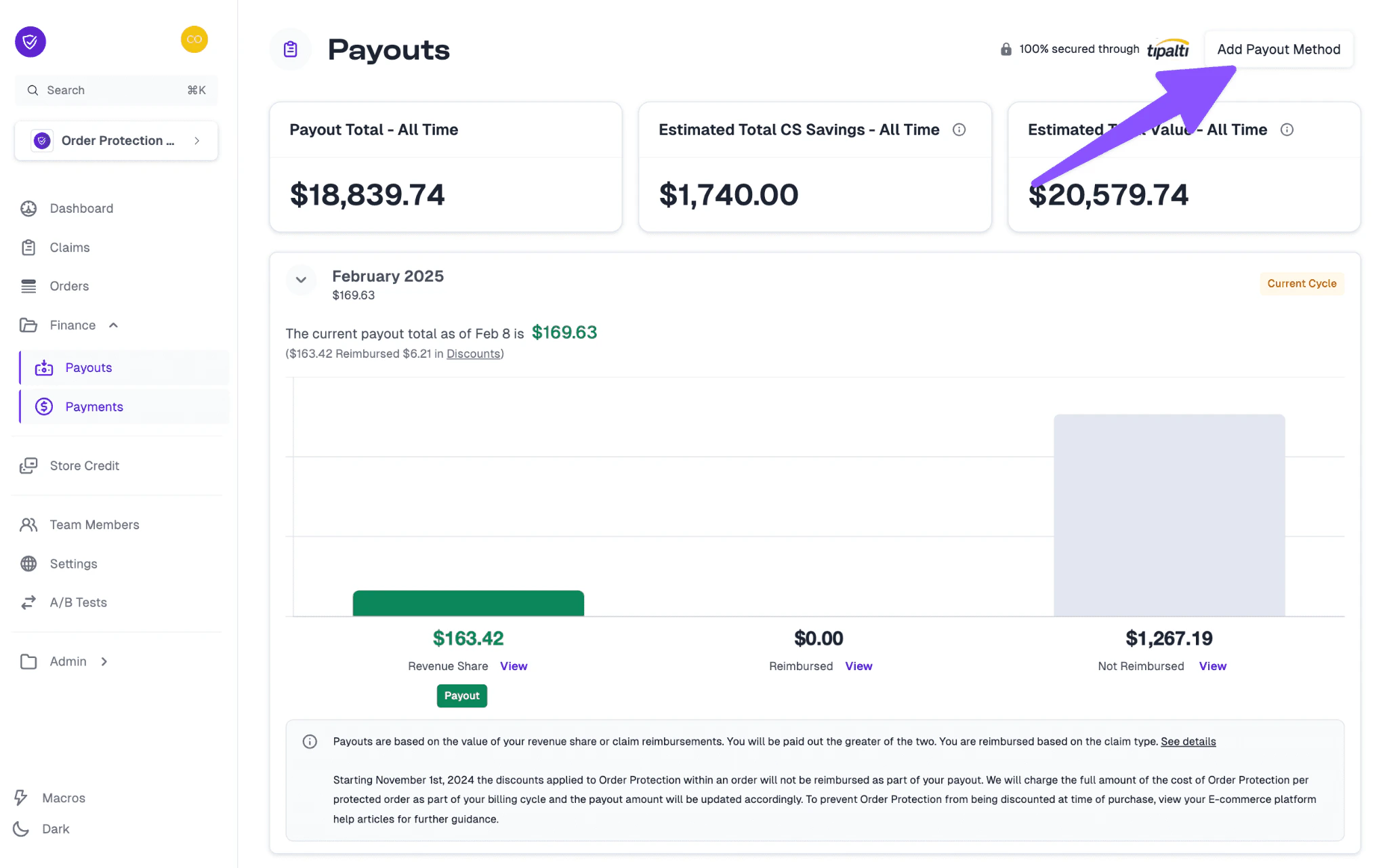
Click the Add Payout Method button (often located in the top-right corner near your total payout information).