Your claim settings control how claims are resolved, how long they sit in each stage of the queue, whether customers can file claims for orders placed outside Shopify, and what sub-type options customers see when filing a claim. Below is a walkthrough of each setting and how it affects the customer and merchant experience.

Account Store Credit
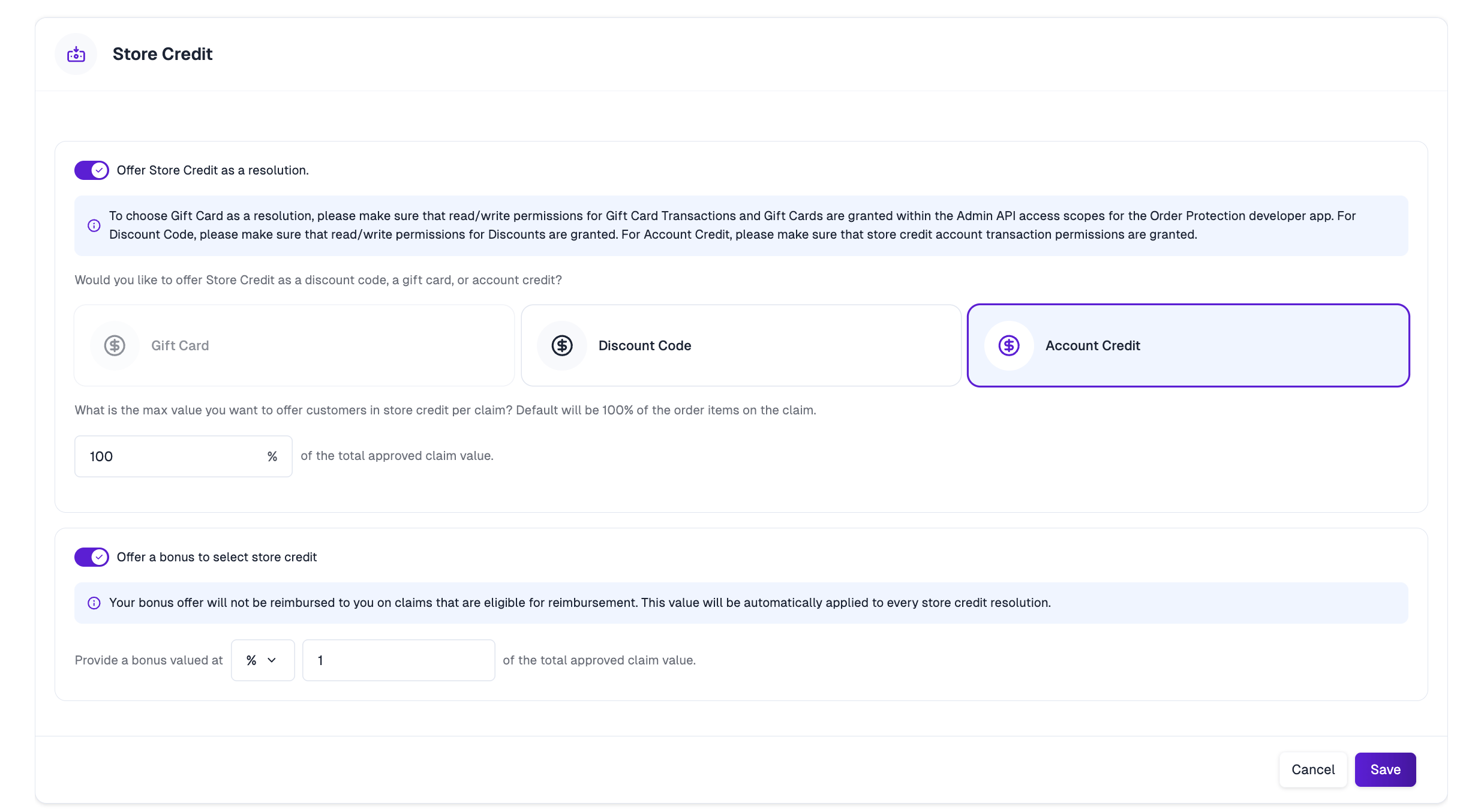
Store Credit settings panel The Store Credit setting controls whether store credit is offered as a claim resolution, and if so, in what form:
  • Gift Card: Issues a Shopify gift card. Requires the Gift Card Transactions and Gift Cards read/write scopes on your Order Protection developer app.
  • Discount Code: Issues a single-use discount code. Requires the Discounts read/write scope.
  • Account Credit: Issues credit directly to the customer’s Shopify account. Requires store credit account transaction permissions.
You can also cap the max value offered per claim (as a percentage of the total approved claim value) and optionally add a bonus on top of every store credit resolution to incentivize customers to choose it over a refund. Bonus amounts are not reimbursed to you on claims eligible for reimbursement.
Watch a demo of Account Store Credit to see it in action.

Claim Queue Settings

The Claim Queue settings control how long a claim can sit in certain statuses before it’s automatically moved: Claim Queue settings panel
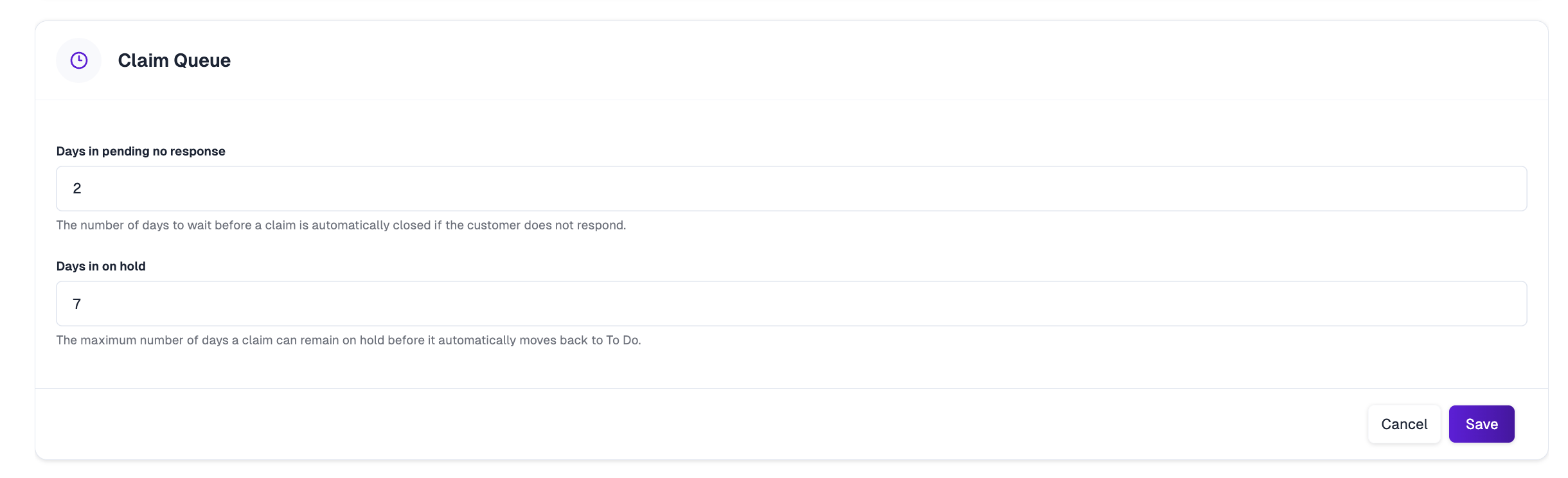
  • Days in pending, no response: The number of days to wait before a claim is automatically closed if the customer doesn’t respond.
  • Days in on hold: The maximum number of days a claim can remain On Hold before it automatically moves back to To Do.
See How the Claim Queue Works for a full breakdown of each claim status.

Alternate Sales Channel Settings

Alternate sales channel settings only apply to manufacturer warranties — claims filed on orders placed outside your Shopify store.
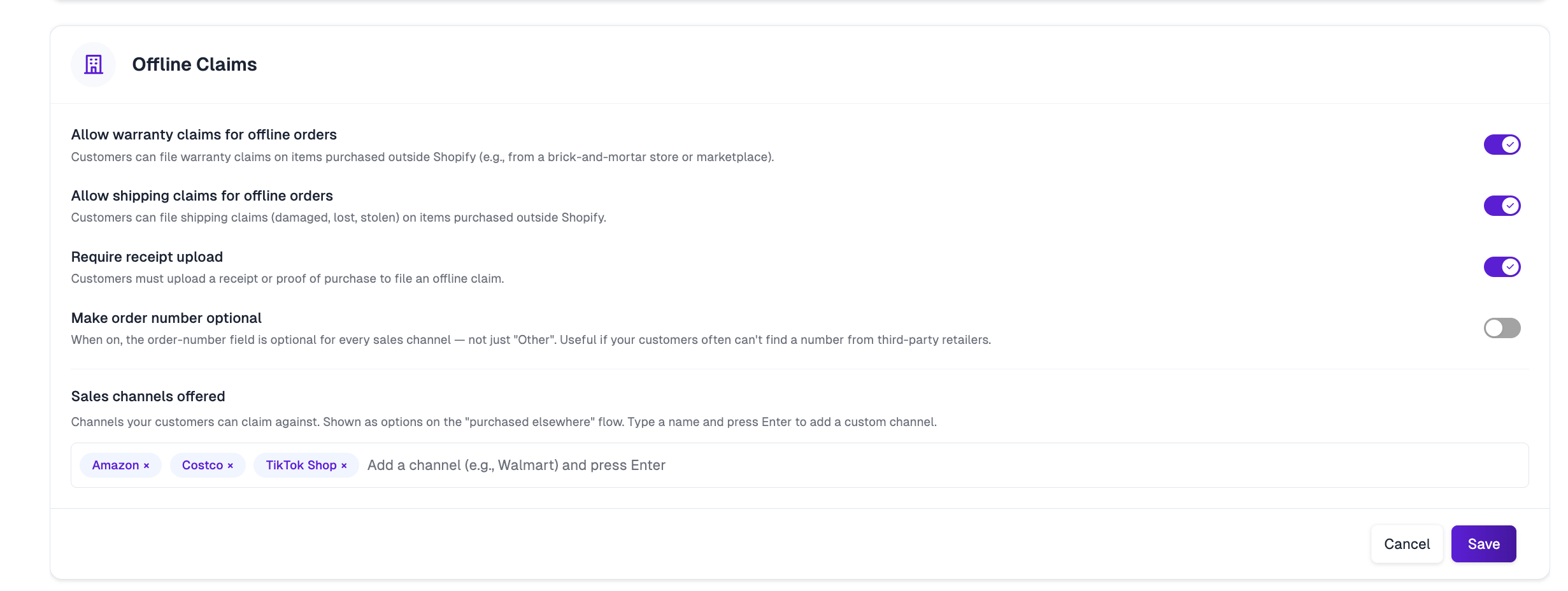
The Offline Claims settings determine whether customers can file a claim for something they bought outside Shopify (e.g., Amazon, Costco, TikTok Shop, or a brick-and-mortar store): Offline Claims settings panel
  • Allow warranty claims for offline orders: Lets customers file warranty claims on items purchased outside Shopify.
  • Allow shipping claims for offline orders: Lets customers file shipping claims (damaged, lost, stolen) on items purchased outside Shopify.
  • Require receipt upload: Requires a receipt or proof of purchase to file an offline claim.
  • Make order number optional: Makes the order-number field optional for every sales channel, not just “Other.” Useful if customers often can’t find an order number from third-party retailers.
  • Sales channels offered: The list of channels customers can select from when filing an offline claim. Type a channel name and press Enter to add a custom one.
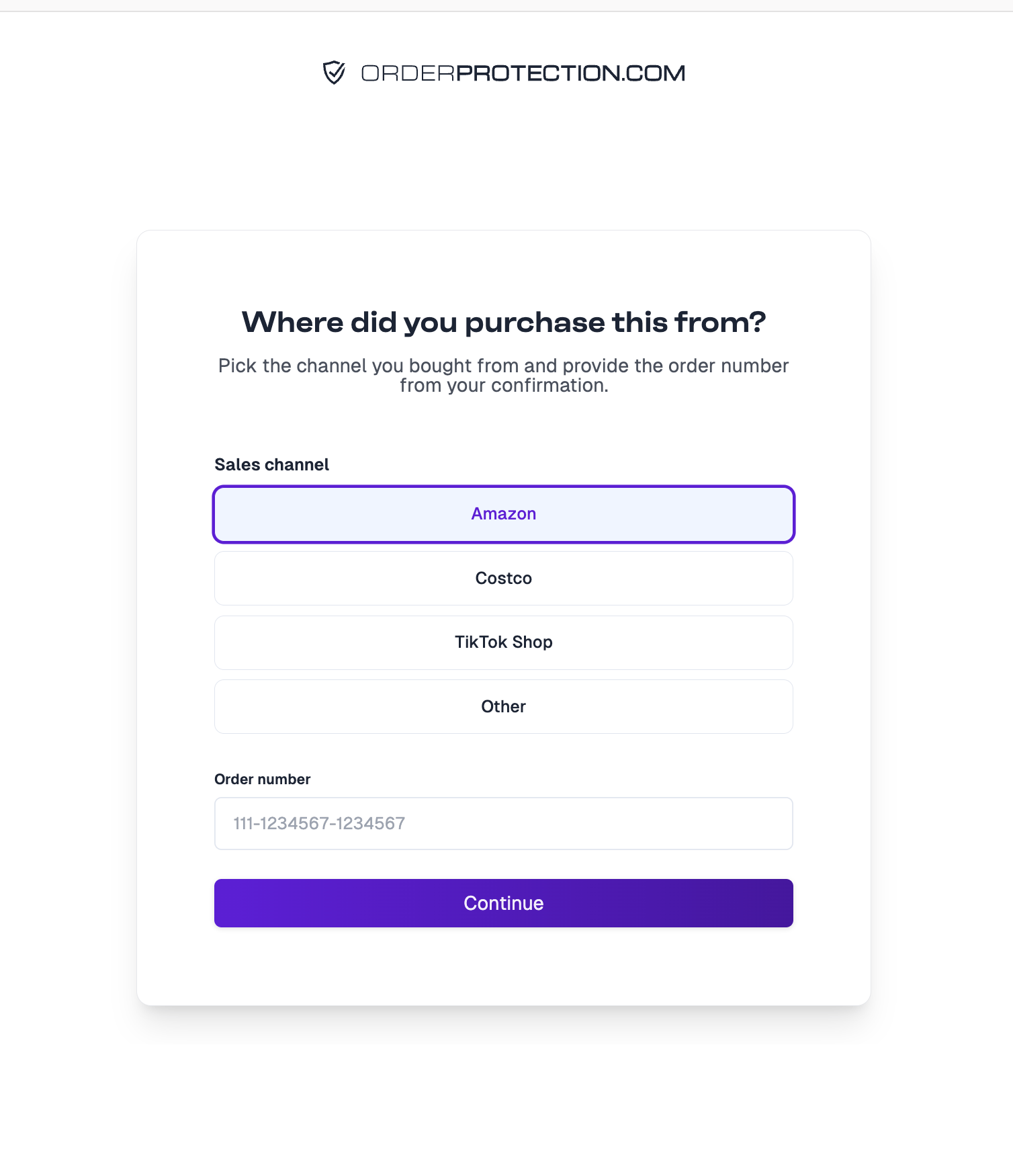
When offline claims are enabled, customers filing a claim are prompted to select their sales channel and provide an order number: Customer view of the sales channel selection screen

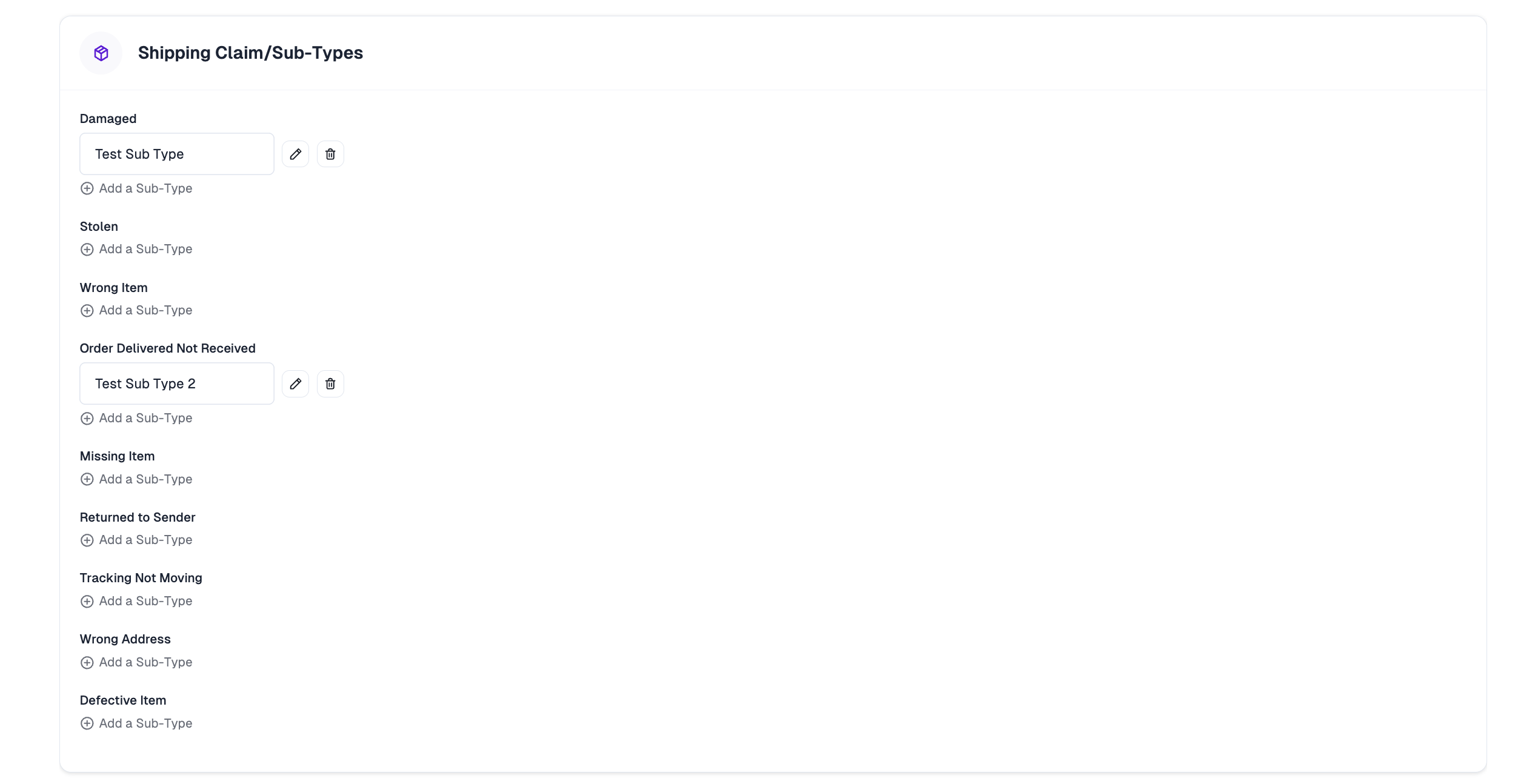
Claim Sub-Type Setup

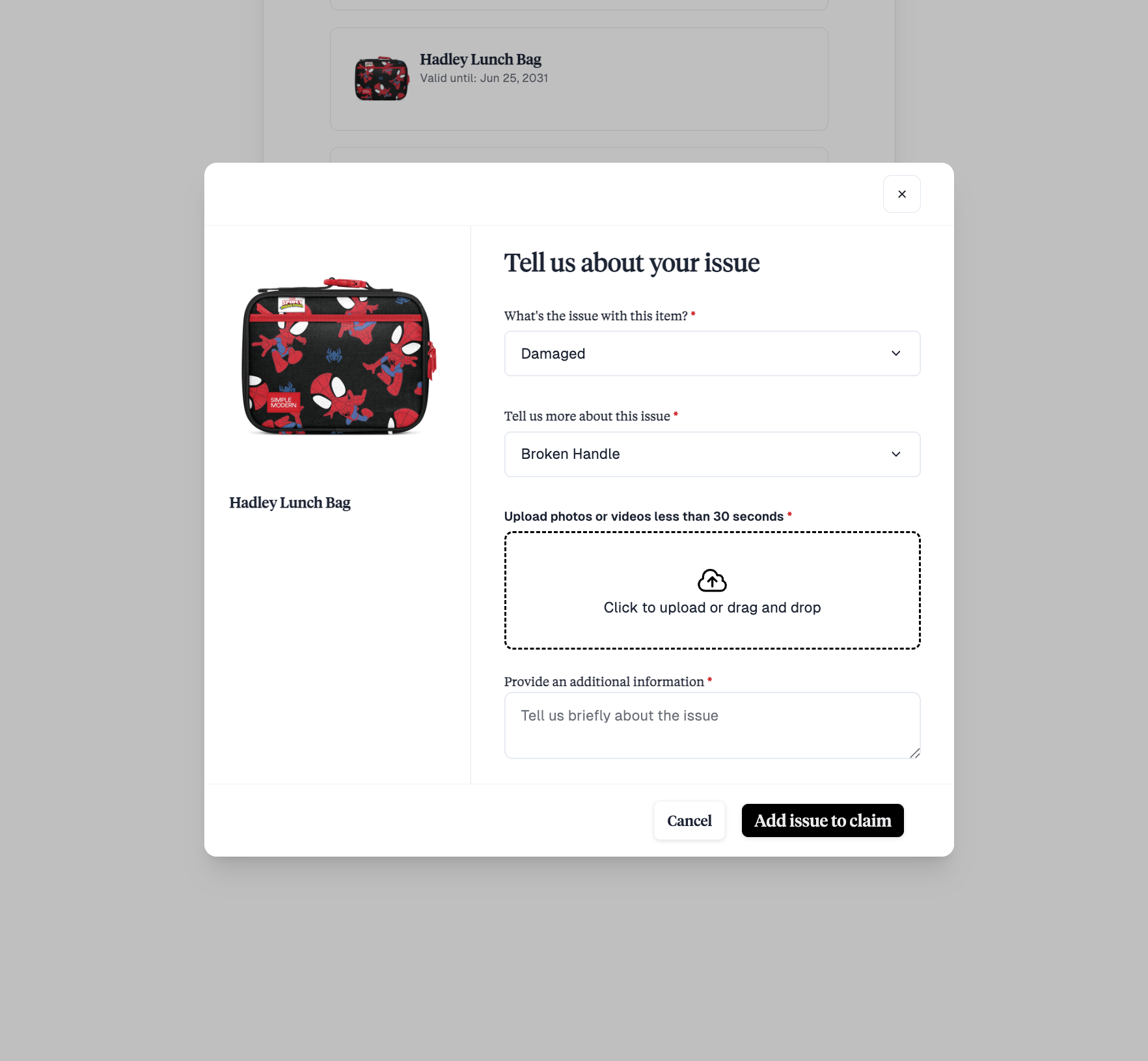
Claim sub-types let you break each top-level claim reason (e.g., Damaged, Stolen, Wrong Item) down into more specific options. Sub-types are configurable for both shipping claims and warranty claims, and are managed separately for each. Claim sub-type settings panel Click Add a Sub-Type under any claim reason to create a new sub-type, or use the edit and delete icons to manage existing ones. Sub-types show up as a second dropdown for the customer once they’ve selected the top-level reason for their issue: Customer view of a claim reason with a sub-type dropdown