

How to Invite a New Team Member
1
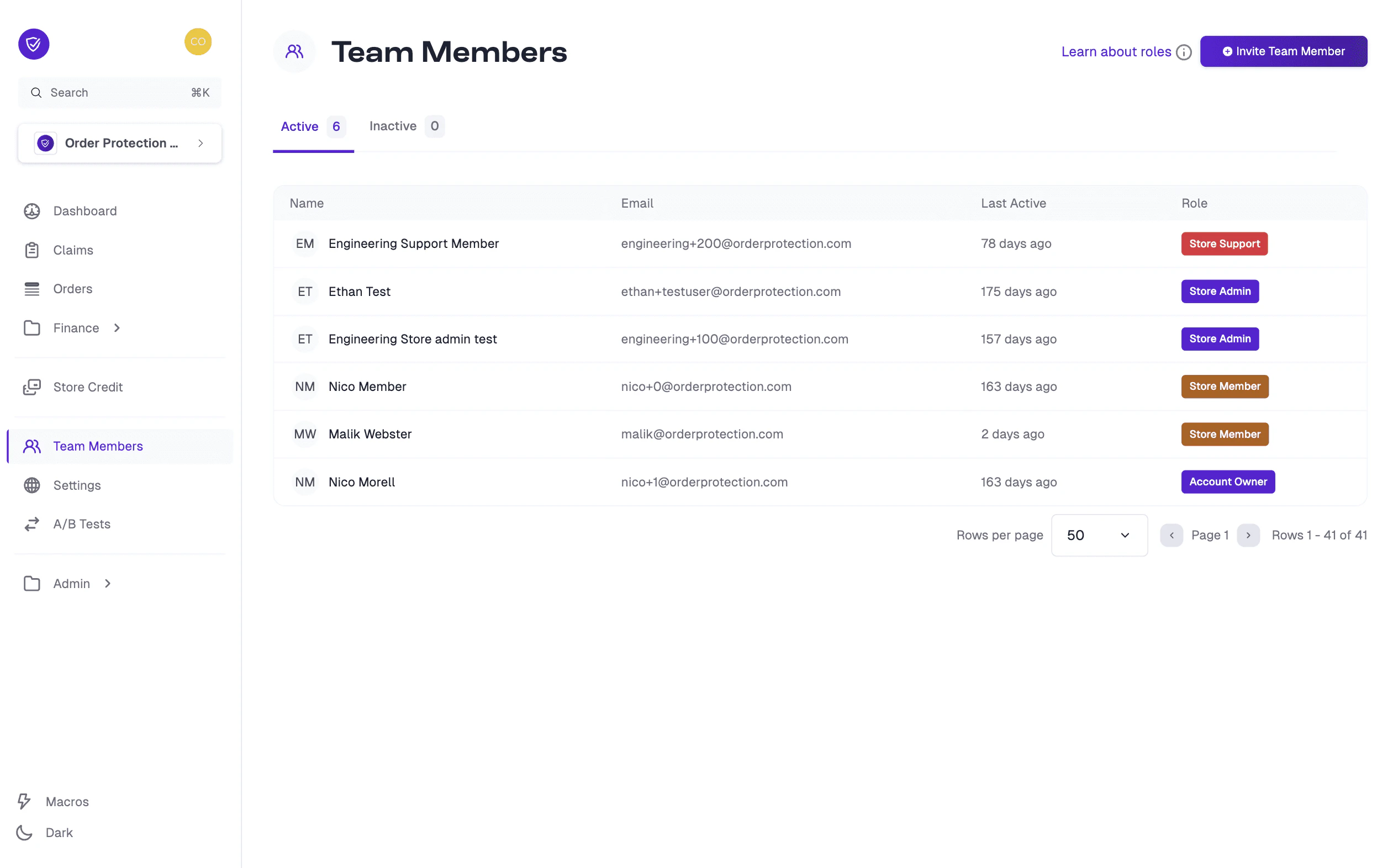
Navigate to Team Members
Go to Team Members in the left-hand menu.
2
Click Invite
Click the Invite Team Member button (usually at the top-right corner).
3
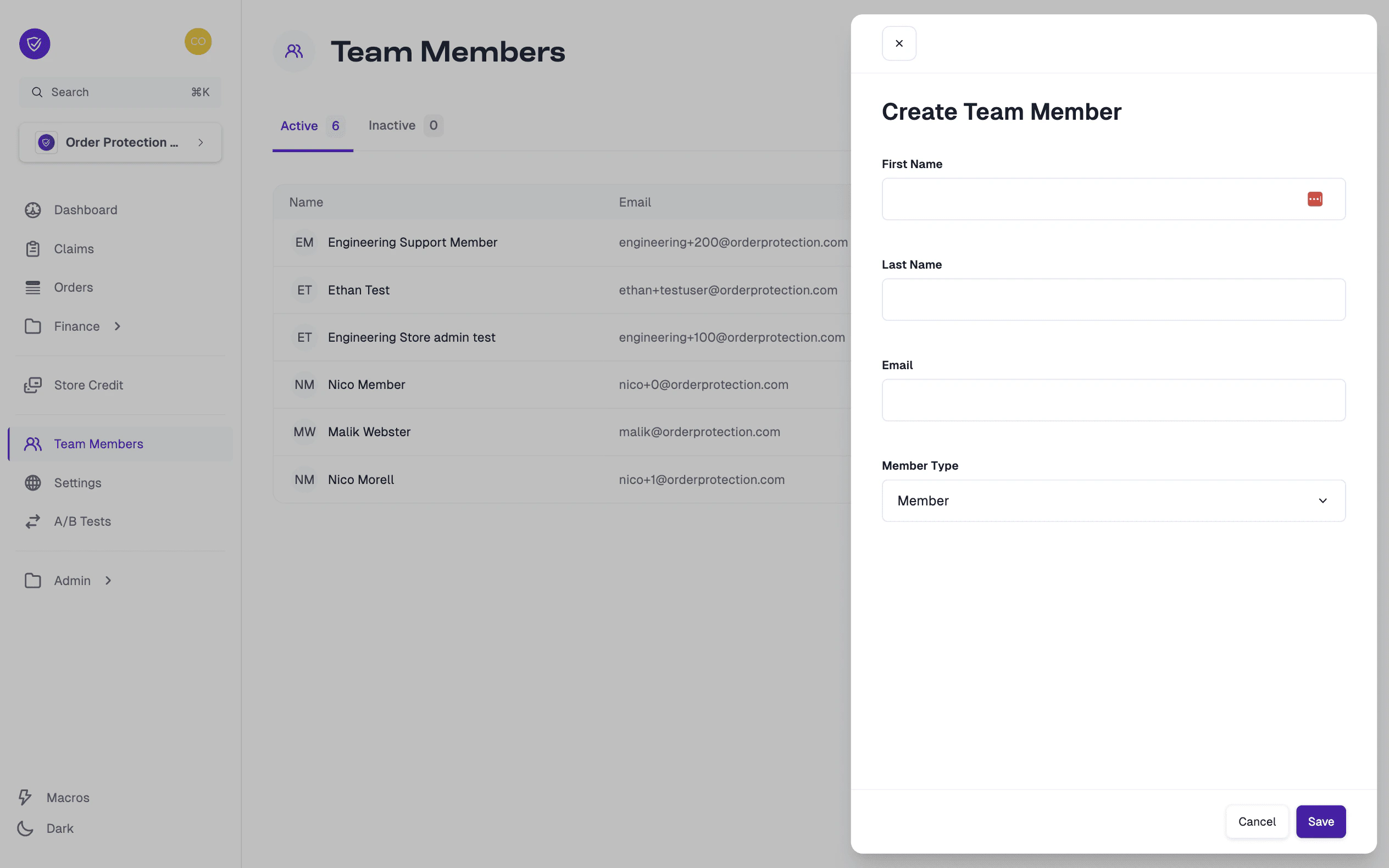
Enter details
Enter the first name, last name, and email address of the new user.
4
Select the role
Select the Member Type (e.g., Admin, Member, Support).
5
Save
Click Save. The new team member will receive an email invitation with instructions to set up their account.
Learn About Roles
When inviting or editing a team member, you’ll notice multiple Store Role options. Each role has different levels of access within your OrderProtection.com account: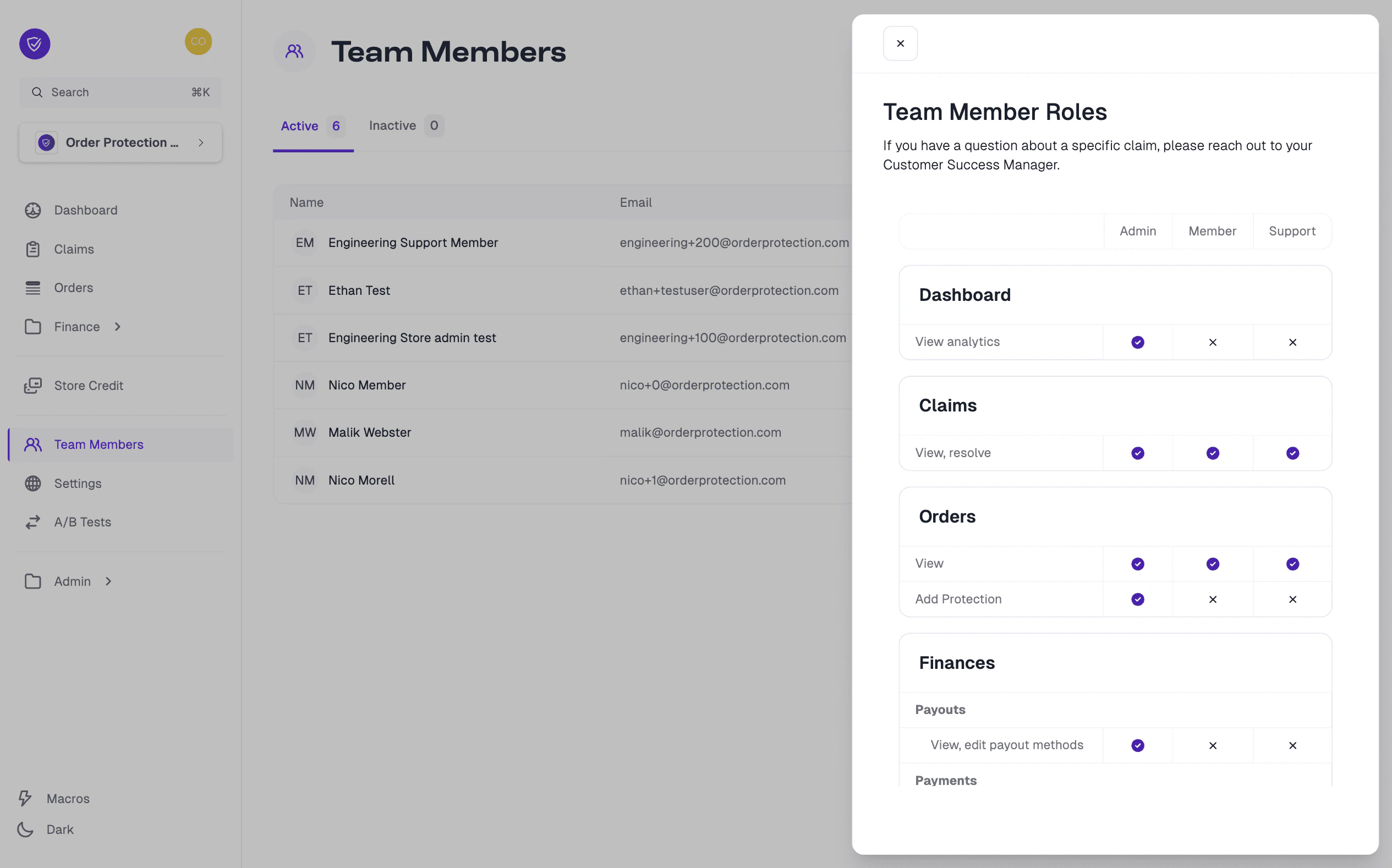
Viewing and Editing Team Member Profiles
1
Find the user
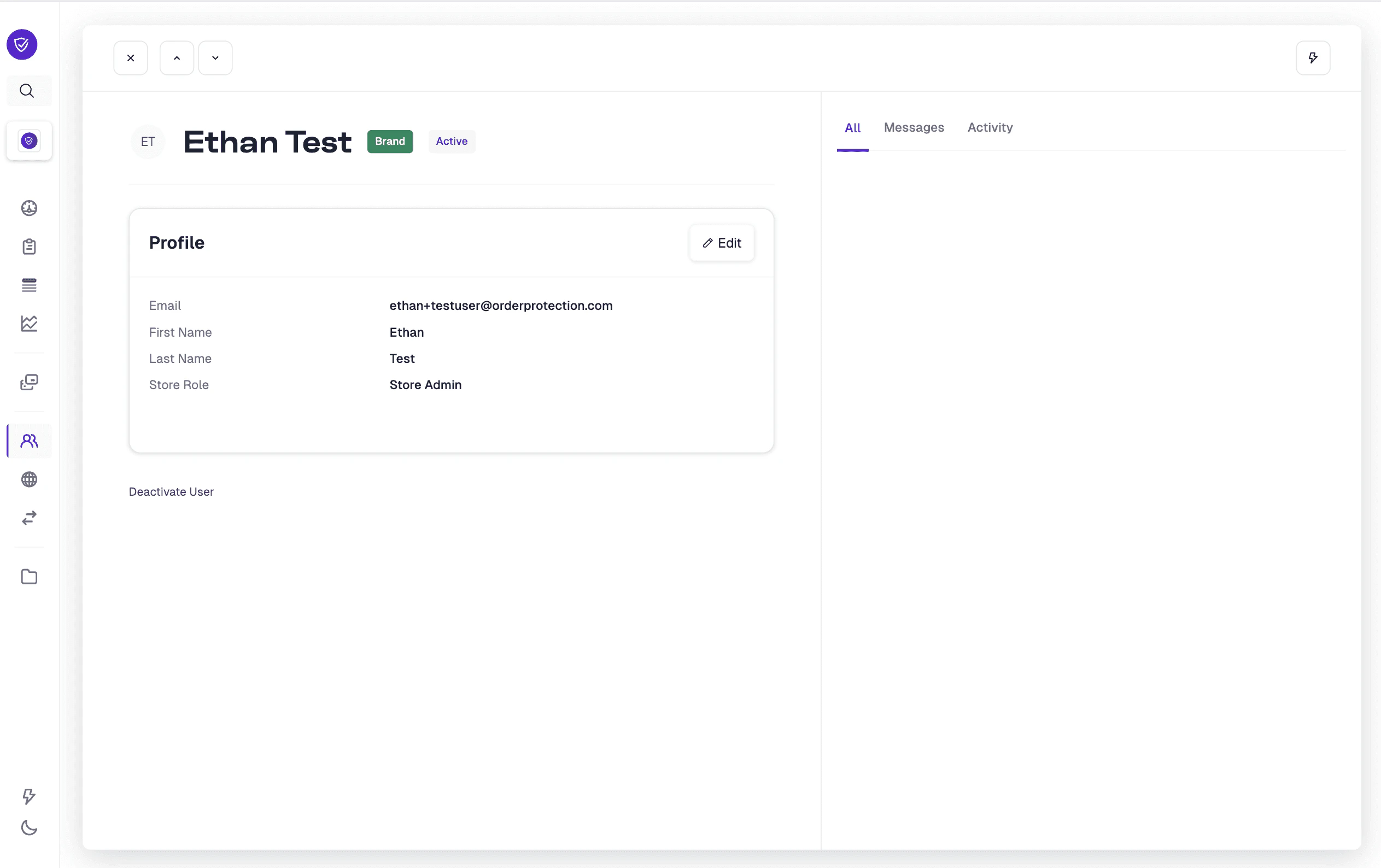
In the Team Members page, find the user you wish to manage.
2
Open their profile
Click on their row/name to open their profile.
3
Make changes
From here, you can:
- Edit basic information (first name, last name, email).
- Update their Store Role.
- Review their recent activity (if available).
Granting Developer App Access
If your account builds developer apps, the account owner can let specific team members help manage them — without giving anyone the ability to create or delete apps.1
Open the team member's profile
In Team Members, click the member you want to grant access to.
2
Find Developer app access
On their profile, scroll to the Developer app access section. (It only appears when you are signed in as the account owner.)
3
Choose the apps
Check the apps this member should be able to manage, then click Save app access.
Deactivating a Team Member
1
Open the member's profile
In the Team Members list, click on the member’s name to access their profile.
2
Deactivate
Look for a Deactivate User or similar button (usually at the bottom of the profile panel). Confirm your action if prompted.