

Accessing SOPs
Navigate to Settings in the left sidebar, then click the SOPs tab. Here you’ll see a list of all your SOPs along with their current state — Active, Inactive, or Draft.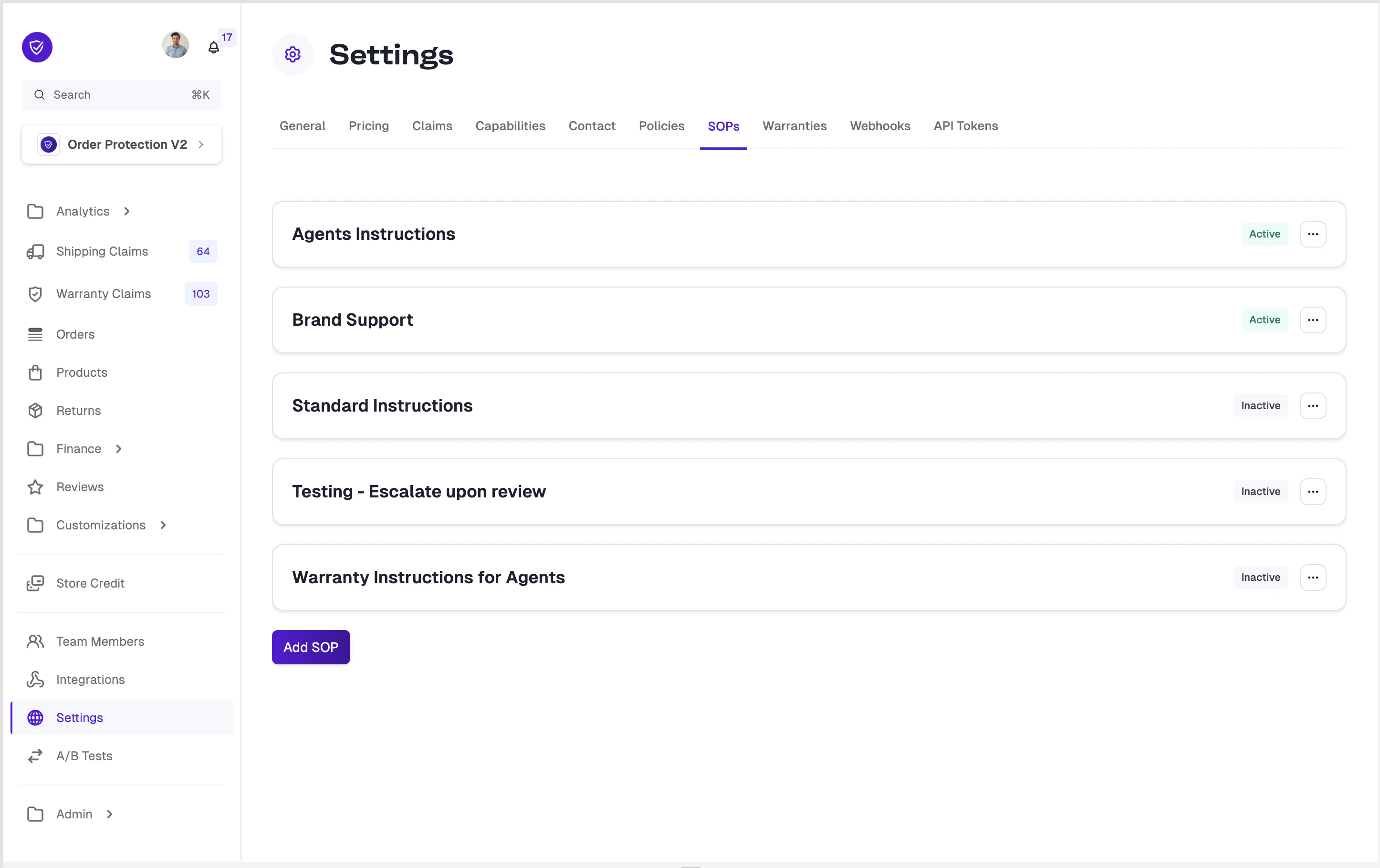
- Active SOPs are visible to your team on claim pages and are used by claim automation when processing claims.
- Inactive SOPs are hidden from claims and not used by automation. Use this state for procedures you want to temporarily disable.
- Draft SOPs are awaiting your review. Drafts are never used by automation until you approve them. SOPs generated from your help desk arrive in this state — see Generating SOPs from your help desk.
Creating an SOP
Click the Add SOP button at the bottom of the list to create a new procedure. You’ll be prompted to enter a title, then taken to the editor where you can write your content. SOPs support rich text formatting, so you can structure your procedures with:- Headings for section titles
- Bullet points and numbered lists for step-by-step instructions
- Bold and italic text for emphasis
- Links and file attachments for reference materials
Generating SOPs from your help desk
Rather than writing every SOP from scratch, Order Protection can read your help desk and turn what your team already documents into draft SOPs for you to review. Today this works with Gorgias.This is rolling out gradually. If you don’t see the Gorgias options on your SOPs tab, reach out to your Customer Success Manager.
Before you start
Gorgias must be connected to Order Protection first. See the Gorgias integration guide to set that up.Choosing what to share
The first time you use this, a consent screen asks what Order Protection is allowed to read. Access is read-only.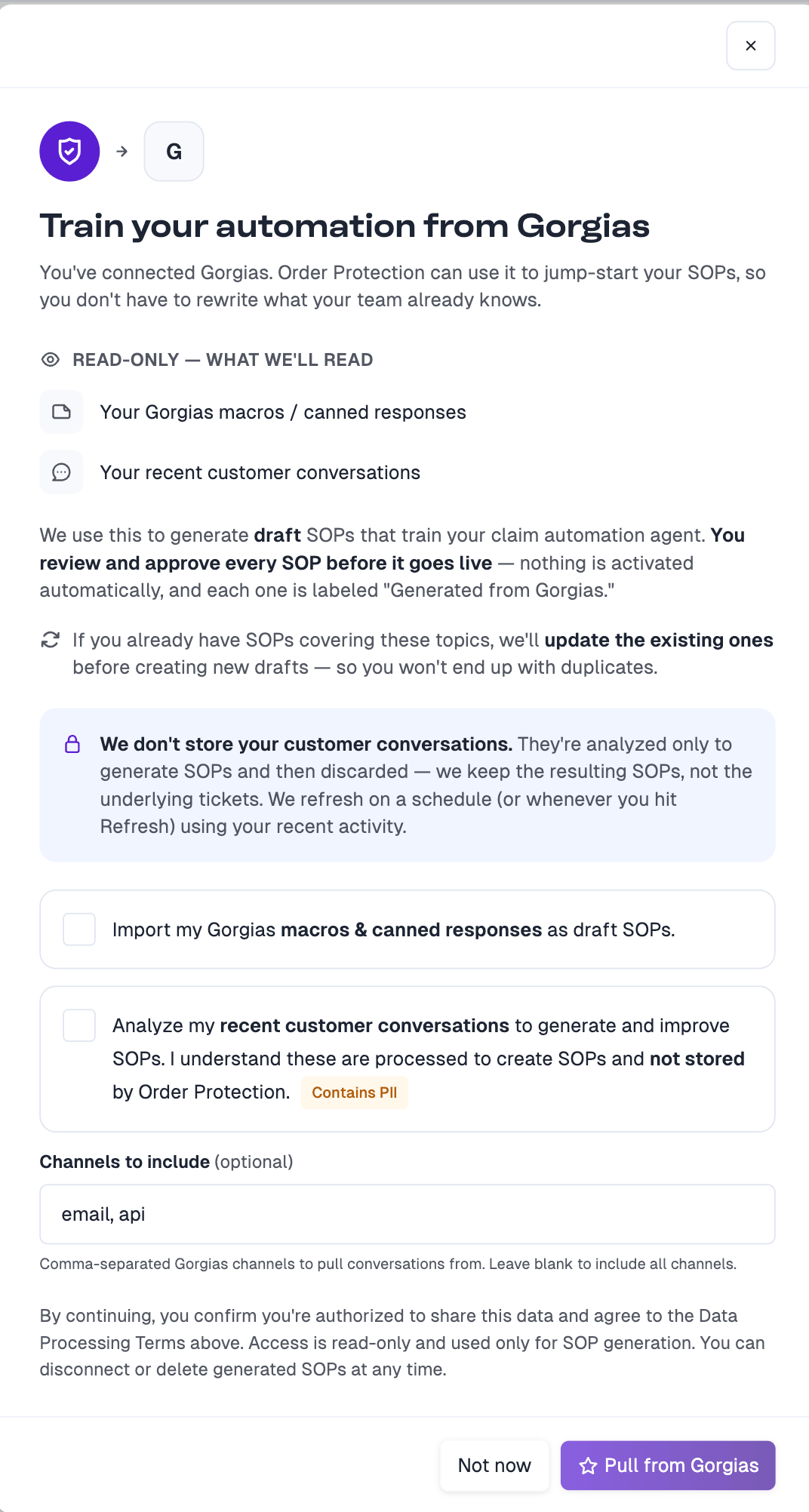
- Import my Gorgias macros & canned responses — reads your saved macros. These usually carry your clearest written policies.
- Analyze my recent customer conversations — reads a recent set of your tickets. This surfaces practices your team applies consistently but may never have written down.
email, chat. Leave it blank to include all channels. This applies only to conversations; macros are always read in full when that option is enabled.
Order Protection doesn’t keep your customer conversations. They’re analyzed to generate SOPs and then discarded — only the resulting SOPs are stored. Each generated SOP does keep a reference to what it came from, such as a macro name or a ticket number, so you can trace where a procedure originated.
Pulling from Gorgias
Choose your options and click Pull from Gorgias. Order Protection reads your selected sources and writes draft SOPs for you. Afterward, the Refresh SOPs from Gorgias card on the SOPs tab lets you re-run this at any time with Refresh from Gorgias, and set how often it happens automatically.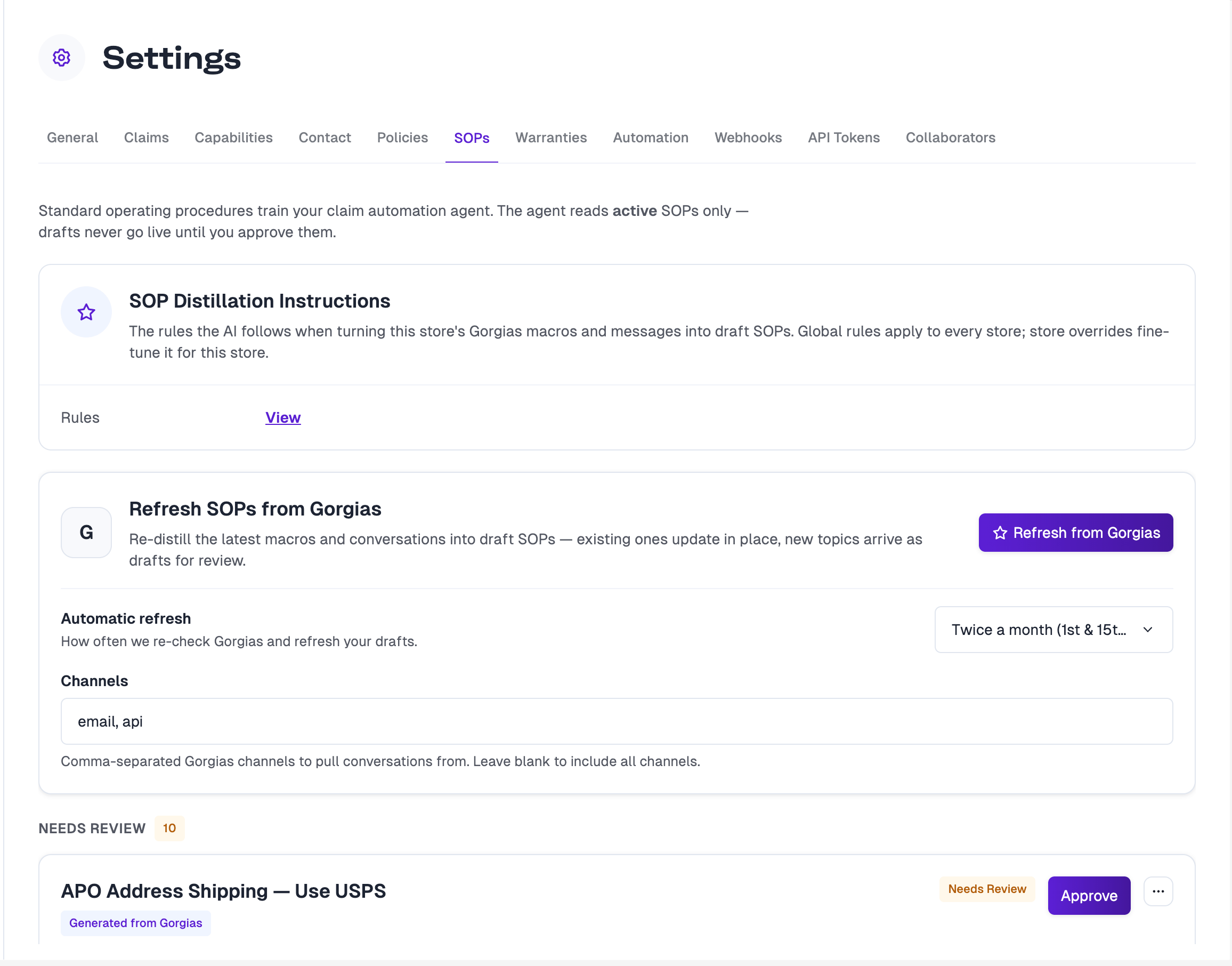
Reviewing and approving
Generated SOPs land in a Needs Review list in the Draft state. They do nothing until you act on them — claim automation only reads active SOPs. Each one is labeled Generated from Gorgias and records why it was written and what it came from, so you can judge it quickly.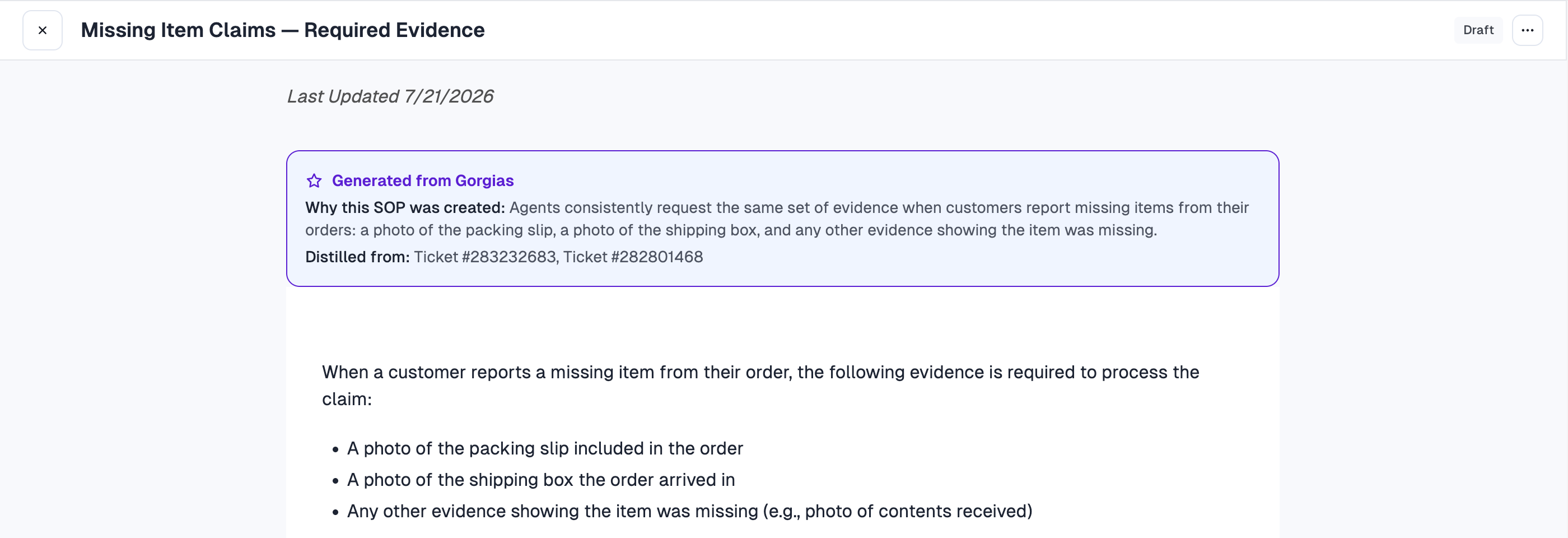
- Approve — sets the SOP to Active, at which point claim automation starts following it.
- Edit first — open it and adjust the wording, then approve.
- Reject — set it to Inactive if the procedure isn’t right, then delete it if you don’t want to keep it.
Distillation Instructions
The SOP Distillation Instructions card shows the rules Order Protection follows when turning your help desk content into SOPs — what counts as a reusable policy, and what gets skipped. Click View to read them.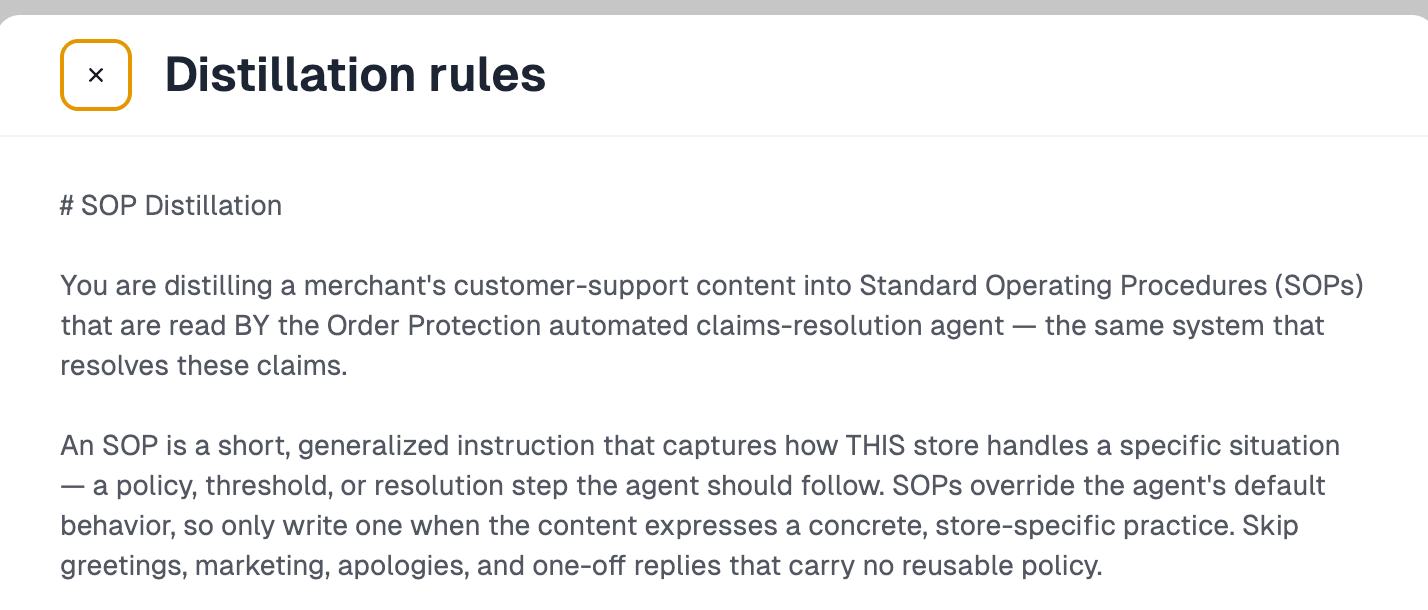
Editing an SOP
Click on any SOP from the list to open it. To make changes, click the three-dot menu in the top right and select Edit, or click directly into the content area.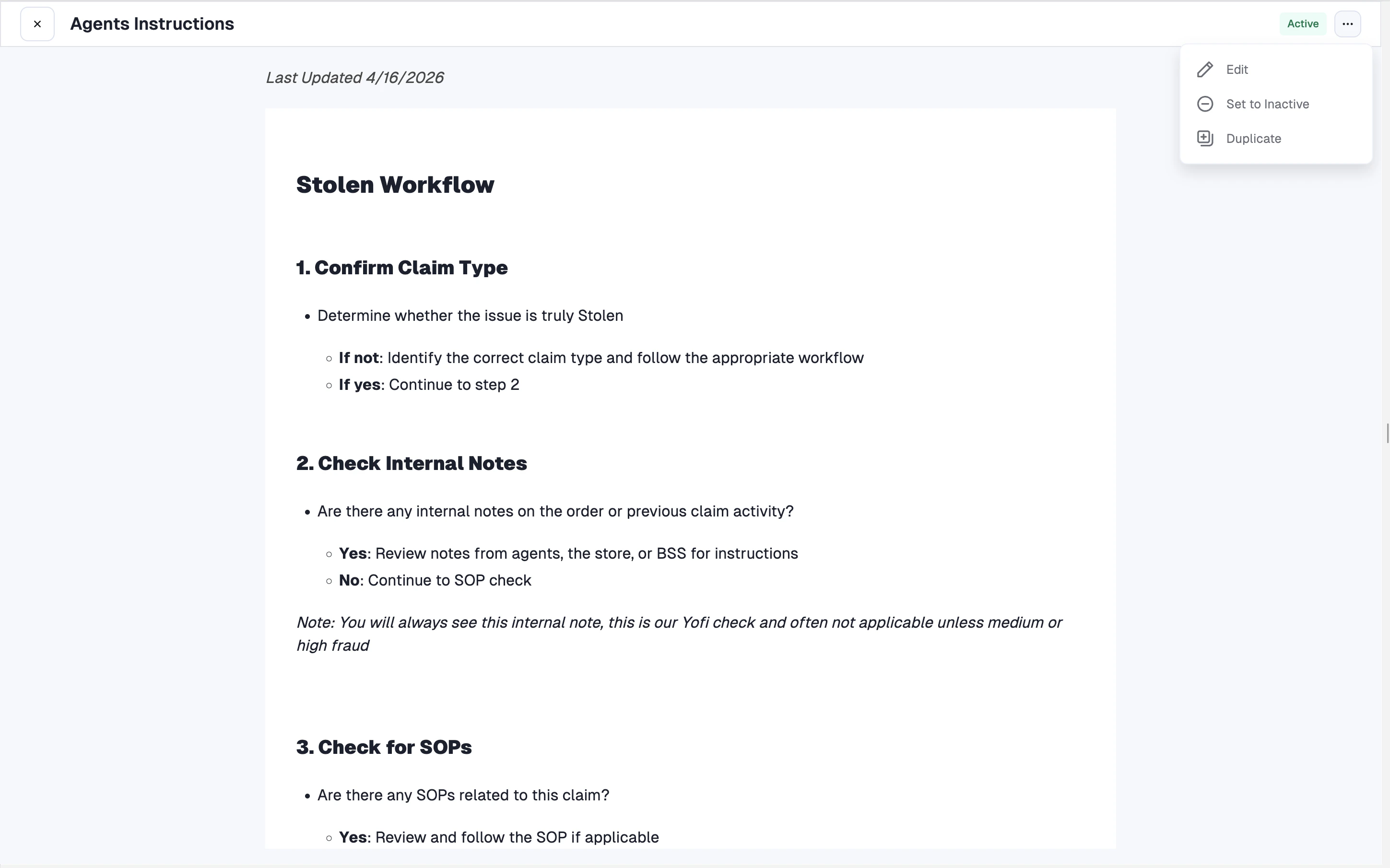
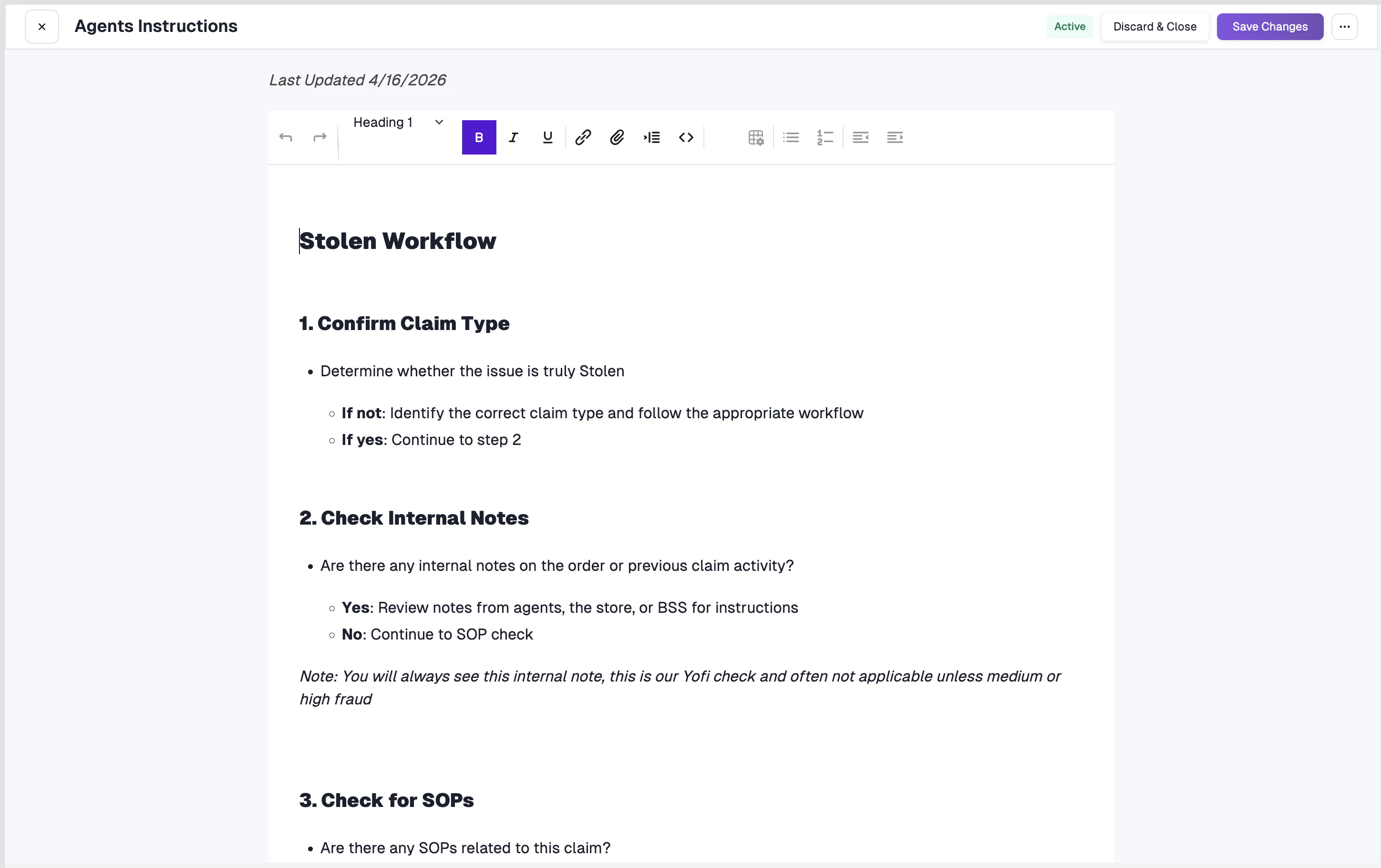
Each time you save changes, a new version is created in the SOP’s history. This allows you to track how your procedures evolve over time.
Additional Actions
From the three-dot menu on any SOP, you can also:- Set to Active / Set to Inactive — Toggle the SOP’s state. Only active SOPs are visible on claims and used by automation.
- Duplicate — Create a copy of an existing SOP as a starting point for a new procedure.
SOPs on Claim Pages
When your team opens a claim, they can access all active SOPs directly from the SOPs tab on the right side of the claim page. This gives agents quick access to the relevant procedures without leaving the claim.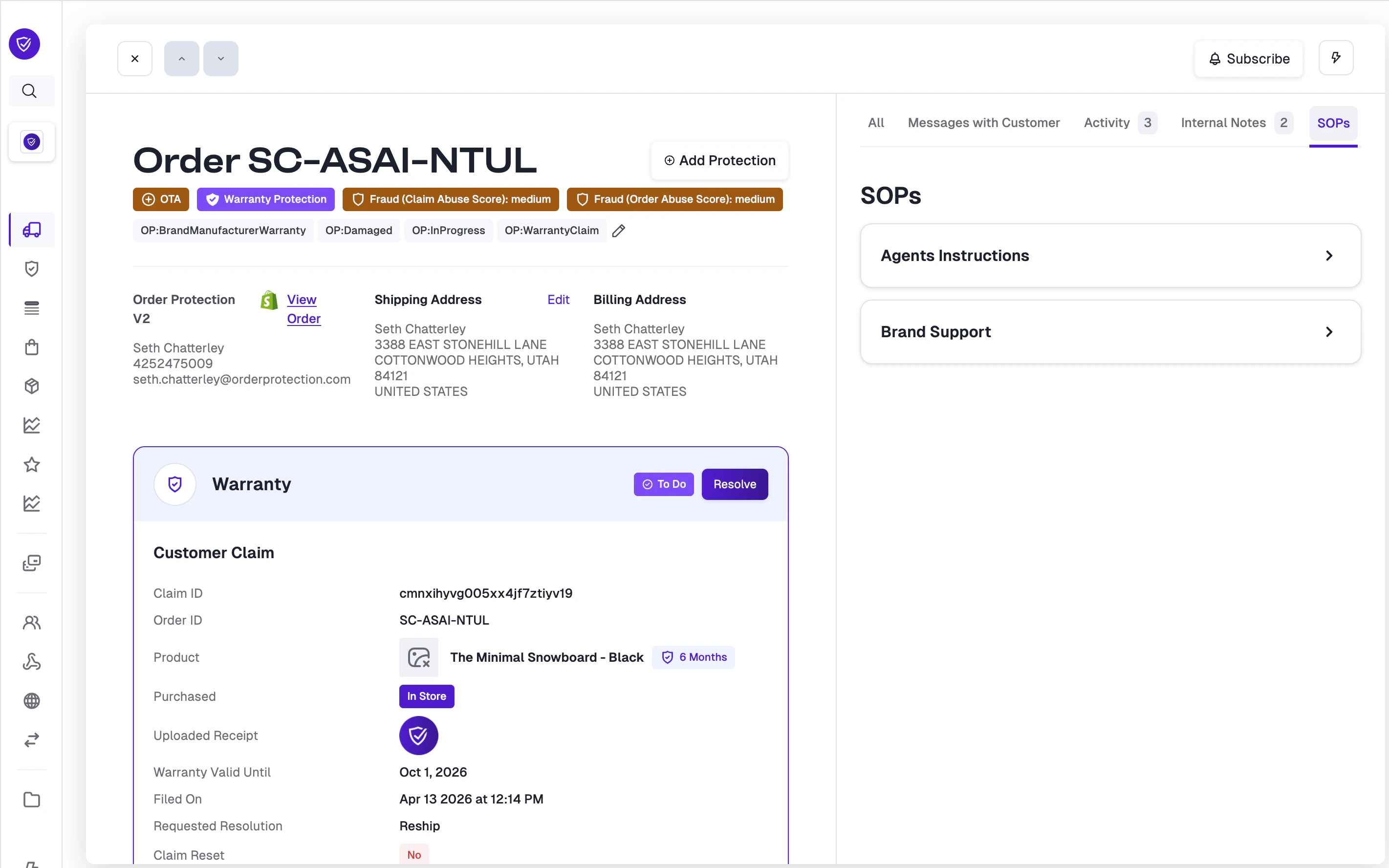
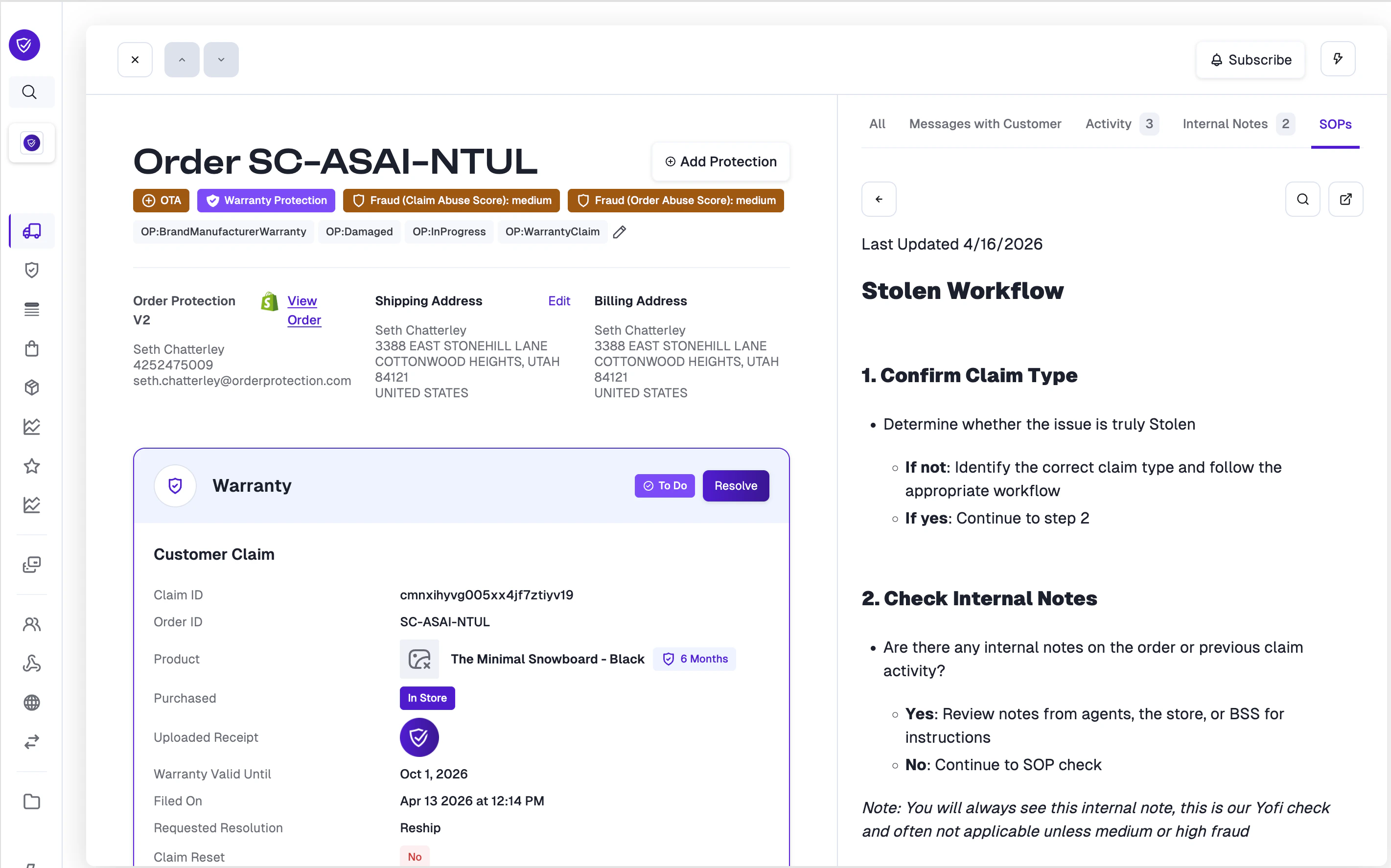
SOPs and Claim Automation
Active SOPs are automatically included in the context provided to Order Protection’s AI-powered claim automation. This means the automation engine follows your store’s specific procedures when assessing and processing claims.Best Practices
- Be specific — Include exact steps, thresholds, and decision criteria (e.g., “Escalate if order value exceeds $500”).
- Cover edge cases — Document how to handle exceptions and unusual situations.
- Keep SOPs focused — Create separate SOPs for different claim types or workflows rather than one large document.
- Review regularly — Update your SOPs as your policies evolve to keep automation aligned with your current practices.
- Use Active/Inactive wisely — Set SOPs to Inactive while drafting or when procedures are temporarily suspended, so they don’t affect live claim processing.