

Opening the Gallery
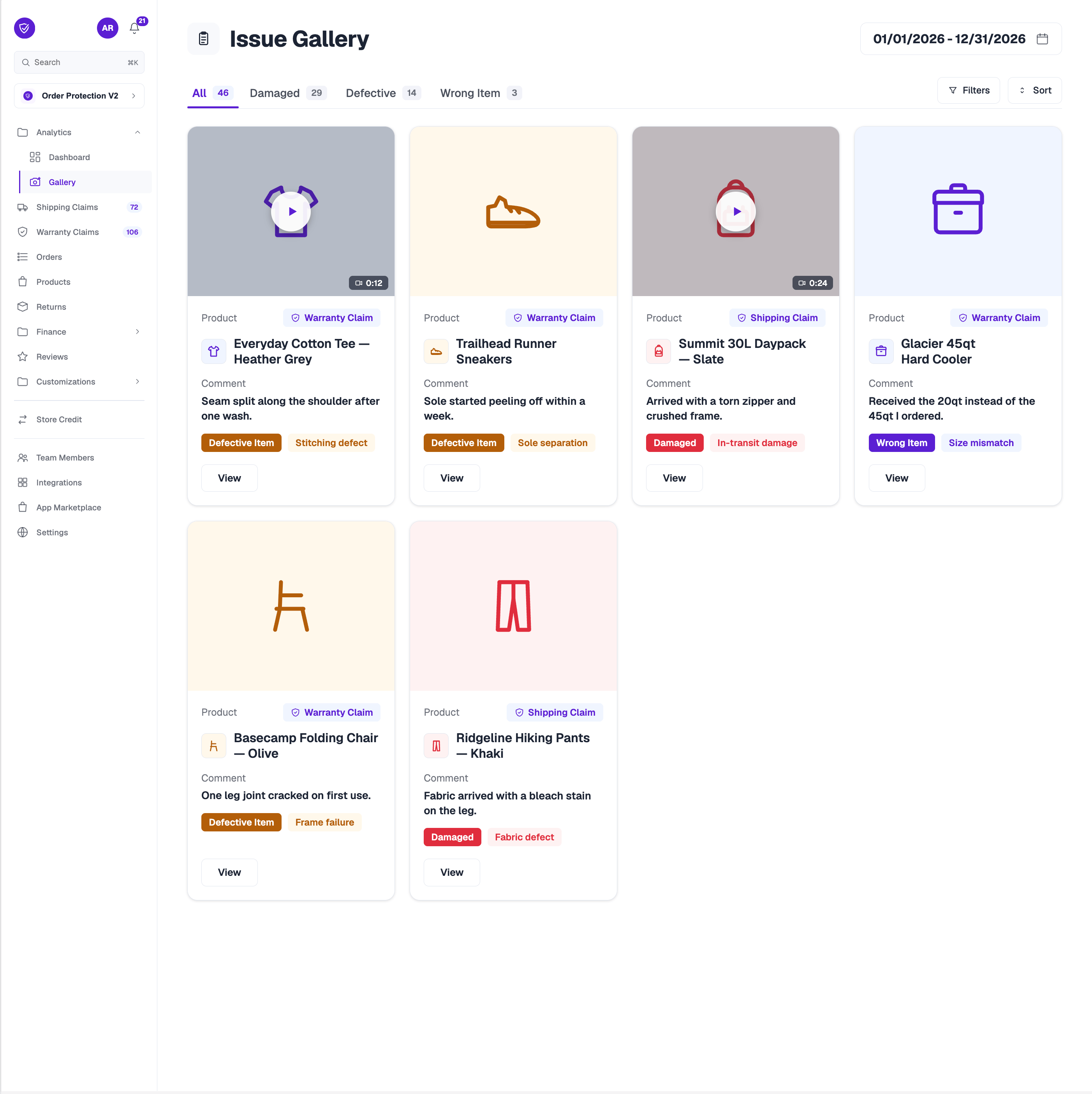
In the left-hand navigation, open the Analytics section and select Gallery. The Gallery opens on the All view, showing every claim with media in your selected date range. The Gallery updates in real time — as new claims come in or existing claims change status, they appear in the grid automatically without a refresh.Filtering by issue type
Across the top of the Gallery are sub-tabs that filter the grid by claim type. Each tab shows a live count of how many claims fall into it:Narrowing the results
1
Set a date range
Use the date range picker in the top-right to limit the Gallery to claims updated within a specific window.
2
Apply filters
Use the filter control to narrow the grid further by the available claim fields.
3
Sort the results
Sort the grid by Updated At or Created At. The Gallery defaults to most recently updated first.
What each card shows
Every claim in the grid appears as a card with its submitted media front and center:- Photo or video at the top of the card. Videos show a play icon, and a badge in the corner indicates when a claim has more than one media item. Cards with no media show a placeholder icon.
- Store name, shown only when you have more than one store selected.
- Product — a thumbnail and the name of the item the claim was filed against, alongside a badge marking it as a Warranty Claim or Shipping Claim.
- Comment — the description the customer submitted with the claim.
- Claim type badge — a color-coded label such as Damaged, Defective Item, or Wrong Item (plus a sub-type where one applies).
- A View button that opens the full claim.
Empty state
When there are no claims matching the current tab, date range, and filters, the Gallery shows “No claims here yet.” with a note that any matching claims will appear there as they come in. Try widening your date range or switching tabs if you expected to see results.Paging through results
The Gallery loads a set number of claims per page (50 by default). Use the pagination controls at the bottom of the grid to move between pages and adjust how many claims show per page.Related
Dashboard
Your store’s live analytics — protection adoption, claims activity, and trends.
How the Claim Queue Works
Understand claim statuses and how claims progress through resolution.