> ## Documentation Index
> Fetch the complete documentation index at: https://docs.orderprotection.com/llms.txt
> Use this file to discover all available pages before exploring further.

# Installing on Hydrogen

> Step-by-step guide to install Order Protection on your Hydrogen storefront.

This guide covers how to install Order Protection on your Hydrogen storefront, including adding the necessary components, configuring the integration, and testing the implementation. The directions below will be comprehensive for Hydrogen-based Shopify storefronts.

## Prerequisites

<Steps>
  <Step title="Verify Hydrogen Setup">
    Ensure your Hydrogen storefront is properly configured and running. You should have:

    <ul>
      <li>Hydrogen CLI installed and configured</li>
      <li>Shopify store connected to your Hydrogen app</li>
      <li>Development environment running locally</li>
      <li>Access to your Shopify admin panel</li>
    </ul>
  </Step>
</Steps>

## Installation

<Steps>
  <Step title="Configuring your widget type in the app">
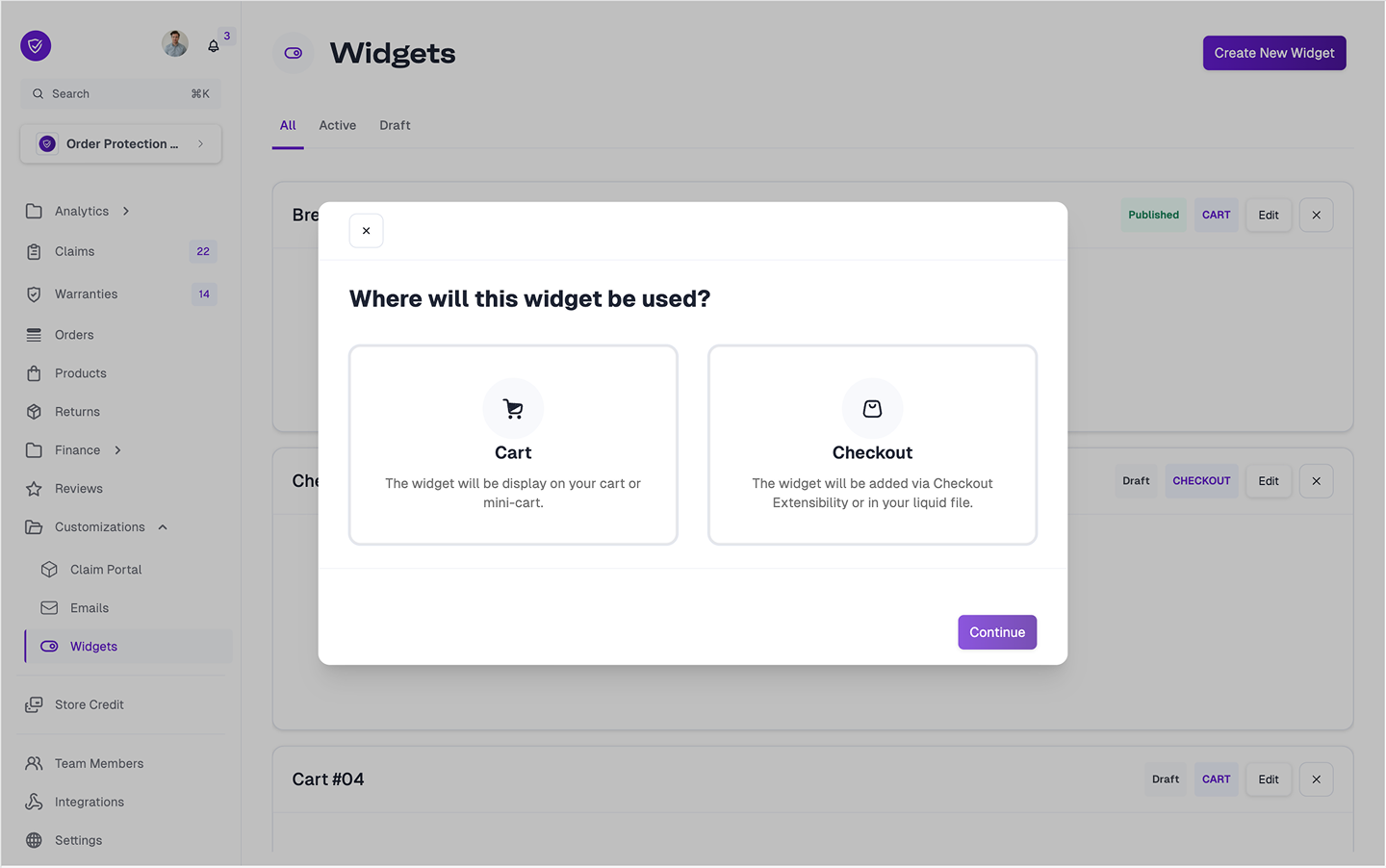
    Log into [app.orderprotection.com](app.orderprotection.com) and within the left navigation, go to `Customizations > Widget`. Once on that page, select `Create New Widget` in the top right-hand corner.
    <img src="https://mintcdn.com/orderprotectioncom/ol3wlLZjjCPTvntp/public/assets/img/shopify/hydrogen-select-widget-type.png?fit=max&auto=format&n=ol3wlLZjjCPTvntp&q=85&s=b74e877409eab4507c46dbfc3c655613" alt="" width="1440" height="902" data-path="public/assets/img/shopify/hydrogen-select-widget-type.png" />

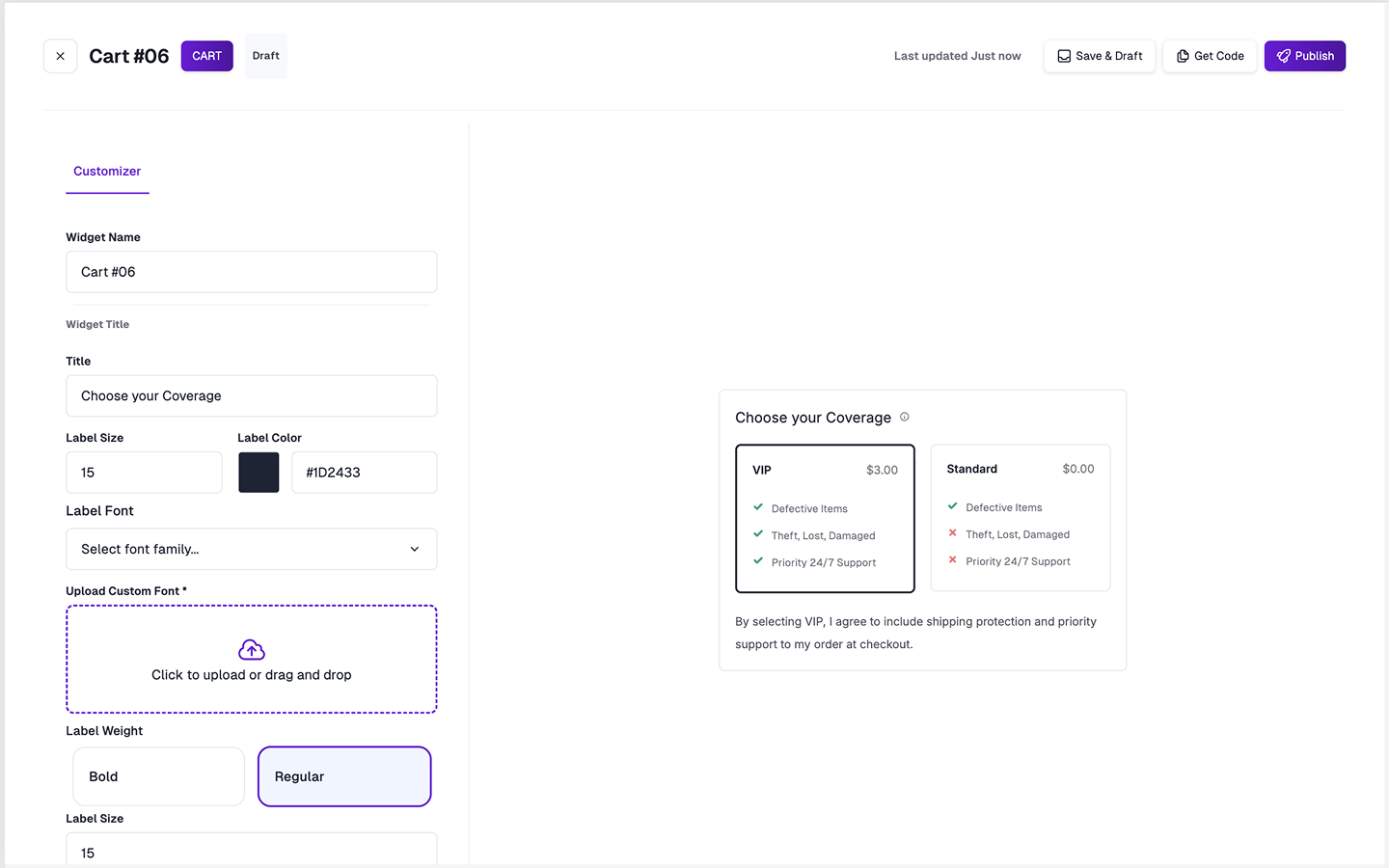
    Select `Cart` and then select what style of widget you would like. The options are `Toggle or Checkbox`, `Comparison`, and `Checkout+`. Once selected, the customization menu comes up for configuration.
    <img src="https://mintcdn.com/orderprotectioncom/ol3wlLZjjCPTvntp/public/assets/img/shopify/hydrogen-widget-style-selected.png?fit=max&auto=format&n=ol3wlLZjjCPTvntp&q=85&s=e72a995ae3933a4cfc89794a1167f198" alt="" width="1440" height="900" data-path="public/assets/img/shopify/hydrogen-widget-style-selected.png" />
  </Step>

  <Step title="Copying the code scripts">
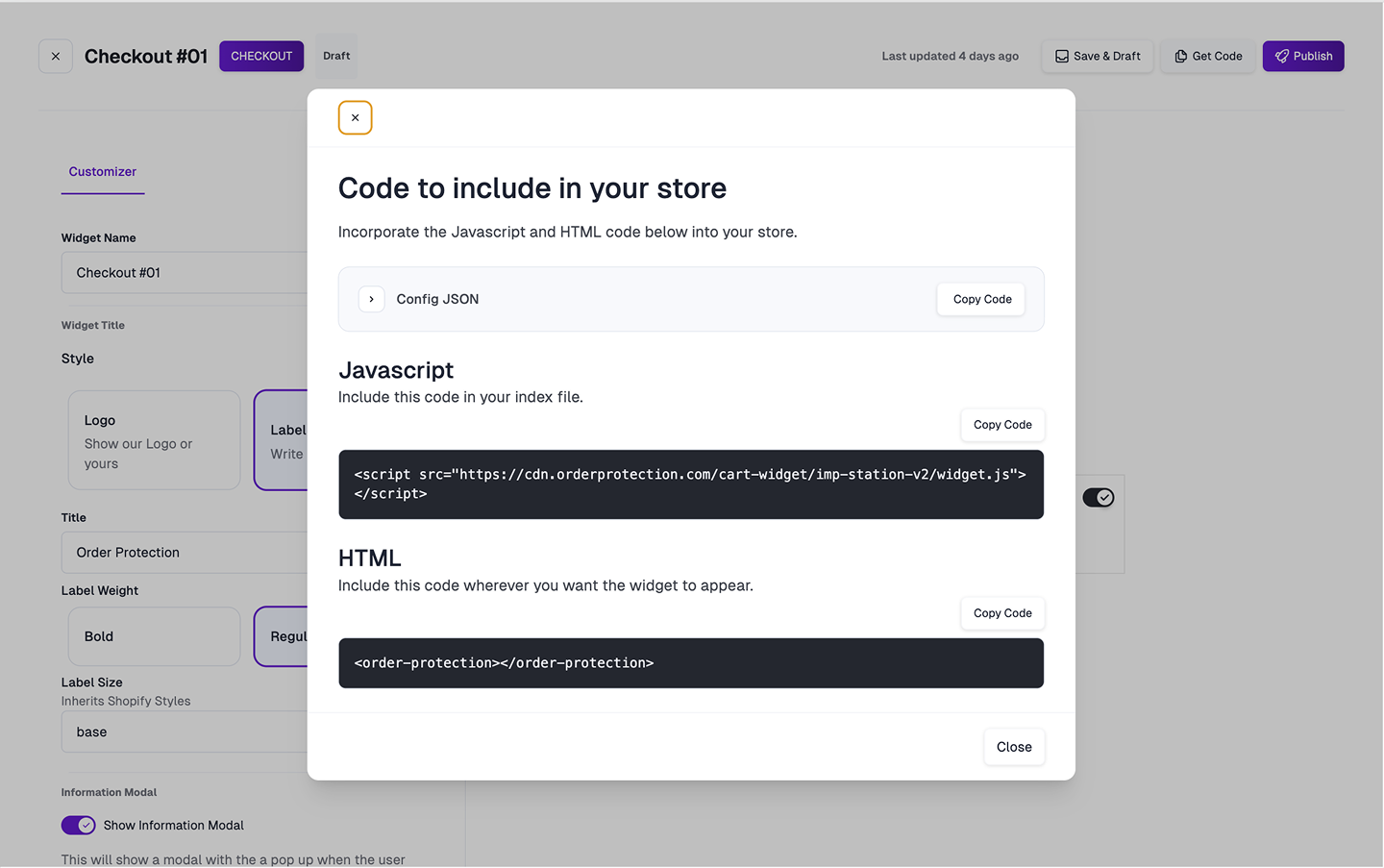
    Once your widget is customized, save it and then select the `Get Code` button in the header.
    <img src="https://mintcdn.com/orderprotectioncom/ol3wlLZjjCPTvntp/public/assets/img/shopify/hydrogen-get-code.png?fit=max&auto=format&n=ol3wlLZjjCPTvntp&q=85&s=56ad67aac6d2d8eb002bf7841b1853a4" alt="" width="1440" height="903" data-path="public/assets/img/shopify/hydrogen-get-code.png" />

    On your `theme.liquid` file you can paste the javascript code at the bottom of your file just before `</body>` tag. Include the HTML tag above where you want the widget to appear.

    **`cart-drawer.liquid` example**

    ```html theme={null}
    <order-protection></order-protection>

    <button>Checkout</button>
    ```

    To test the widget locally with custom styles, add the JSON configuration script.

    ```javascript theme={null}

    <script type="text/javascript">
    window.OrderProtection = {
      config: [/*your config */]
    }
    </script>
    ```
  </Step>

  <Step title="Hiding Order Protection from the cart display">
    Locate the files typically named main-cart, cart-drawer, or similar. Search for cart.items within these files. In the div that populates the product card, include this styling to hide the OrderProtection product:

    ```javascript theme={null}

    style= "{% if item.product.vendor == "Order Protection" %} display:none {% endif %}"

    ```
  </Step>
</Steps>

## Important Notes

* **Development vs Production**: Ensure you're using the correct API keys for your environment
* **Performance**: The integration is optimized for Hydrogen's performance requirements
* **Testing**: Always test thoroughly in a development environment before deploying to production

## Troubleshooting

If you encounter issues:

1. Verify your API keys are valid
2. Ensure all required components are properly imported
3. Check the browser console for any JavaScript errors

## Support

If you encounter any issues during the installation process, contact [onboarding@orderprotection.com](mailto:onboarding@orderprotection.com) for assistance.
