> ## Documentation Index
> Fetch the complete documentation index at: https://docs.orderprotection.com/llms.txt
> Use this file to discover all available pages before exploring further.
# Installing the plugin
#### Pre-Requisites
1. You must be a customer of OrderProtection. If you are not a customer of OrderProtection but would like to be please
reach out to [Onboarding](mailto:onboarding@orderprotection.com)
2. You must have access to your OrderProtection dashboard at [https://app.orderprotection.com](https://app.orderprotection.com)
### Installing the Plugin
You can download the Magento module zip file [Here](https://cdn.orderprotection.com/plugins/magento/latest/OrderProtection.zip)
To install the plugin please follow the README.md which will be included in the directory.
**After Magento Installation**
Before you edit the plugin settings we need to generate a few items from your OrderProtection dashboard.
Login [here](https://app.orderprotection.com)
Once signed in, you must make sure that the store you would like to install the plugin on is selected from the store
dropdown.
 ### Generating your API Token
You must generate an API token which will be used to authenticate your store with OrderProtection's API. This is a
sensitive key as it will allow you to send order information into OrderProtection. Please store this in a safe place.
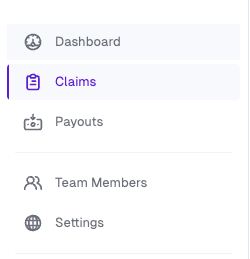
Click on the settings navigation item in the left sidebar.
### Generating your API Token
You must generate an API token which will be used to authenticate your store with OrderProtection's API. This is a
sensitive key as it will allow you to send order information into OrderProtection. Please store this in a safe place.
Click on the settings navigation item in the left sidebar.
 After navigating to settings, navigate to the API Tokens tab
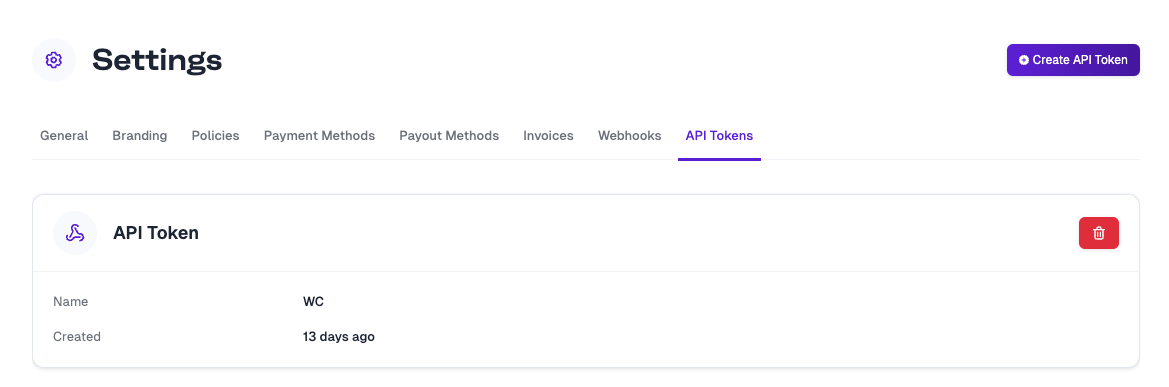 Generate a new API token using the `Create API Token` button. You can name this anything that you'd like. We use the
name to attribute actions to a specific key. If your API key were to be compromised you'd be able to know exactly which
key to remove.
Generate a new API token using the `Create API Token` button. You can name this anything that you'd like. We use the
name to attribute actions to a specific key. If your API key were to be compromised you'd be able to know exactly which
key to remove.
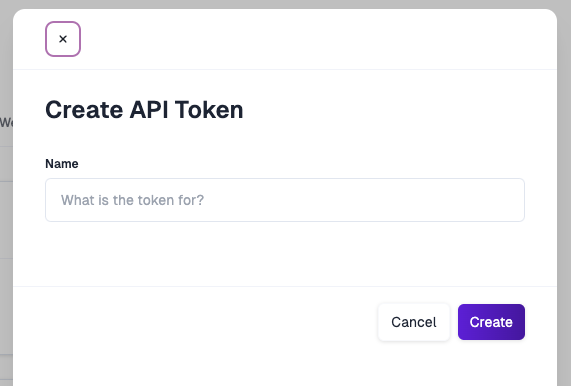 After clicking `Create` make sure to save the value shown. You will not be able to see this value again!
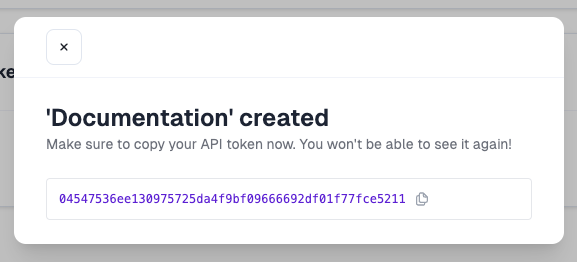 Save this token somewhere safe, you'll need this in your OrderProtection Magento plugin settings.
### Creating a Webhook
In order for OrderProtection to be able to create replacement orders and refund customers we need to create a webhook.
This webhook will send a request to your OrderProtection Magento plugin informing the plugin which items to reship
or refund.
You'll need to know your hosted sites location e.g ([https://orderprotection.com](https://orderprotection.com))
Go back to your settings tab in your OrderProtection dashboard and click on the `Webhooks` tab.
Save this token somewhere safe, you'll need this in your OrderProtection Magento plugin settings.
### Creating a Webhook
In order for OrderProtection to be able to create replacement orders and refund customers we need to create a webhook.
This webhook will send a request to your OrderProtection Magento plugin informing the plugin which items to reship
or refund.
You'll need to know your hosted sites location e.g ([https://orderprotection.com](https://orderprotection.com))
Go back to your settings tab in your OrderProtection dashboard and click on the `Webhooks` tab.
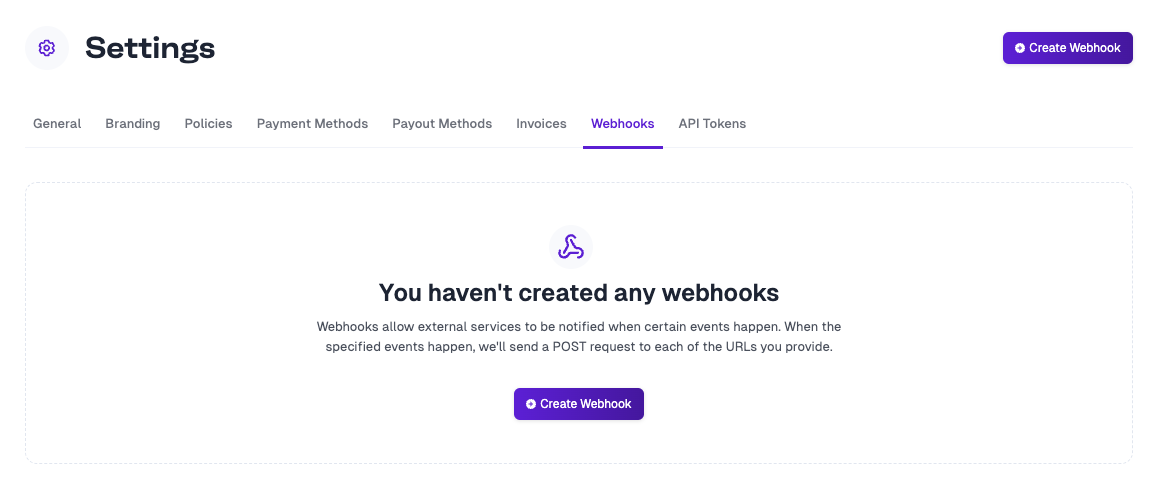 Click on the `Create Webhook` button and add the following details:
**Payload URL**:
```
https://${yourdomain}/rest/V1/order-protection/webhook
```
**Webhook Secret**
*In your Magento dashboard*:
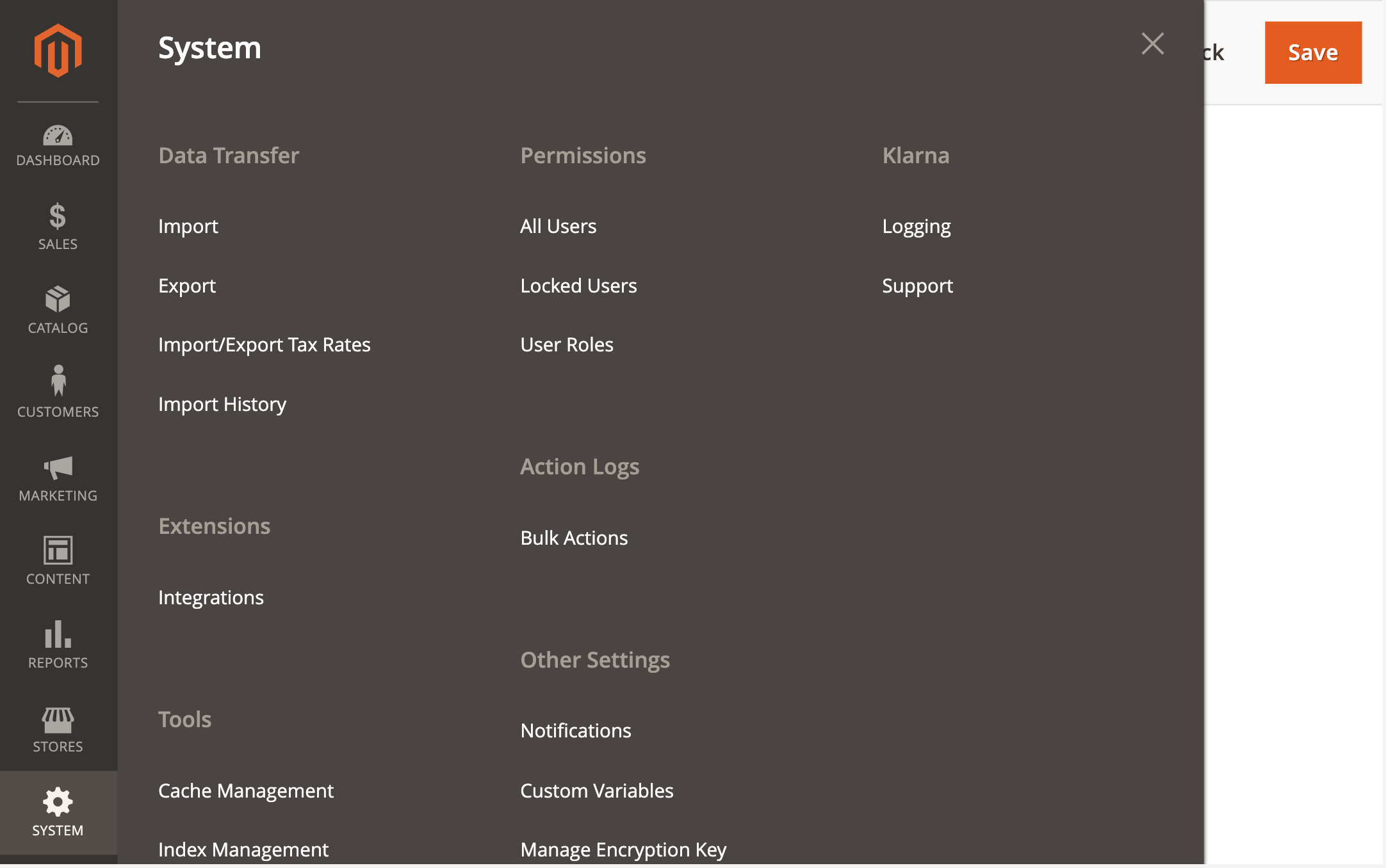
You will need to navigate to `System` -> `Integration` and create a new Integration.
You can call this Integration `Order Protection`. Once you have this integration you need to click on the Edit (pencil)
button. This will show you the integration settings.
You need to find the `Access Token` field.
Your webhook secret will match the following format:
`${AccessToken}`
Input this into your OrderProtection webhook secret field.
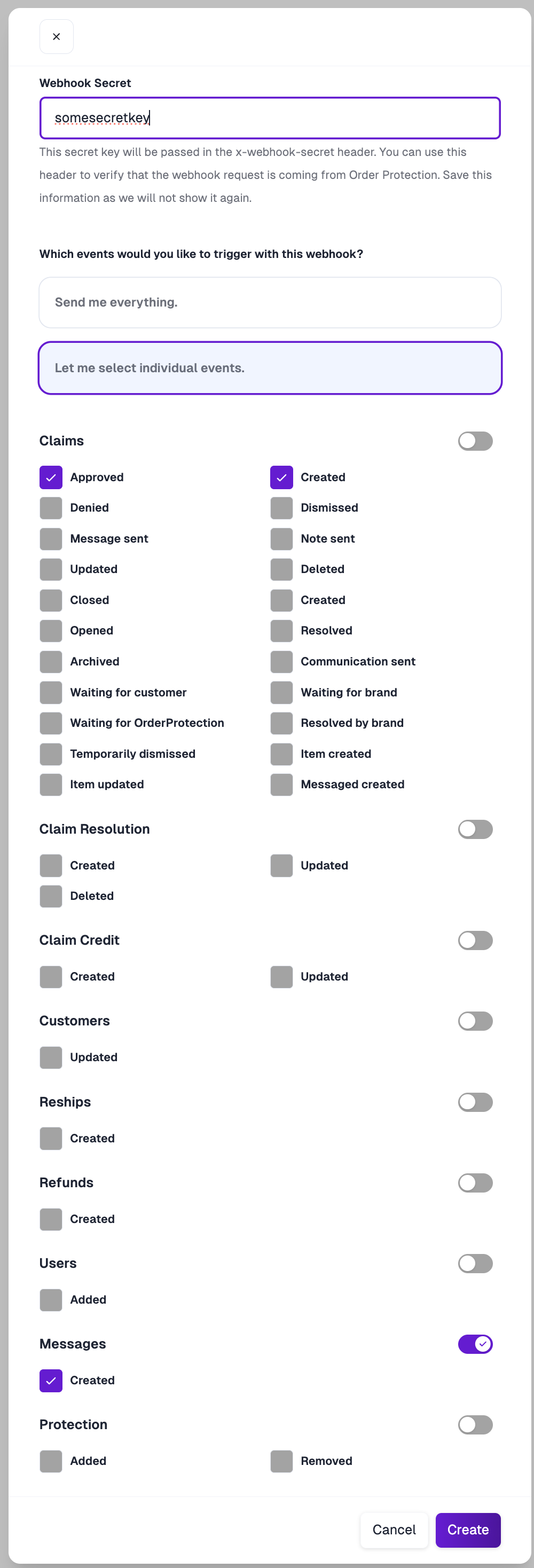
**Events** Click on `Let me select individual events`
Choose the following:
* `Claims -> Approved`
* `Claims -> Created`
You only need this one event for the OrderProtection Plugin to work correctly.
Click `Create`
It should look something like this:
Click on the `Create Webhook` button and add the following details:
**Payload URL**:
```
https://${yourdomain}/rest/V1/order-protection/webhook
```
**Webhook Secret**
*In your Magento dashboard*:
You will need to navigate to `System` -> `Integration` and create a new Integration.
You can call this Integration `Order Protection`. Once you have this integration you need to click on the Edit (pencil)
button. This will show you the integration settings.
You need to find the `Access Token` field.
Your webhook secret will match the following format:
`${AccessToken}`
Input this into your OrderProtection webhook secret field.
**Events** Click on `Let me select individual events`
Choose the following:
* `Claims -> Approved`
* `Claims -> Created`
You only need this one event for the OrderProtection Plugin to work correctly.
Click `Create`
It should look something like this:
 ### Finalizing Plugin Settings
Once you have your API token and Webhook secret, navigate to your admin page of your
store. You will need to find the Order Protection section
You can find this section by navigating to Stores -> Configuration -> Sales -> Order Protection
### Finalizing Plugin Settings
Once you have your API token and Webhook secret, navigate to your admin page of your
store. You will need to find the Order Protection section
You can find this section by navigating to Stores -> Configuration -> Sales -> Order Protection
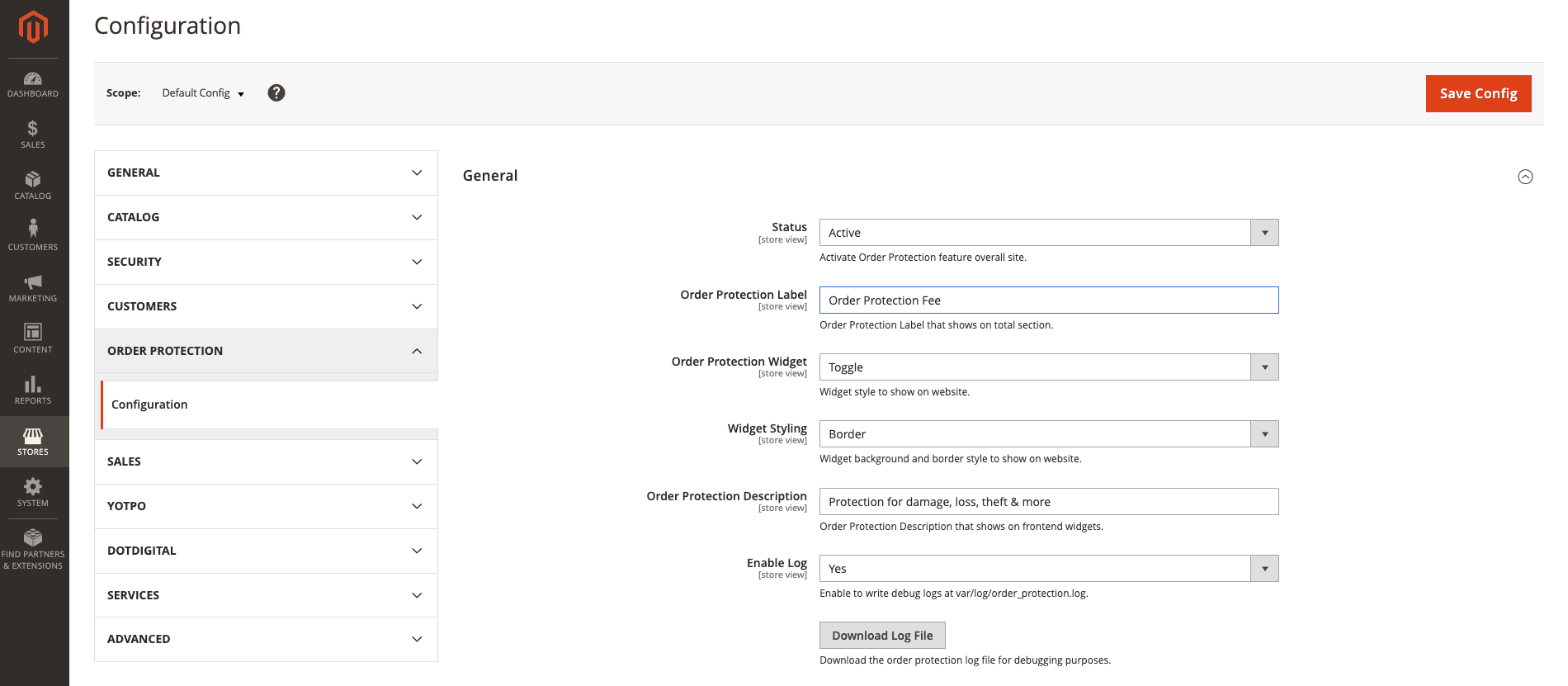 Once in this section you will need to scroll to the API Setting section. Here you will configure your
api token and store URL.
### Ensuring Order Protection Has Proper Scopes
For the Order Protection module to work correctly on your store, you need to ensure it has the API access scopes are configured correctly.
Step 1: Go to `System > Integrations`
Once in this section you will need to scroll to the API Setting section. Here you will configure your
api token and store URL.
### Ensuring Order Protection Has Proper Scopes
For the Order Protection module to work correctly on your store, you need to ensure it has the API access scopes are configured correctly.
Step 1: Go to `System > Integrations`
 Step 2: Under `Order Protection` select the edit icon.
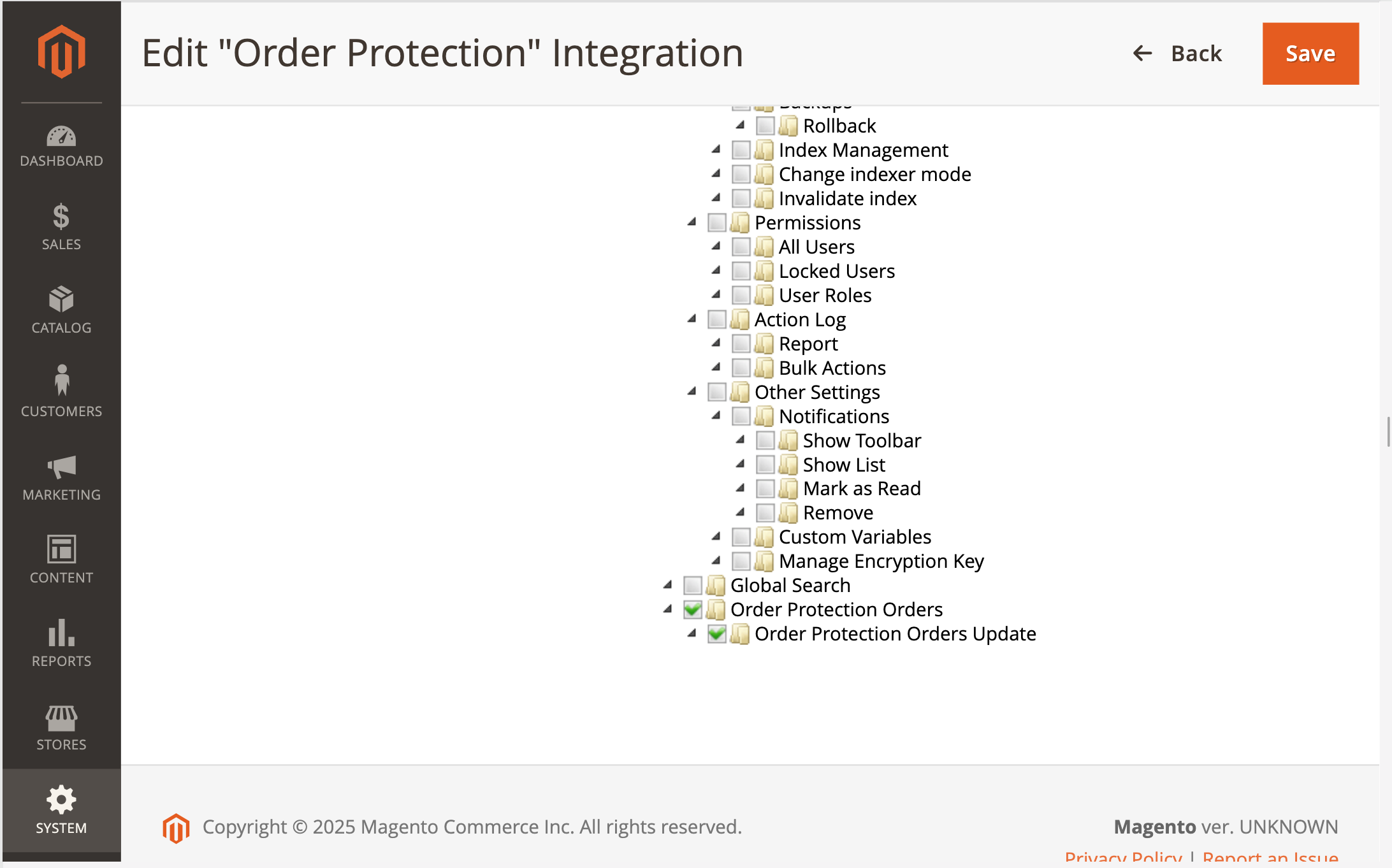
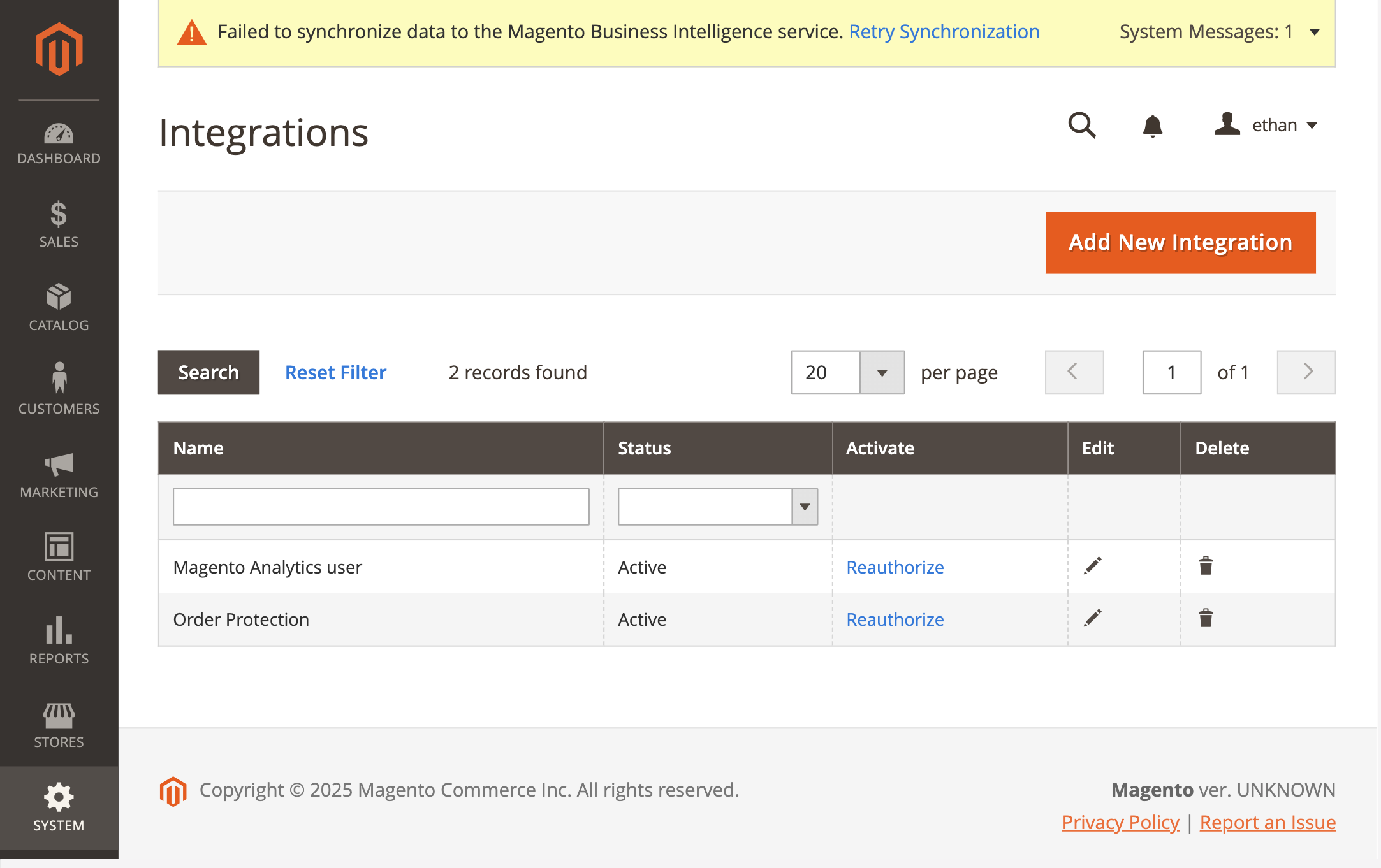 Step 3: Navigate to the API tab under the `Basics Settings` menu and scroll to the bottom. Ensure that `Order Protection Orders` and `Order Protection Orders Update` are both selected.