> ## Documentation Index
> Fetch the complete documentation index at: https://docs.orderprotection.com/llms.txt
> Use this file to discover all available pages before exploring further.
# Tapcart
> Offer guaranteed delivery to your most loyal customers.
Easily add Order Protection to your app and offer guaranteed delivery to your
most loyal customers. Deploy our lightweight widget through Tapcart's Custom
Blocks, fast.
## Installation
Before you begin, make sure you have your shopify store url handy.
Under **App Studio**, to to Cart.
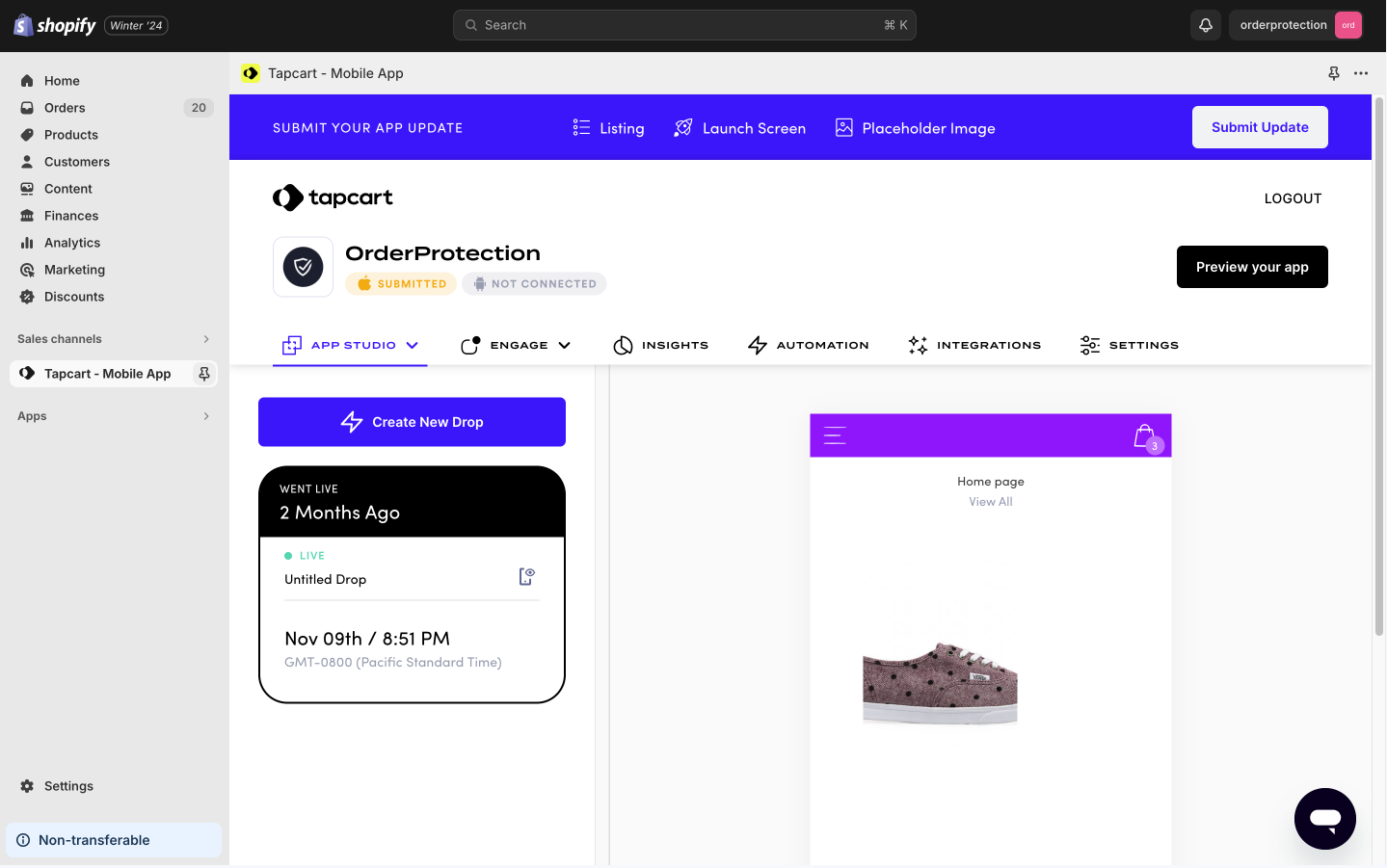 Under **Custom Blocks**, select **Launch Blocks Editor** and call it Order Protection.
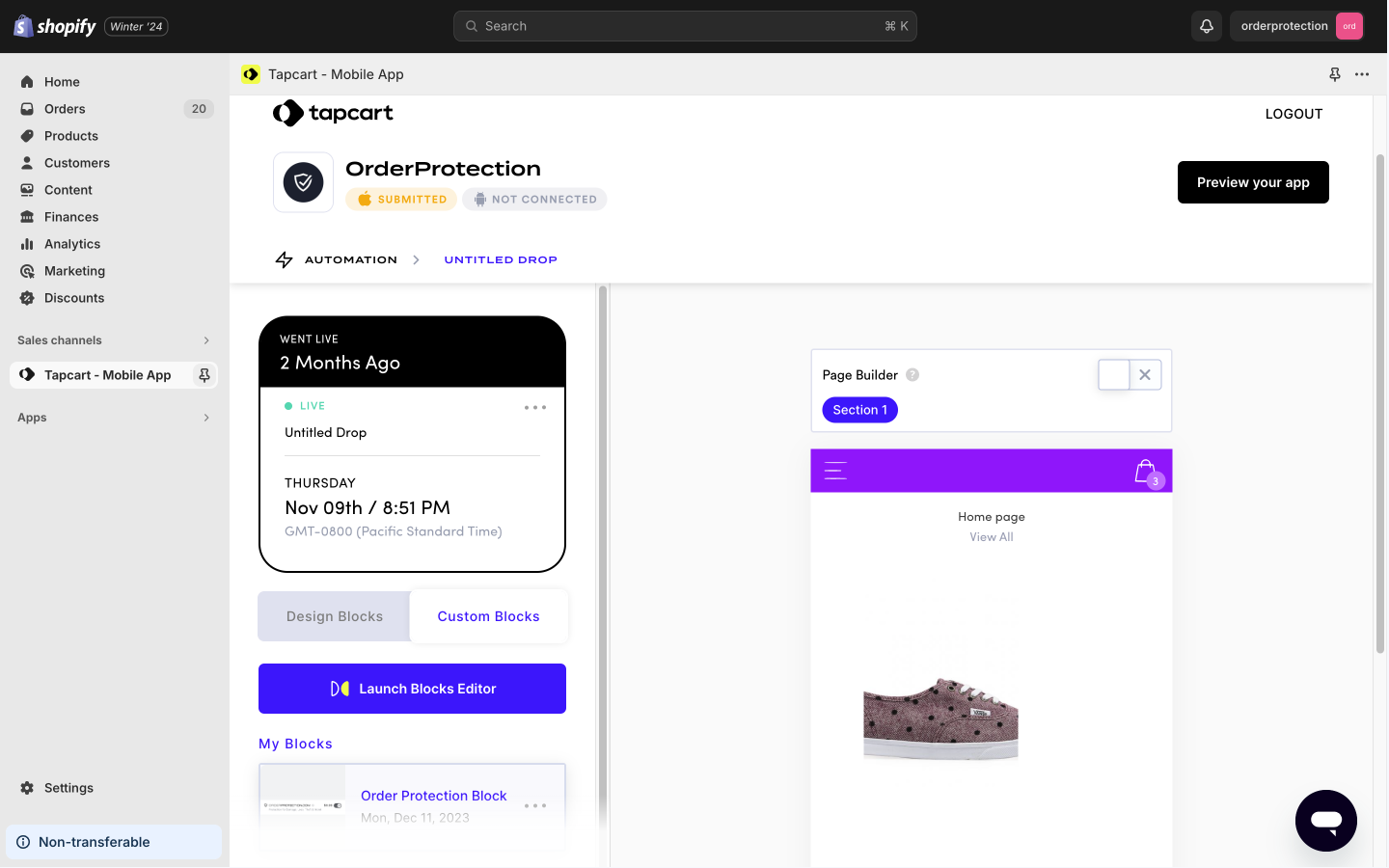 Select, `edit` and then launch the editor that will bring up your HTML, CSS, and JS tabs. Populate the following within each tab
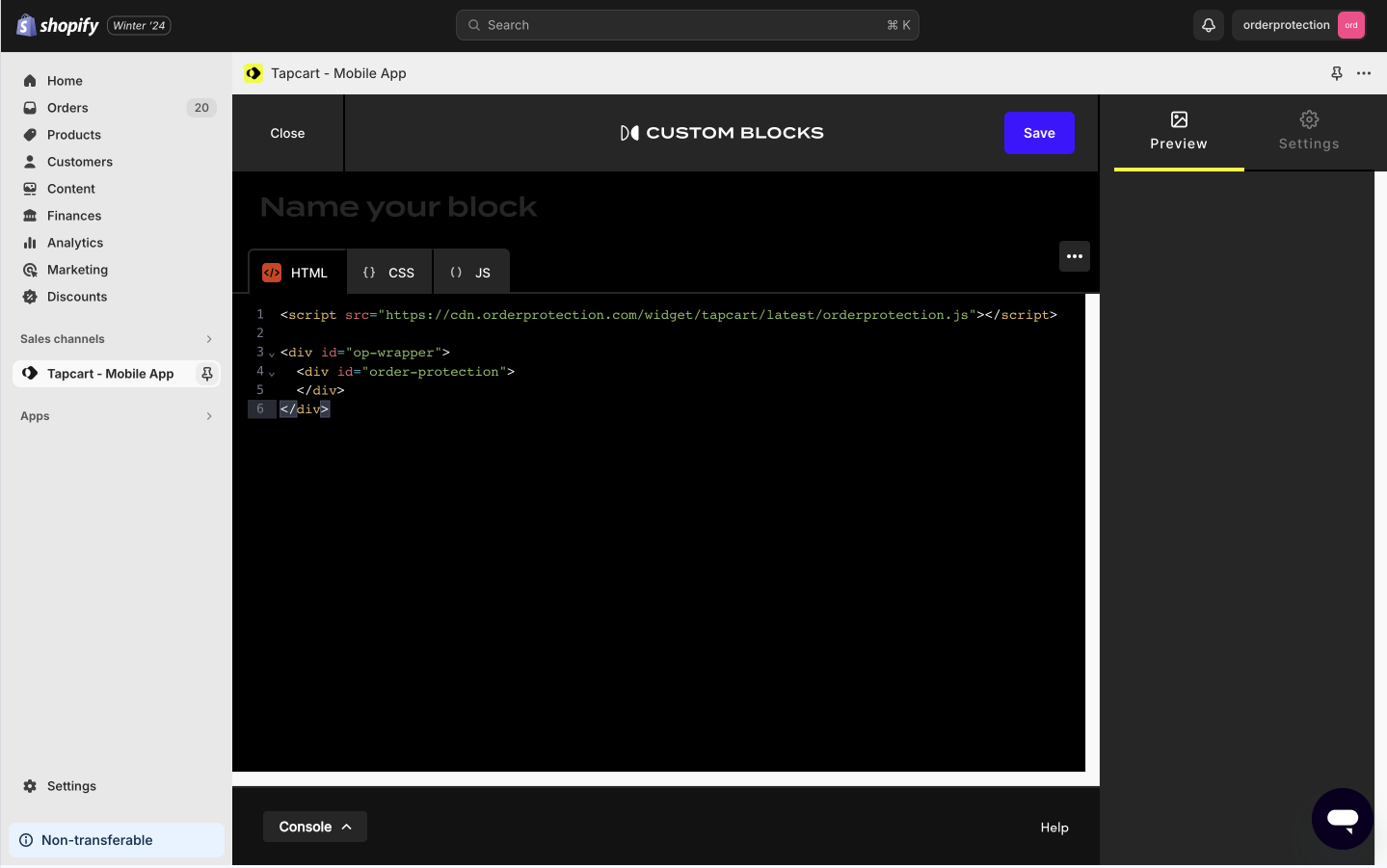 ```html html theme={null}
```
```css css theme={null}
@import"https://fonts.googleapis.com/css2?family=Inter:wght@400;500;600&display=swap";
@import"https://cdn.orderprotection.com/widget/tapcart/latest/style.css";
#op-wrapper {
margin: 0 1rem;
}
```
```js javascript theme={null}
// Replace myStoreUrl with your store URL
// This needs to be your `myshopify.com` URL
const myStoreUrl = "orderprotection.myshopify.com";
let attachInterval = null
const timer = setInterval(() => {
if (window.Tapcart.isInitialized) {
const widget = OrderP.createWidget({
store_url: myStoreUrl,
})
attachInterval = setInterval(() => {
widget.ui.attach()
}, 1000)
clearInterval(timer)
}
}, 100)
```
You must replace `orderprotection.myshopify.com` with your actual store URL.
In the right navigation under **Settings**, scroll all the way to the bottom past the **Variable Preview Values** until you see the **Set Custom Block SDK version** section. Click the dropdown and select `v1.5`.
The Order Protection widget is compatible with versions `v1.5` and above.
```html html theme={null}
```
```css css theme={null}
@import"https://fonts.googleapis.com/css2?family=Inter:wght@400;500;600&display=swap";
@import"https://cdn.orderprotection.com/widget/tapcart/latest/style.css";
#op-wrapper {
margin: 0 1rem;
}
```
```js javascript theme={null}
// Replace myStoreUrl with your store URL
// This needs to be your `myshopify.com` URL
const myStoreUrl = "orderprotection.myshopify.com";
let attachInterval = null
const timer = setInterval(() => {
if (window.Tapcart.isInitialized) {
const widget = OrderP.createWidget({
store_url: myStoreUrl,
})
attachInterval = setInterval(() => {
widget.ui.attach()
}, 1000)
clearInterval(timer)
}
}, 100)
```
You must replace `orderprotection.myshopify.com` with your actual store URL.
In the right navigation under **Settings**, scroll all the way to the bottom past the **Variable Preview Values** until you see the **Set Custom Block SDK version** section. Click the dropdown and select `v1.5`.
The Order Protection widget is compatible with versions `v1.5` and above.
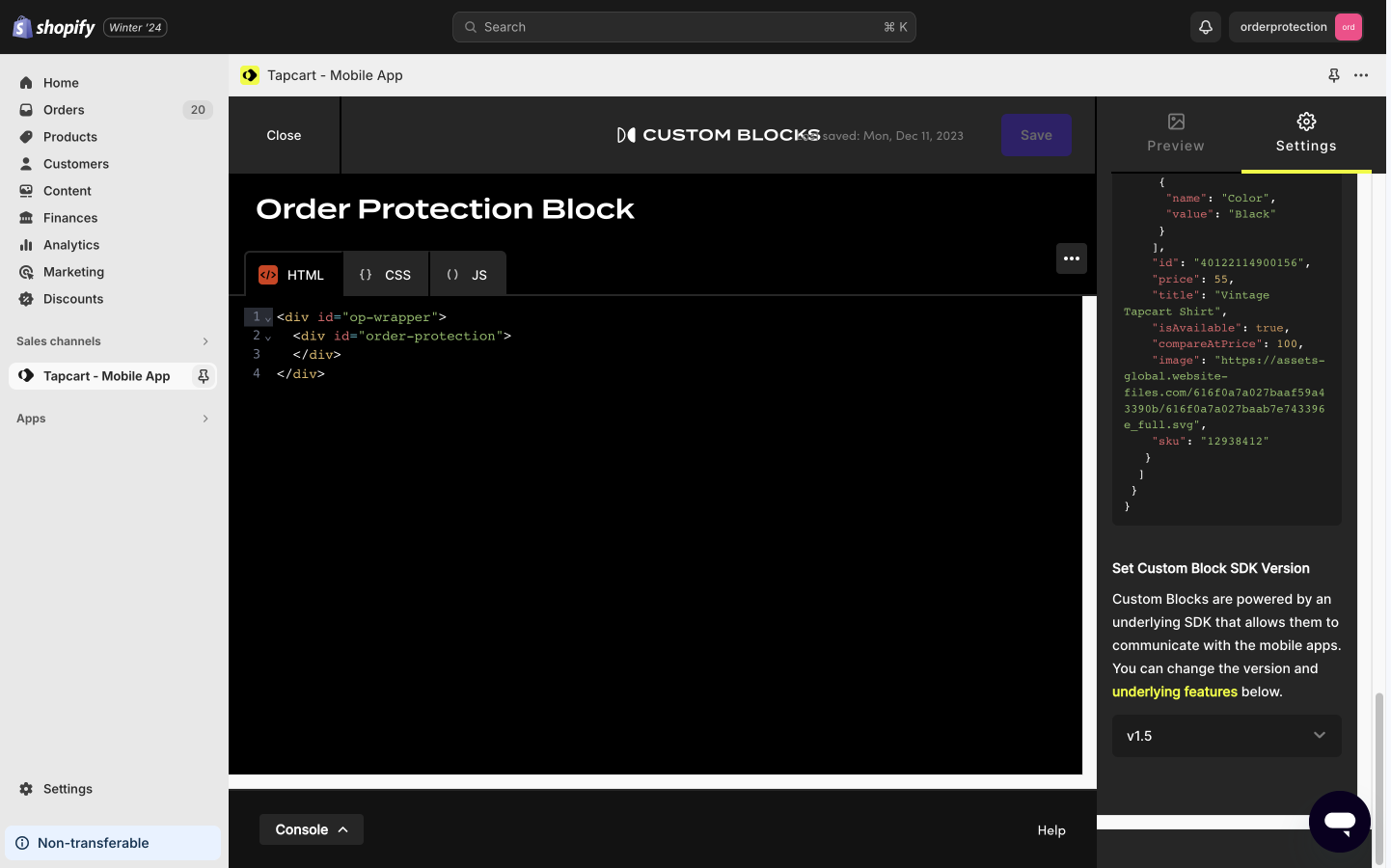 Click **Save** button and you will get a prompt that says `"OrderProtection
custom block saved successfully!"` Then click **Close** in the upper left hand
corner to close the block settings.
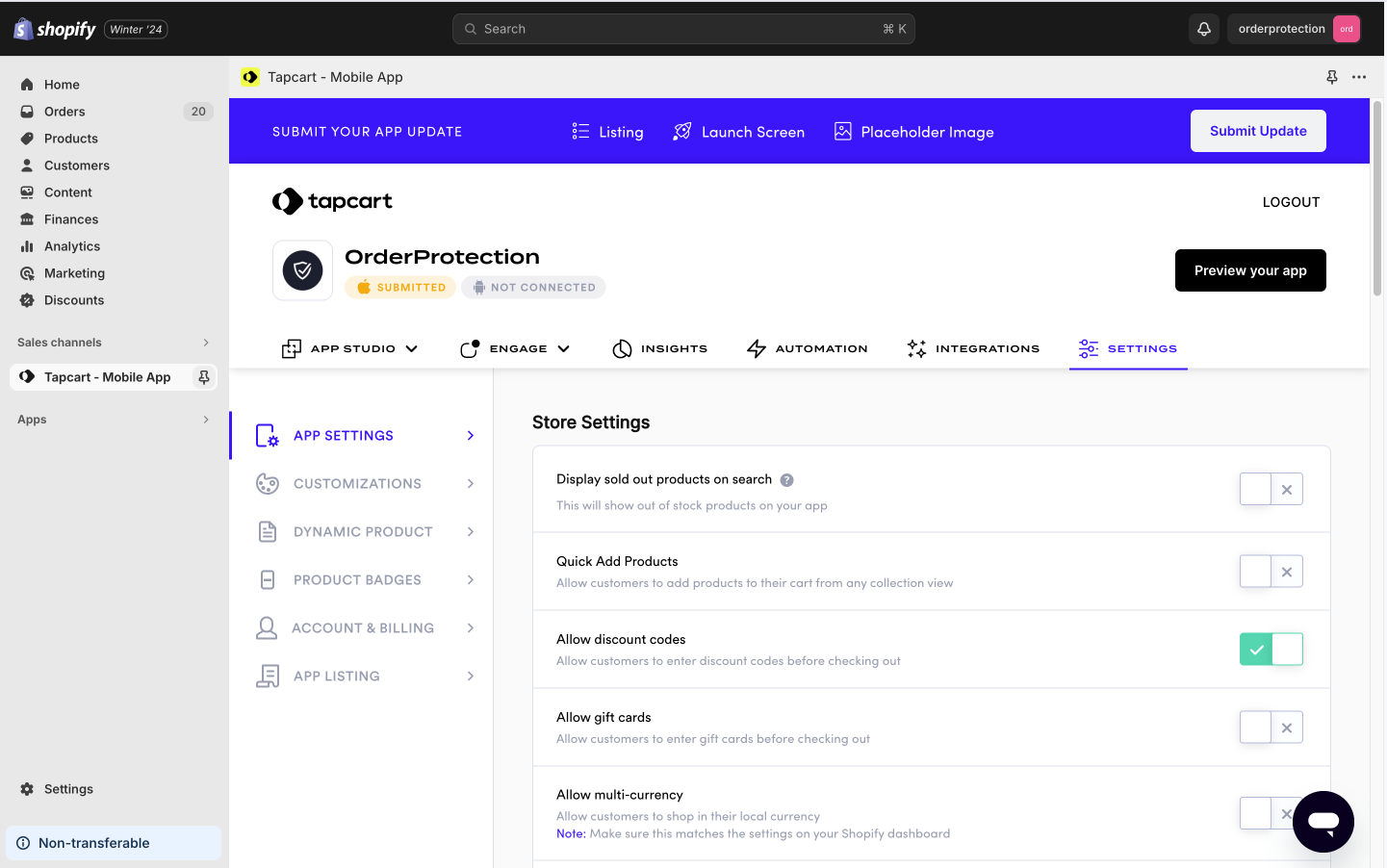
In TapCart **Settings** (tab to the right of the **Integrations**), do the
following:
In Store Settings toggle off `Quick Add Products`.
In Cart & Checkout toggle off `Navigate customers to checkout`.
At the bottom of the screen, hit the `Save & Update` button.
Click **Save** button and you will get a prompt that says `"OrderProtection
custom block saved successfully!"` Then click **Close** in the upper left hand
corner to close the block settings.
In TapCart **Settings** (tab to the right of the **Integrations**), do the
following:
In Store Settings toggle off `Quick Add Products`.
In Cart & Checkout toggle off `Navigate customers to checkout`.
At the bottom of the screen, hit the `Save & Update` button.
 These next actions are done in your Shopify store.
In the `left` navigation of Shopify go to `Products -> Search and Filter -> Product Vendor` and click Order Protection.
These next actions are done in your Shopify store.
In the `left` navigation of Shopify go to `Products -> Search and Filter -> Product Vendor` and click Order Protection.
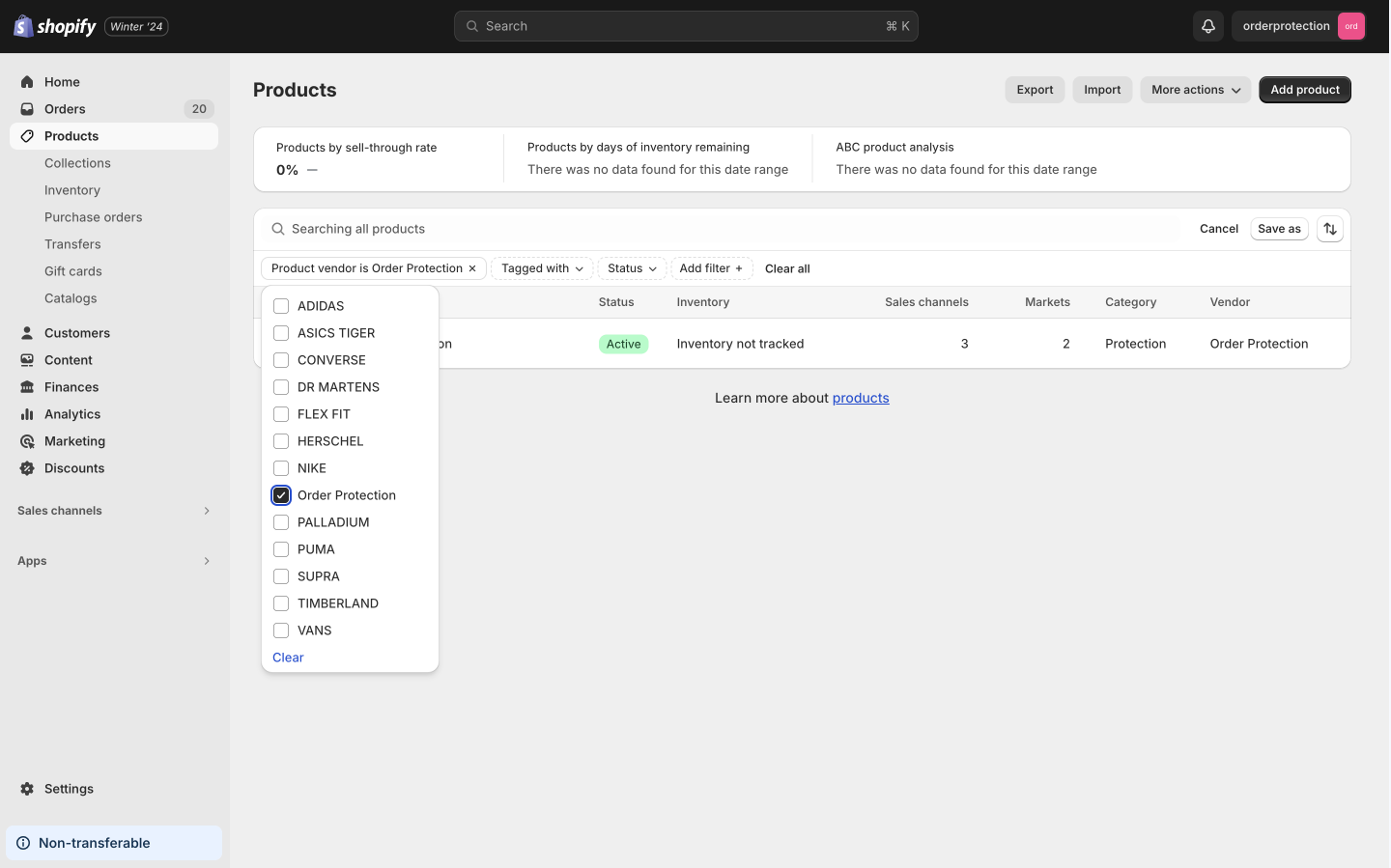 Once filtered,, click on `Order Protection` and click on the three dots in the right navigation `Publishing` section to bring up a `Manage sales channel` flyout. Make sure `Online Store, Tapcart - Mobile App`, and `Checkout Blocks` are checked and then hit `Done`
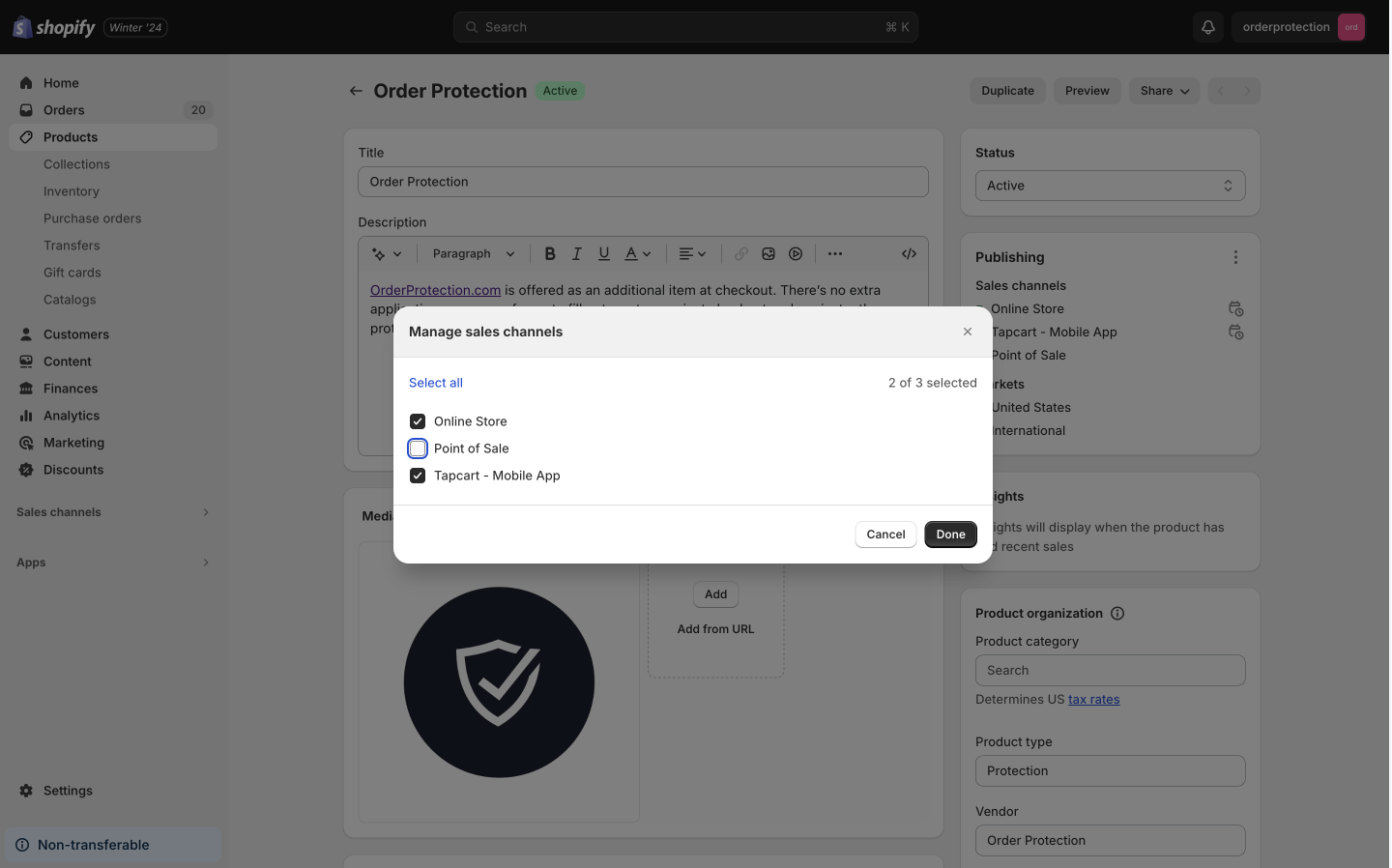 Click `Save`.
This last action is done in the TapCart dashboard. This is the final step before TapCart goes live on your application.
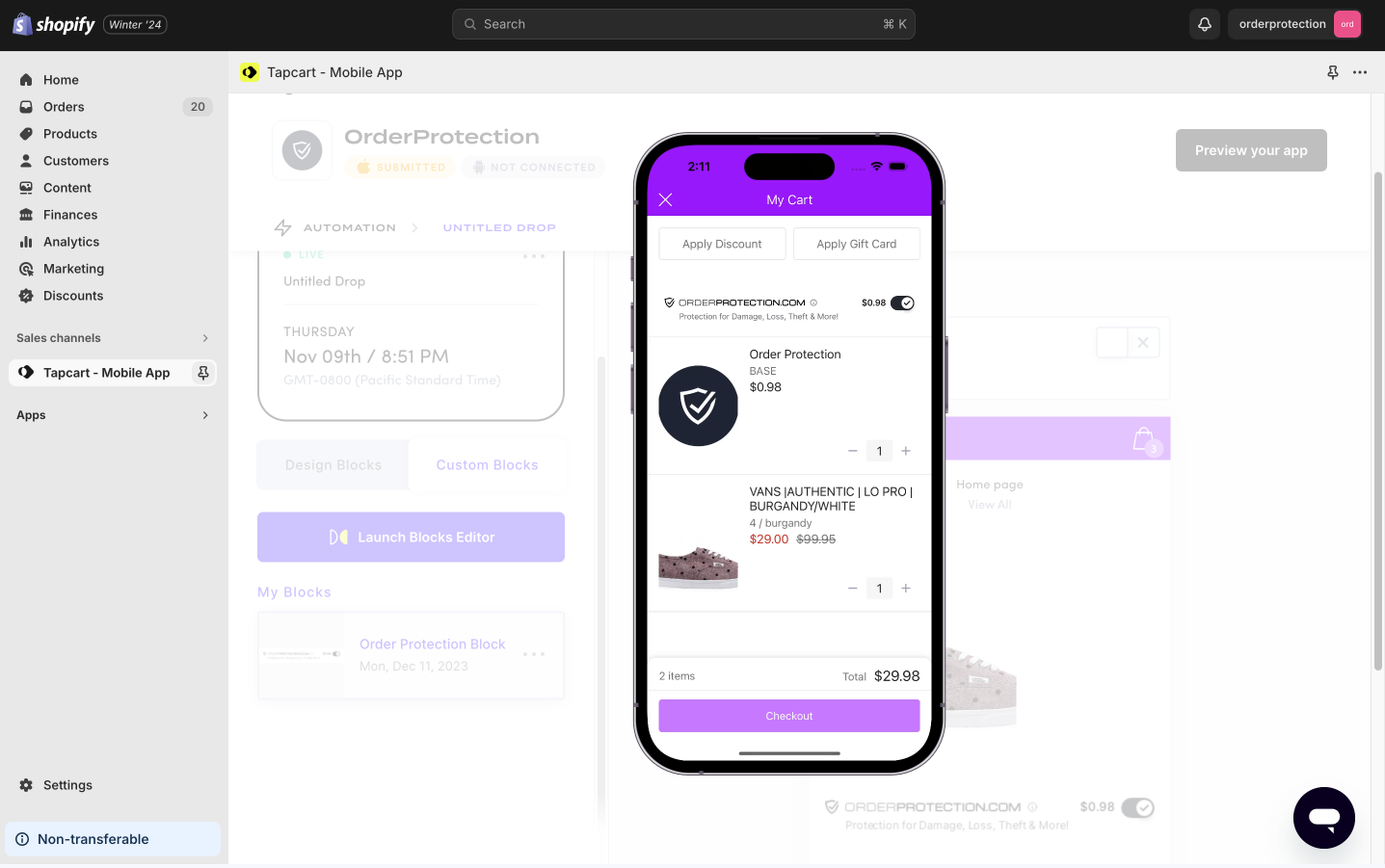
Finally, under **Apps**, search and click **Tapcart - Mobile App**. In the left navigation and under the **App Studio > Home** toggle to **Custom Block** and drag the Order Protection block into the page builder to add it to your store, `confirm` you want to add the block and save. Then hit `preview your app` in the top right hand corner of the page. Add an item to the cart.
### All Done
OrderProtection will now be added to all cart instances within your TapCart
app. Customers will be able to file/edit claims per your normal store settings
once an order is placed.
Click `Save`.
This last action is done in the TapCart dashboard. This is the final step before TapCart goes live on your application.
Finally, under **Apps**, search and click **Tapcart - Mobile App**. In the left navigation and under the **App Studio > Home** toggle to **Custom Block** and drag the Order Protection block into the page builder to add it to your store, `confirm` you want to add the block and save. Then hit `preview your app` in the top right hand corner of the page. Add an item to the cart.
### All Done
OrderProtection will now be added to all cart instances within your TapCart
app. Customers will be able to file/edit claims per your normal store settings
once an order is placed.