> ## Documentation Index
> Fetch the complete documentation index at: https://docs.orderprotection.com/llms.txt
> Use this file to discover all available pages before exploring further.
# Stay AI
> All your subscription orders can now offer guaranteed delivery
The Order Protection widget integrates with Stay AI and your Shopify store,
enhancing the subscription order experience for users with all relevant
information in one place.
The widget addition to the cart simplifies the claim-filing process for users reducing friction and eliminating the need for manual navigation to the Order Protection website.
## Installation
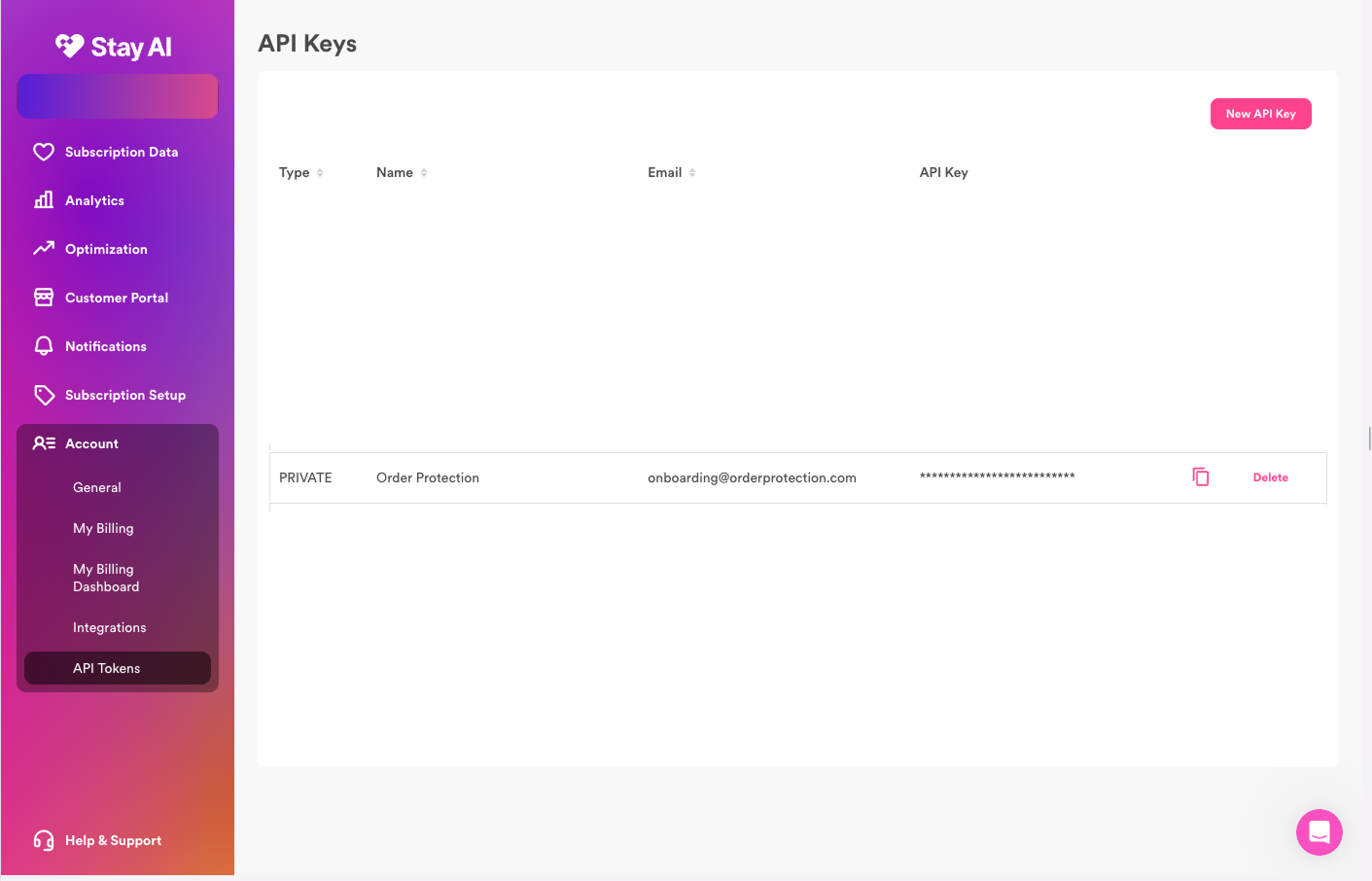
Access the Stay AI Account page: [Stay AI
Admin](https://app.retextion.com/account/api-keys)
* Go to `Accounts` in the Sidebar.
* Click `API Tokens` tab at the top button.
* Click `"New API Key"` button in the top right.
* Choose a `Name`, `Description`, and `Email`
* Name: Order Protection
* Description: Order Protection Subscriptions Integration
* Email: [onboarding@orderprotection.com](mailto:onboarding@orderprotection.com)
* Choose permissions: Leave scopes set to `All`.
* Click `"OK"` button.
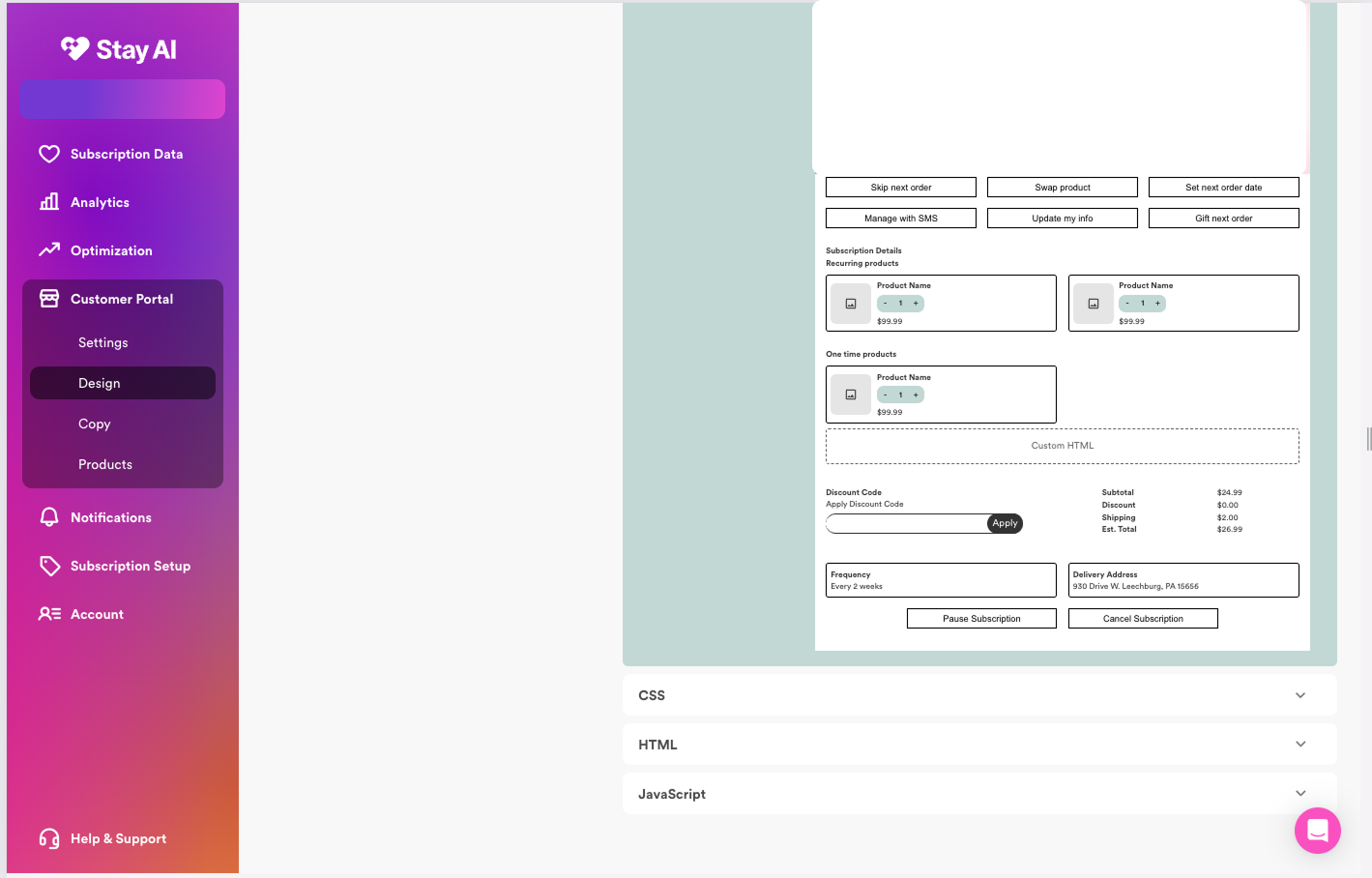
To install the Stay AI Integration on Stay AI, follow these steps:
* In the left navigation, go to `Customer Portal` and select `Design`
* Within the `HTML block`, add the following code:
```html theme={null}
```
* Within the JavaScript block, add the following function script:
```javascript theme={null}
(function () {
const script = document.createElement("script");
script.src = "https://cdn.orderprotection.com/widget/subscriptions/5.28.11/orderprotection.js";
script.onload = function () {
console.log("ready to go");
const stayWidget = OrderProtection.createOrderProtectionWidget({
integration: "stay-ai",
});
stayWidget.cart.debug = false;
stayWidget.widget.on('toggled', () => {
const totalWOp = window.orderProtection.cart.subtotal + window.orderProtection.price;
const totalNoOp = window.orderProtection.cart.subtotal;
const formatter = new Intl.NumberFormat(undefined, {
style: 'currency',
currency: window.Shopify.currency.active
});
const formattedSubtotalOP = formatter.format(totalWOp / 100);
const formattedSubtotalNoOp = formatter.format(totalNoOp / 100);
const subtotalElm = document.querySelector('.txt-order-total-value');
if (!subtotalElm) return;
subtotalElm.innerText = window.orderProtection.enabled ? formattedSubtotalOP : formattedSubtotalNoOp;
});
const interval = setInterval(() => {
if (!stayWidget.cart.isReady()) {
return;
}
clearInterval(interval);
stayWidget.cart.setup();
stayWidget.cart.subscription = {};
stayWidget.init();
}, 500);
setInterval(() => {
stayWidget.attach();
}, 1000);
};
document.body.appendChild(script);
})
```
* Click `Submit`.
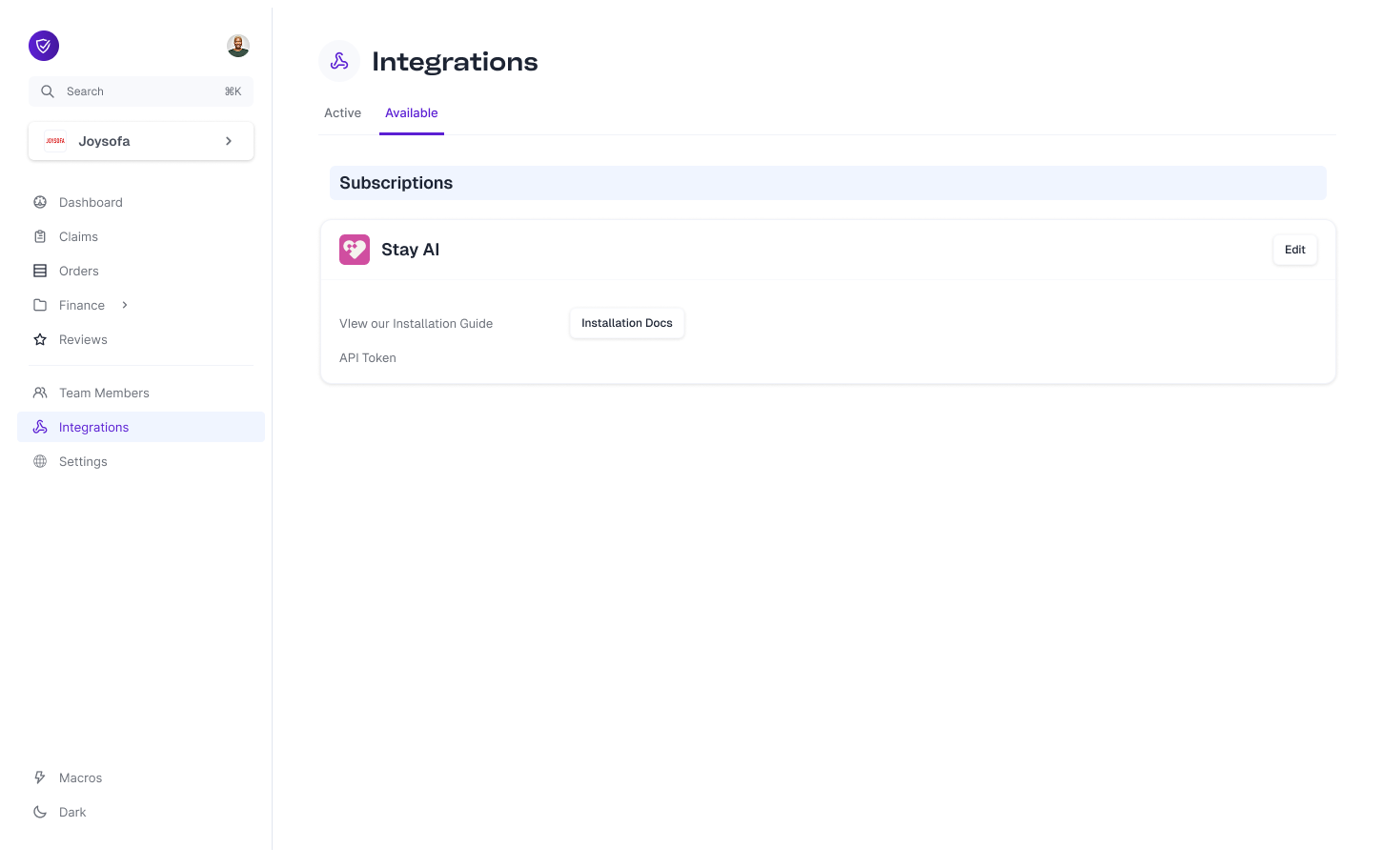
Within the Order Protection app, do the following:
* Navigate to `Integrations` in the left navigation.
* Find the Stay AI block under the `Available` tab.
* Take the API token you created in Step 1 and add it to the API Token field and save.
* Once saved, click on the `Active` tab and the API token field within the Stay AI block will have a hidden value. This means that your token successfully uploaded.
* Navigate to `Subscription Data` in the left navigation and click `Subscriptions`.
* Click the `Get Customer Portal Link` and open it in a new tab.
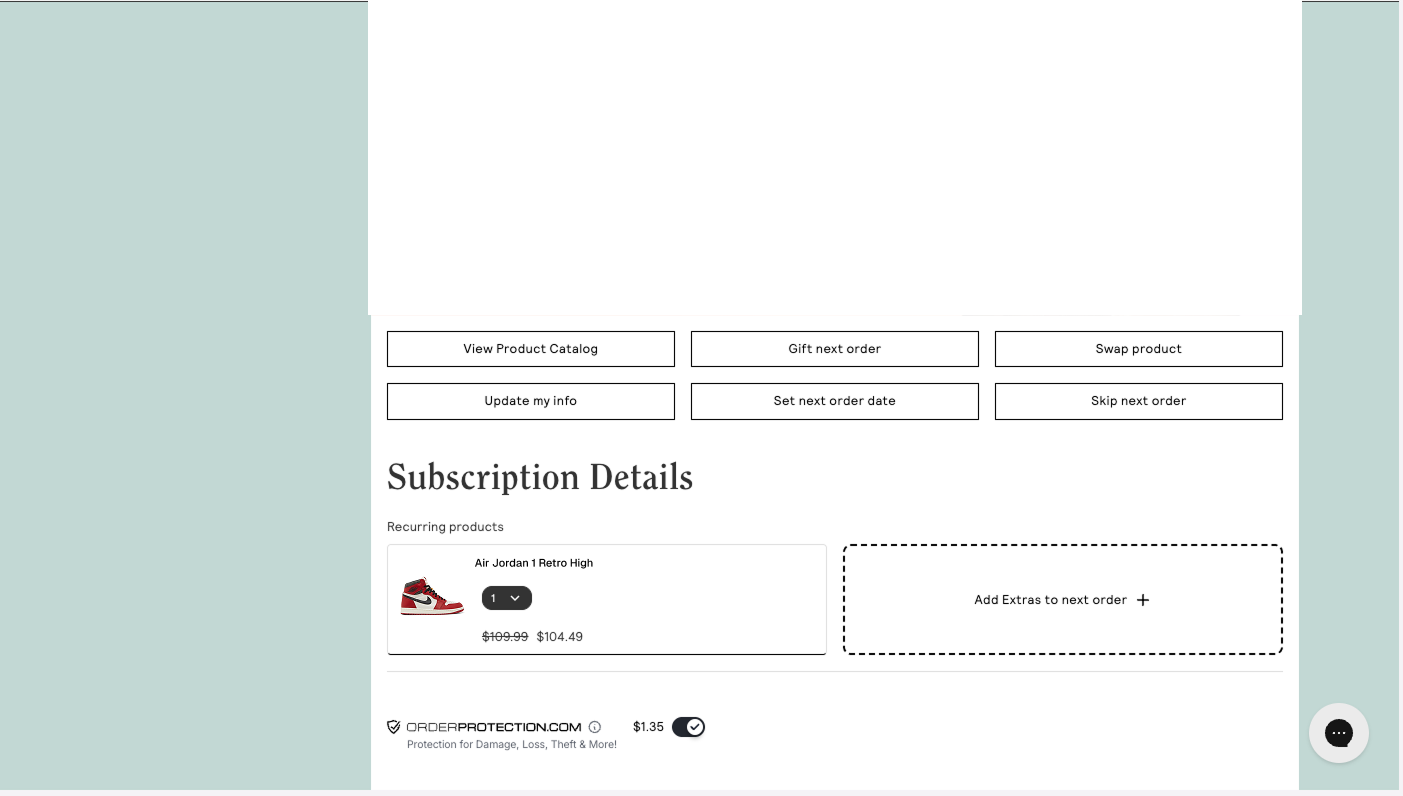
* Scroll down to the `Subscription Details` section and check that the Order Protection widget is showing as expected.
* *This may be slighlty different depending on your specific Customer Portal design.*
Once set up, Order Protection will be added to all cart instances within
Shopify subscription orders using Stay AI. Customers can choose to opt-in or
opt out of Order Protection for their subscription orders.
Customers will be able to file/edit claims per your normal store settings once
an order confirmation email has been sent.
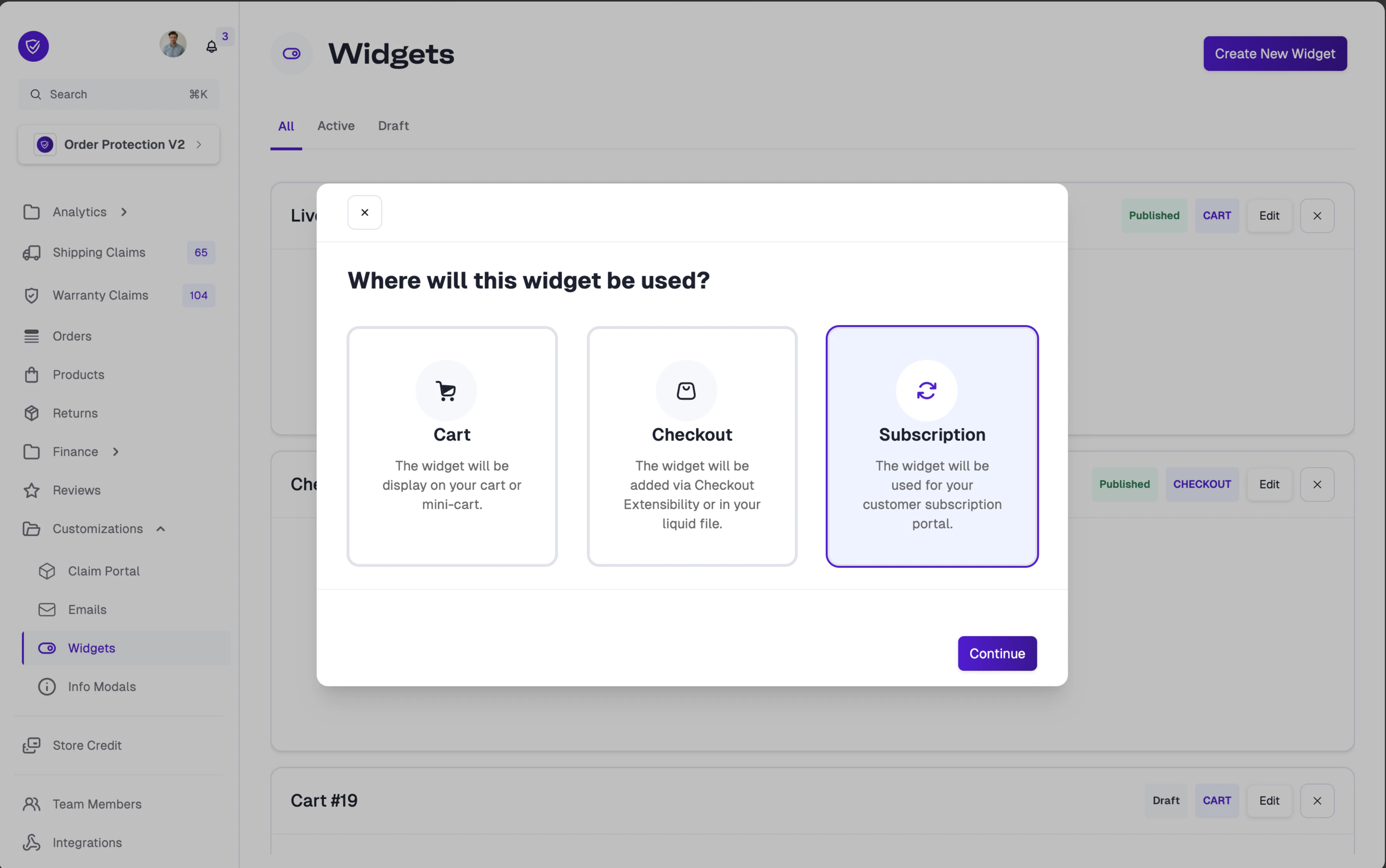
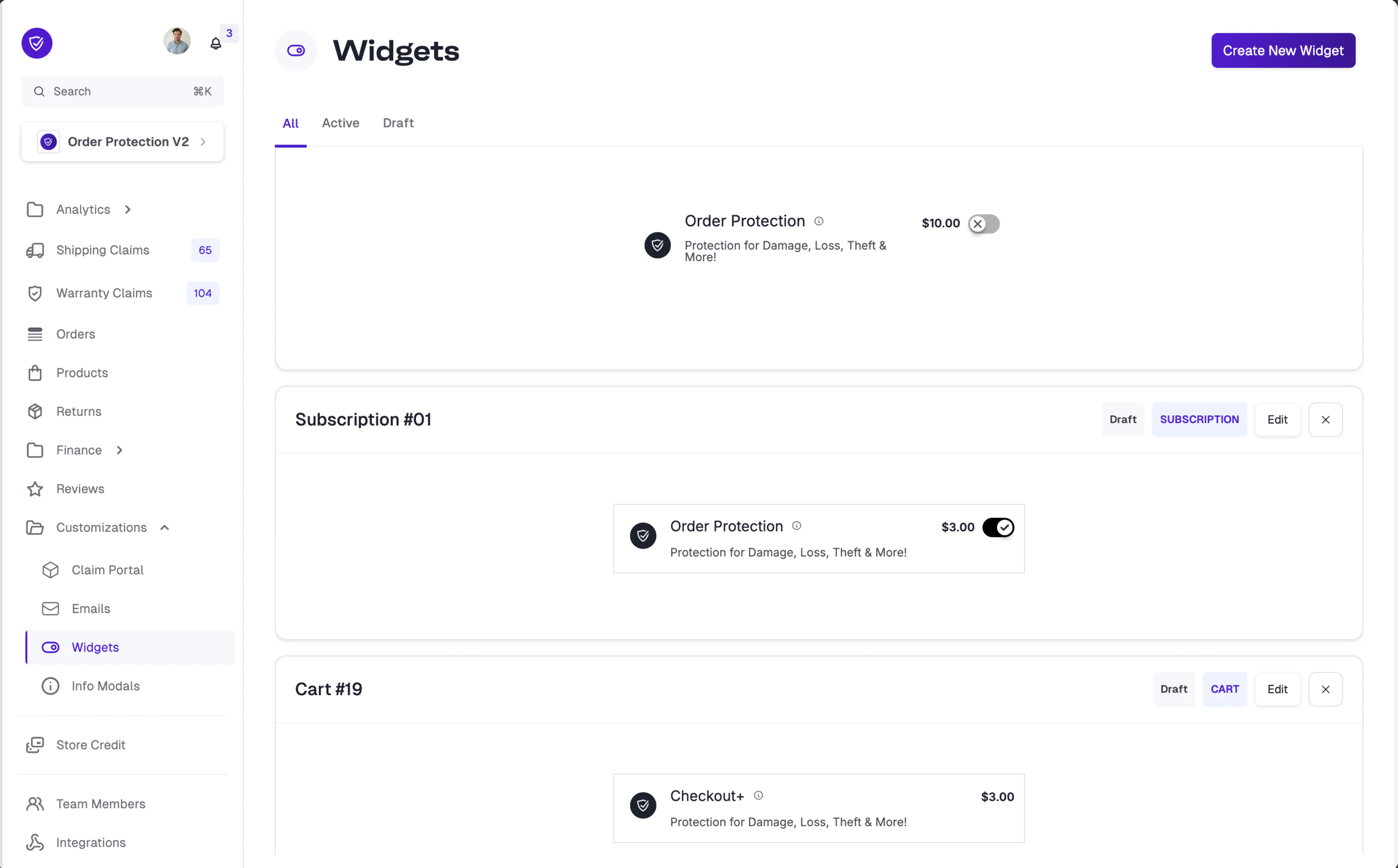
**Did you know?** You can customize the Order Protection widget styling specifically for your subscription portal. When creating a new widget, select **Subscription** as the widget type to create a dedicated subscription widget.
For full customization options, visit the [Widget Customization](https://docs.orderprotection.com/education-basecamp/customizations/widgets) page.
 * Within the `HTML block`, add the following code:
```html theme={null}
```
* Within the JavaScript block, add the following function script:
```javascript theme={null}
(function () {
const script = document.createElement("script");
script.src = "https://cdn.orderprotection.com/widget/subscriptions/5.28.11/orderprotection.js";
script.onload = function () {
console.log("ready to go");
const stayWidget = OrderProtection.createOrderProtectionWidget({
integration: "stay-ai",
});
stayWidget.cart.debug = false;
stayWidget.widget.on('toggled', () => {
const totalWOp = window.orderProtection.cart.subtotal + window.orderProtection.price;
const totalNoOp = window.orderProtection.cart.subtotal;
const formatter = new Intl.NumberFormat(undefined, {
style: 'currency',
currency: window.Shopify.currency.active
});
const formattedSubtotalOP = formatter.format(totalWOp / 100);
const formattedSubtotalNoOp = formatter.format(totalNoOp / 100);
const subtotalElm = document.querySelector('.txt-order-total-value');
if (!subtotalElm) return;
subtotalElm.innerText = window.orderProtection.enabled ? formattedSubtotalOP : formattedSubtotalNoOp;
});
const interval = setInterval(() => {
if (!stayWidget.cart.isReady()) {
return;
}
clearInterval(interval);
stayWidget.cart.setup();
stayWidget.cart.subscription = {};
stayWidget.init();
}, 500);
setInterval(() => {
stayWidget.attach();
}, 1000);
};
document.body.appendChild(script);
})
```
* Click `Submit`.
* Within the `HTML block`, add the following code:
```html theme={null}
```
* Within the JavaScript block, add the following function script:
```javascript theme={null}
(function () {
const script = document.createElement("script");
script.src = "https://cdn.orderprotection.com/widget/subscriptions/5.28.11/orderprotection.js";
script.onload = function () {
console.log("ready to go");
const stayWidget = OrderProtection.createOrderProtectionWidget({
integration: "stay-ai",
});
stayWidget.cart.debug = false;
stayWidget.widget.on('toggled', () => {
const totalWOp = window.orderProtection.cart.subtotal + window.orderProtection.price;
const totalNoOp = window.orderProtection.cart.subtotal;
const formatter = new Intl.NumberFormat(undefined, {
style: 'currency',
currency: window.Shopify.currency.active
});
const formattedSubtotalOP = formatter.format(totalWOp / 100);
const formattedSubtotalNoOp = formatter.format(totalNoOp / 100);
const subtotalElm = document.querySelector('.txt-order-total-value');
if (!subtotalElm) return;
subtotalElm.innerText = window.orderProtection.enabled ? formattedSubtotalOP : formattedSubtotalNoOp;
});
const interval = setInterval(() => {
if (!stayWidget.cart.isReady()) {
return;
}
clearInterval(interval);
stayWidget.cart.setup();
stayWidget.cart.subscription = {};
stayWidget.init();
}, 500);
setInterval(() => {
stayWidget.attach();
}, 1000);
};
document.body.appendChild(script);
})
```
* Click `Submit`.
 For full customization options, visit the [Widget Customization](https://docs.orderprotection.com/education-basecamp/customizations/widgets) page.