> ## Documentation Index
> Fetch the complete documentation index at: https://docs.orderprotection.com/llms.txt
> Use this file to discover all available pages before exploring further.
# Skio
> Keep Order Protection on Skio subscriptions, and let existing subscribers opt in
The Skio integration keeps Order Protection on the subscriptions
where it belongs — automatically on subscriptions that already had
Order Protection on the originating order, and on existing
subscriptions where the customer or merchant has opted in. Order
Protection is added by API to those subscriptions' upcoming charges,
with no theme edits, no liquid changes, and no customer-facing
portal work.
## How it works
Skio sends Order Protection a webhook every time one of your
subscriptions places an order. For each event:
* **If the originating order had Order Protection on it**, we keep it
on the subscription and attach Order Protection as a one-time line
on the next subscription charge. The cycle continues for every
charge as long as the subscription stays active.
* **If the subscription has been opted in to Order Protection by the
customer or merchant**, we attach Order Protection on the next
charge in the same way — even if Order Protection wasn't on the
original checkout.
* **Otherwise**, nothing changes. Skio bills the subscription exactly
as it did before; Order Protection is not added.
Setup is a handful of self-serve steps split between Skio and the
Order Protection app: API token, webhook token, a Subscription Widget
config, and the customer-portal snippet.
## Installation
Open your Skio dashboard and click the **API** button in the left
navigation, then create a new API token.
The token must have **write permission for subscription lines** —
Order Protection uses Skio's `addSubscriptionLine` mutation to attach
OP to upcoming charges. A read-only token will be accepted by Skio
but Order Protection will not be added to charges, and you'll see
silent failures in the integration logs.
Copy the generated token; you'll paste it into Order Protection
in the next step.
In the Order Protection dashboard, go to **Integrations** and select
**Skio**.
* Paste your Skio API Token into the **API Token** field.
* Toggle **Validate Token on Save** on. The dashboard will call
Skio's API to confirm the token is accepted before saving.
* Click **Save**.
If validation fails, Order Protection will surface a
`SKIO_TOKEN_INVALID` error — double-check the token's scope and try
again.
Once the API token is saved, the integration page exposes a
per-merchant webhook URL. Copy the exact URL shown in Order Protection.
The URL should look like this, with your actual Shopify domain at the end:
```
https://subscriptions.production.orderprotection.com/api/v1/webhooks/skio/example-store.myshopify.com
```
Do not paste the literal placeholder `` into Skio.
Replace it with your store's Shopify domain, such as
`example-store.myshopify.com`, or use the exact URL displayed in Order
Protection.
Back in the Skio dashboard, navigate to **Settings → API & Integrations
→ Webhooks** and paste the URL you copied from Order Protection.
Save the webhook configuration. Skio will display a **Webhook Token**
— copy this token.
The webhook token is generated by Skio after you save the URL.
Order Protection uses this token to authenticate every incoming
webhook delivery, so deliveries with a missing or mismatched token
are rejected with `401 Unauthorized`.
Return to the Order Protection **Skio integration** page, paste the
webhook token Skio gave you into the **Webhook Token** field, and
click **Save**.
Billing automation is now wired up. The next steps configure the
customer-facing widget so existing subscribers can opt in.
The widget that renders inside Skio's customer portal pulls its
styling and element layout from a **Subscription Widget** config
in the Order Protection admin. Without one, the widget falls back
to a generic default — functional, but unstyled.
In the Order Protection dashboard, navigate to **Customizations →
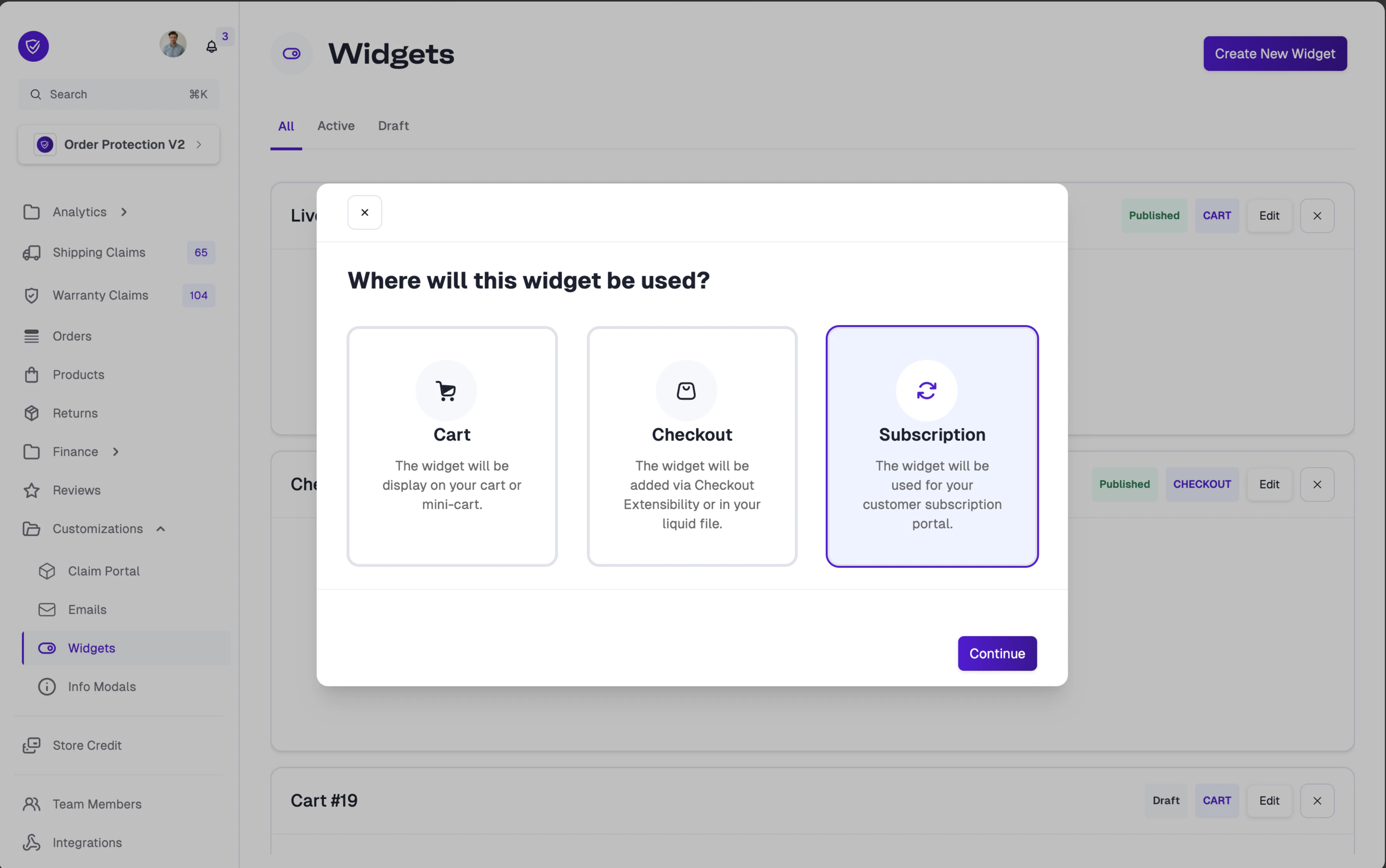
Widgets** and click **Create New Widget**. In the modal:
* Select **Subscription** as the widget type. The description reads:
*"The widget will be used for your customer subscription portal."*
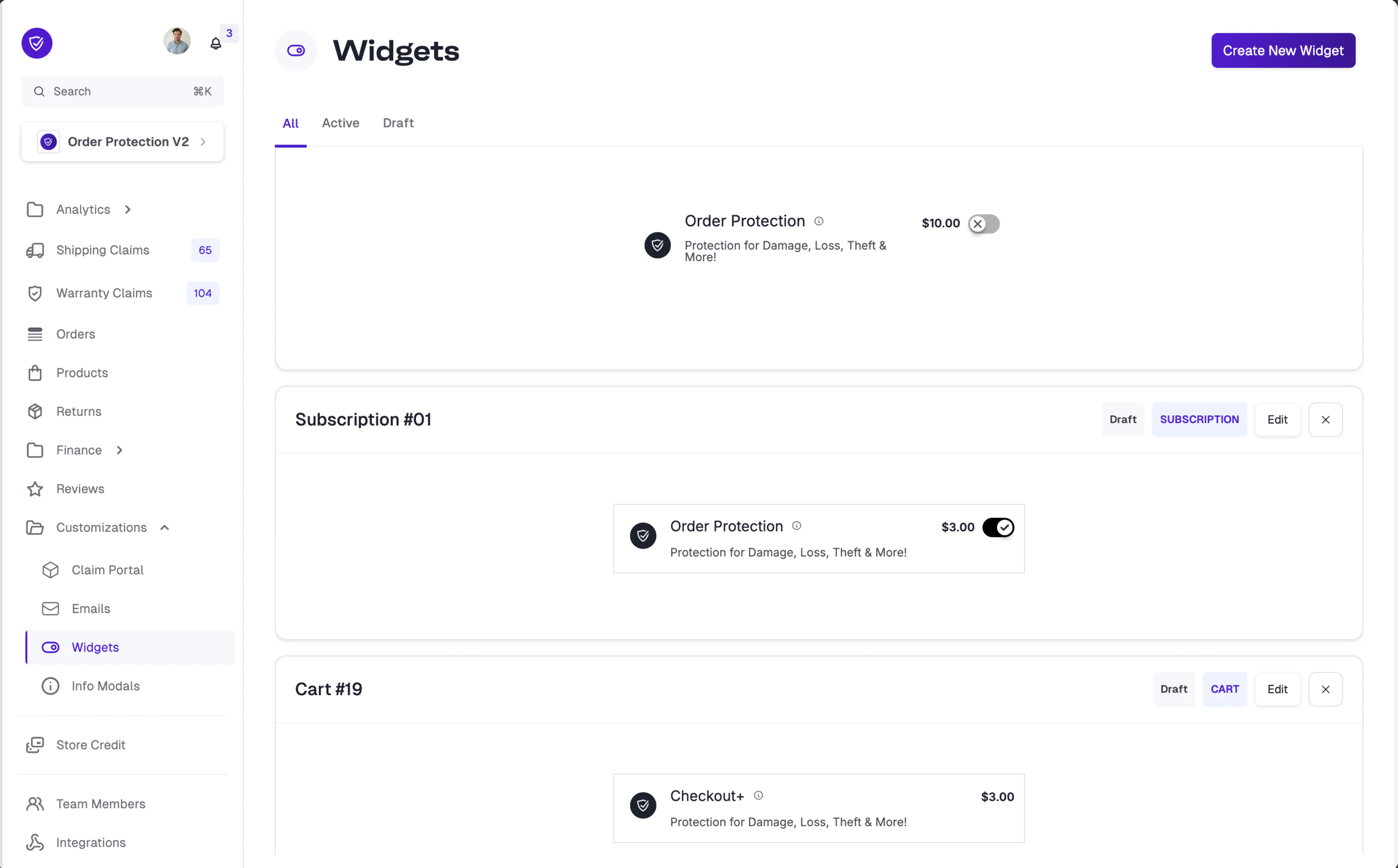
* The widget is created with the **Toggle** variant (the only
variant supported for subscription widgets today) and an
auto-generated name like *Subscription Widget*.
Open the widget from the list, customize the toggle styling to
match your store, and click **Publish** to set the status to
**Active**. Draft widgets won't be served to the snippet.
The widget config and the customer-portal snippet are linked by
your Shopify domain — there's no widget ID to copy or paste.
Once the widget is **Active**, the snippet you'll install in the
next step picks it up automatically on the next page load.
In the Skio admin, navigate to **Customer Portal → Portal settings
→ Custom block (HTML/JS)**. Paste this entire block into a custom
block placed where you want the Order Protection toggle to appear
(typically next to the subscription summary):
```html Skio custom block theme={null}
```
That's the entire install:
* **``** is the Order Protection web component.
The bootstrap script tags it with the right `instance-id` at
runtime — **don't hardcode one** yourself.
* The **bootstrap script** is identical for every merchant. At
runtime it reads `window.Shopify.shop`, resolves your brand's
widget bundle (`cdn.orderprotection.com/subscriptions-widget//widget.js`),
and renders the toggle inside ``. No URL
editing required.
Once the webhook token is saved and the widget snippet is in place,
Order Protection runs end-to-end:
* Subscriptions whose originating order had Order Protection keep
getting it on every upcoming charge automatically — no customer
action required.
* Existing subscribers can opt in (or out) any time from their Skio
customer portal via the widget you just installed. Their next
charge picks up the new state.
## What gets added (and what doesn't)
* **Customers who originally checked out with Order Protection**:
Order Protection is added as a one-time line on each upcoming Skio
charge. The price is calculated from the subscription cart subtotal
using your existing Order Protection price tiers.
* **Existing subscribers who have opted in to Order Protection**:
same treatment — Order Protection is added to upcoming charges for
as long as the subscription is opted in.
* **Subscribers who didn't originally buy Order Protection and
haven't opted in**: nothing changes — Skio charges them the same
as it did before.
* **Cancelled subscriptions**: Order Protection stops being added to
charges as soon as Skio sends the cancellation webhook.
## Webhook events Order Protection listens for
| Skio event | What we do |
| ----------------------------------- | ------------------------------------------------------------------------------------------------------------------------------------------------------------------------------------------------------- |
| `orderPlaced` | Look up the order in Order Protection, persist a subscription record on first delivery if the originating order had OP, and queue Order Protection for the next charge if the subscription is OP-active |
| `Subscription cancelled` | Mark the subscription inactive — no further Order Protection charges |
| `Subscription interval/date update` | Update our record of the next billing date |
| `Subscription created` | Logged for observability — we wait for `orderPlaced` before doing anything |
Skio webhook deliveries are queued and retried by Order Protection with
a short delay so we can confirm the originating order has fully synced
before evaluating Order Protection eligibility.
## Troubleshooting
The Webhook Token saved in Order Protection doesn't match the one
Skio is sending. Re-copy the token from Skio's webhook settings
and paste it into the Order Protection integration page.
Most common cause: the Skio API token doesn't have write permission
for subscription lines. Regenerate the token in Skio with the
correct scope and re-save it in Order Protection. The
**Validate Token on Save** check confirms Skio accepts the token,
but Skio doesn't surface scope information at validation time —
insufficient scope only shows up when the actual
`addSubscriptionLine` call fires.
Also confirm the subscription is OP-active: subscriptions that
didn't originate with Order Protection only get it once they've
been opted in.
Order Protection is attached as a **one-time** line, so it should
consume after a single billing cycle. If you see a duplicate, the
likely cause is a renamed Order Protection product on the merchant
side — Order Protection's deduplication matches by **vendor**
(`Order Protection`) first and falls back to the product title.
Confirm the OP product in your Shopify store still has the
`Order Protection` vendor set.
The customer portal is loading the snippet and the widget bundle,
but the **Subscription Widget** config in the Order Protection admin
is either missing or still in **Draft**. In that case the widget
falls back to a bundled default config so it still renders.
Fix: in the Order Protection dashboard, go to **Customizations →
Widgets**, open the **Subscription** widget (create one if it
doesn't exist), and click **Publish**. The next page load in the
Skio portal picks up the new config.
The bootstrap script loads your brand's widget bundle from
`cdn.orderprotection.com/subscriptions-widget//widget.js`
where the slug is derived from your Shopify domain (e.g.
`acme-store.myshopify.com` → `acme-store`). If that URL returns a
404, the bundle hasn't been built yet and the widget can't render.
Verify with:
```bash theme={null}
curl -I https://cdn.orderprotection.com/subscriptions-widget//widget.js
```
A `200 OK` confirms the bundle is live. On `404`, your Onboarding
& Implementation manager can trigger a Cart Deployment from the
Order Protection admin dashboard to build it.
**Did you know?** You can customize the Order Protection widget styling specifically for your subscription portal. When creating a new widget, select **Subscription** as the widget type to create a dedicated subscription widget.
 For full customization options, visit the [Widget Customization](https://docs.orderprotection.com/education-basecamp/customizations/widgets) page.