> ## Documentation Index
> Fetch the complete documentation index at: https://docs.orderprotection.com/llms.txt
> Use this file to discover all available pages before exploring further.
# Fulfilling Order Protection
> Learn how to properly configure Order Protection fulfillment in your ERP and warehouse management systems
This guide covers how to properly configure Order Protection fulfillment in your ERP (Enterprise Resource Planning) and warehouse management systems when integrated with Shopify. Order Protection is a digital product that requires special handling to ensure smooth operations.
## Understanding Order Protection as a Digital Product
Order Protection is uploaded into your Shopify product catalog as a **digital item** that doesn't require physical inventory tracking. This means it behaves differently from physical products in your fulfillment workflow.
### Key Characteristics
* **Digital Product**: No physical inventory to track or warehouse
* **Auto-Fulfillment**: Can be configured to fulfill automatically from within the Order Protection app settings. Other options include: `Never fulfill, fulfill after first product fulfilled, or fulfill after all products are fulfilled.` See *Fulfillment Behavior Options* section for more details.
* **Insurance Category**: Defaults to the Insurance product category
* **Vendor**: Must be set to "Order Protection" for proper functionality
* **SKU Management**: Defaults to active warehouse but can be adjusted.
## ERP Integration Considerations
Below we list ERP considerations for Net Suite, Full Circle, and SAP. These are only a few ERPs and instructions provided are simple guidelines. Any more specific workflows and settings will need to be evaluated based on the needs of your store.
### NetSuite Integration
NetSuite is one of the most popular ERP systems for Shopify stores. When integrating Order Protection with NetSuite:
In NetSuite, ensure Order Protection is configured as a **Service Item** rather than an Inventory Item. This prevents the system from trying to track physical inventory.
**Key Settings:**
* Item Type: Service
* Track Quantity: No
* Auto-Create Fulfillment: Yes (if using auto-fulfillment)
* Revenue Recognition: Immediate
Configure fulfillment rules to exclude Order Protection from physical fulfillment workflows:
* Set up filters to identify Order Protection by SKU prefix or vendor
* Configure automatic fulfillment for digital items
* Ensure Order Protection doesn't trigger warehouse picking processes
When orders containing Order Protection are processed:
* Physical items follow normal fulfillment workflow
* Order Protection items are automatically marked as fulfilled (or per your inventory settings)
* No shipping labels or tracking numbers are generated for Order Protection
### Full Circle Integration
Full Circle is another popular ERP choice for Shopify merchants:
In Full Circle, configure Order Protection as a **Non-Inventory Item**:
* Product Type: Digital/Service
* Inventory Tracking: Disabled
* Fulfillment Method: Automatic
* Category: Insurance
Set up automation rules to handle Order Protection fulfillment:
* Create filters based on product vendor or SKU.
* Configure automatic fulfillment for digital items.
* Exclude from warehouse management processes.
Ensure proper order synchronization between Shopify and Full Circle:
* Order Protection items sync as digital products
* Fulfillment status updates automatically
* No physical fulfillment processes triggered
### SAP Integration
SAP is one of the most popular ERP systems globally, particularly for larger enterprises. When integrating Order Protection with SAP S/4HANA or SAP Business One:
In SAP, configure Order Protection as a **Service Product** in the product master:
* Product Type: Service/Non-Stock Item
* Material Group: Insurance/Services
* Valuation Class: Service
* Inventory Management: Disabled
* Sales Organization: Configure for digital fulfillment
Set up SAP fulfillment rules for digital products:
* Configure automatic fulfillment for service items
* Set up customer-material info records for Order Protection
* Create pricing conditions for digital products
* Configure delivery scheduling for immediate fulfillment
When processing orders with Order Protection in SAP:
* Physical items follow standard SAP fulfillment workflow
* Order Protection items are automatically marked as delivered
* No warehouse management processes are triggered
* Revenue recognition can be configured for immediate recognition
## Warehouse Management System (WMS) Configuration
### Digital Product Handling
Most WMS systems are designed for physical inventory, so special configuration is needed for digital products like Order Protection:
Classify Order Protection as a **Digital Product** in your WMS:
* Product Type: Digital/Service
* Location: Virtual/Digital
* Picking Process: Skip
* Packing Process: Skip
Configure WMS rules to handle digital products:
* Exclude from picking waves
* Skip packing and shipping processes
* Mark as fulfilled automatically
* No inventory allocation required
When processing orders with mixed items (physical + digital):
* Physical items follow normal WMS workflow
* Digital items are automatically fulfilled
* Order status reflects both fulfillment types
## Shopify Configuration
### Product Setup
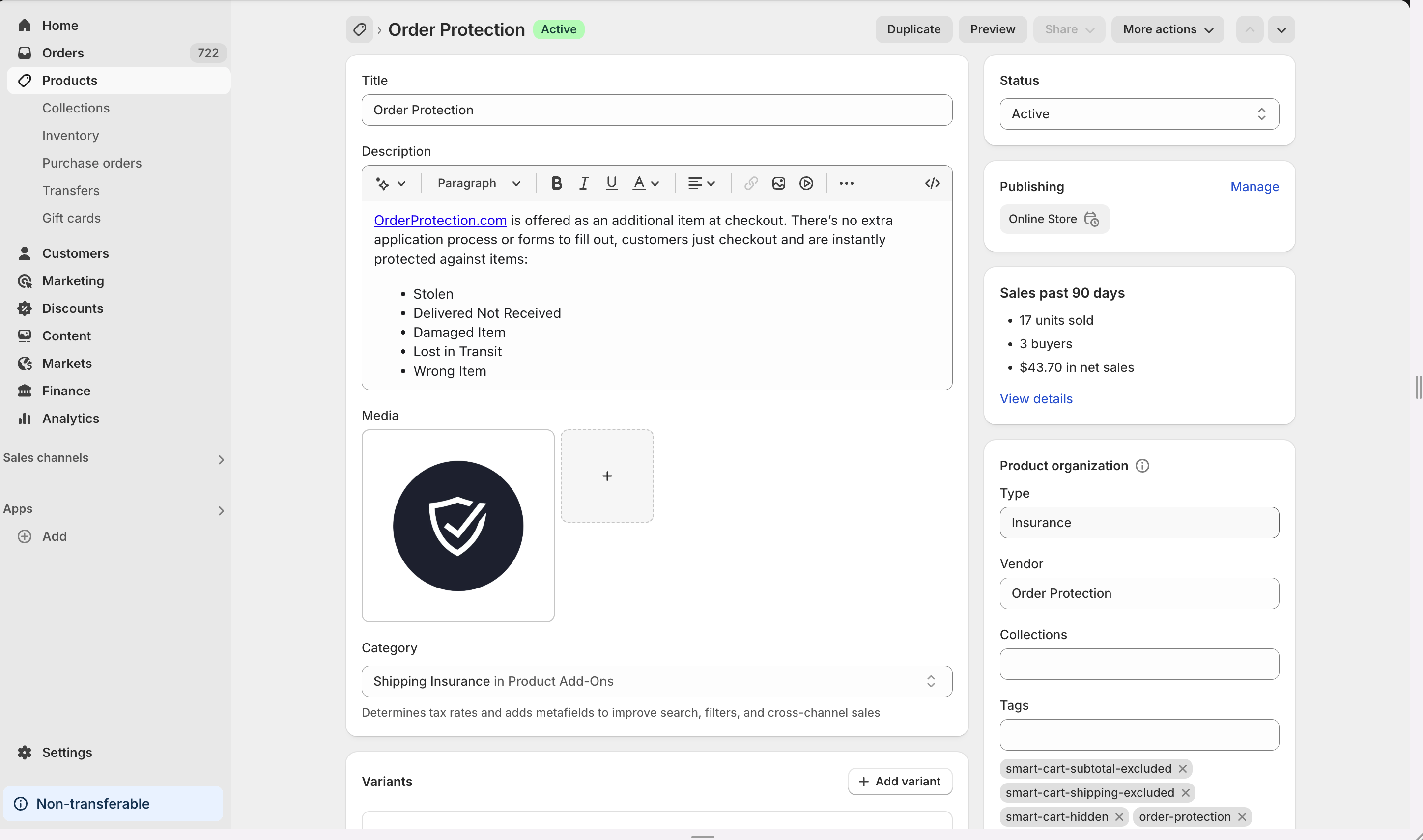
Create Order Protection as a digital product in Shopify (handled by the Order Protection team upon developer app install):
* Product Type: Digital Product
* Vendor: Order Protection (required)
* Product Category: Insurance (default)
* Inventory Tracking: Disabled
* Requires Shipping: No
 Configure SKU settings for Order Protection:
* SKU: Use consistent naming convention (e.g., OP-PROTECTION-001)
* Warehouse: Default to active warehouse
(can be adjusted)
* Inventory Policy: Don't track inventory
* Fulfillment Service: Automatic or manual based on the settings within the Order Protection app.
Configure fulfillment behavior for Order Protection:
* **Instantly**: Fulfills immediately upon order placement
* **Never**: Requires manual fulfillment
* **After first item**: Fulfills when first physical item is fulfilled
* **After last item**: Fulfills when last physical item is fulfilled (default behavior in OP app).
### Fulfillment Behavior Options
Order Protection offers flexible fulfillment timing to accommodate different business needs:
**Instant Fulfillment**
* Best for: Allowing orders to be fully processed and marked as `complete` and ready for processing within some ERPs.
* Use case: Some accounting flows are tied to realizing order revenue at time of order and immediate fulfillment is necessary OR the ERP requires digital items to be fulfilled immediately as to not impact the tracking ID used for physical item fulfillment.
* Configuration: Set to fulfill instantly upon order placement.
**Manual Fulfillment**
* Best for: Control over when protection is activated.
* Use case: When you want to review orders before activating protection.
* Configuration: Set to "Never" and manually fulfill when ready.
**Sequential Fulfillment**
* Best for: Aligning protection with physical item fulfillment.
* Use case: When protection should activate with physical item delivery.
* Configuration: Set to fulfill after first or last item.
## Testing and Validation
### Test Order Process
Create a test order containing both physical items and Order Protection:
* Add physical products to cart
* Add Order Protection to cart
* Complete checkout process
* Verify order appears in Shopify admin
Configure SKU settings for Order Protection:
* SKU: Use consistent naming convention (e.g., OP-PROTECTION-001)
* Warehouse: Default to active warehouse
(can be adjusted)
* Inventory Policy: Don't track inventory
* Fulfillment Service: Automatic or manual based on the settings within the Order Protection app.
Configure fulfillment behavior for Order Protection:
* **Instantly**: Fulfills immediately upon order placement
* **Never**: Requires manual fulfillment
* **After first item**: Fulfills when first physical item is fulfilled
* **After last item**: Fulfills when last physical item is fulfilled (default behavior in OP app).
### Fulfillment Behavior Options
Order Protection offers flexible fulfillment timing to accommodate different business needs:
**Instant Fulfillment**
* Best for: Allowing orders to be fully processed and marked as `complete` and ready for processing within some ERPs.
* Use case: Some accounting flows are tied to realizing order revenue at time of order and immediate fulfillment is necessary OR the ERP requires digital items to be fulfilled immediately as to not impact the tracking ID used for physical item fulfillment.
* Configuration: Set to fulfill instantly upon order placement.
**Manual Fulfillment**
* Best for: Control over when protection is activated.
* Use case: When you want to review orders before activating protection.
* Configuration: Set to "Never" and manually fulfill when ready.
**Sequential Fulfillment**
* Best for: Aligning protection with physical item fulfillment.
* Use case: When protection should activate with physical item delivery.
* Configuration: Set to fulfill after first or last item.
## Testing and Validation
### Test Order Process
Create a test order containing both physical items and Order Protection:
* Add physical products to cart
* Add Order Protection to cart
* Complete checkout process
* Verify order appears in Shopify admin
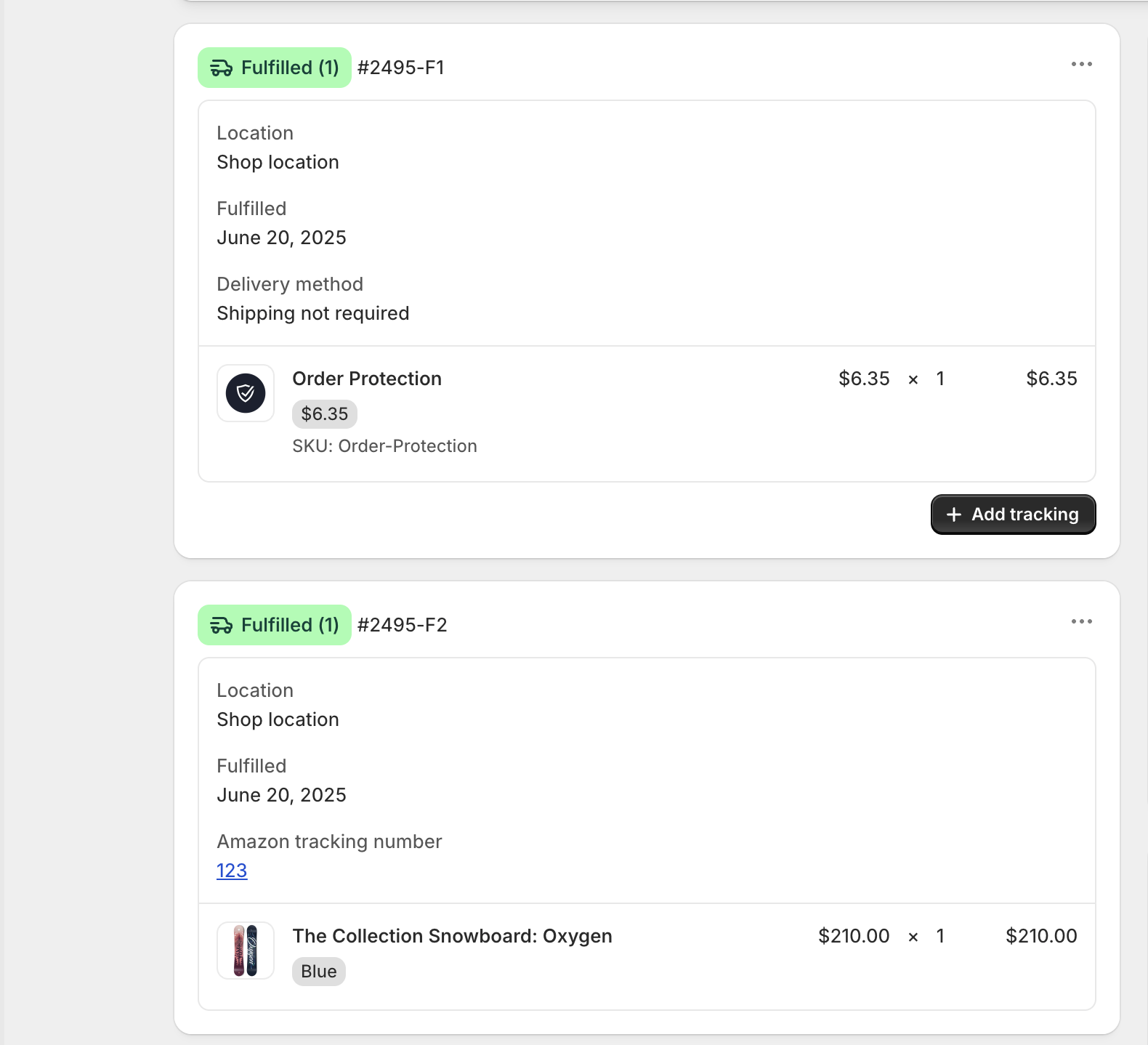 Verify the order syncs properly to your ERP:
* Check that Order Protection appears as digital item
* Confirm no inventory allocation is attempted
* Verify fulfillment behavior matches configuration
* Test both auto-fulfillment and manual fulfillment scenarios
If using a WMS, verify digital product handling:
* Confirm Order Protection is excluded from picking
* Verify no shipping labels are generated
* Test order completion with mixed item types
* Validate fulfillment status updates
### Common Issues and Solutions
**Issue: Order Protection triggering warehouse processes**
* **Solution**: Ensure product is classified as digital/service item in ERP/WMS
* **Prevention**: Set up proper product type filters and fulfillment rules
**Issue: Fulfillment delays for digital items**
* **Solution**: Configure automatic fulfillment for digital products
* **Prevention**: Review fulfillment timing settings in Shopify
**Issue: Inventory tracking errors**
* **Solution**: Disable inventory tracking for Order Protection
* **Prevention**: Use proper product classification in all systems
**Issue: ERP sync problems**
* **Solution**: Verify vendor is set to "Order Protection" in Shopify
* **Prevention**: Use consistent product identifiers across systems
## Best Practices
### System Configuration
1. **Consistent Product Classification**: Ensure Order Protection is classified as digital/service in all systems
2. **Vendor Consistency**: Always use "Order Protection" as the vendor name
3. **SKU Naming**: Use consistent SKU naming conventions for easy identification
4. **Fulfillment Rules**: Set up clear rules for digital vs. physical product handling
### Operational Procedures
1. **Regular Testing**: Perform test orders monthly to ensure systems work correctly
2. **Documentation**: Maintain clear documentation of configuration settings
3. **Team Training**: Train fulfillment teams on digital product handling
4. **Monitoring**: Monitor fulfillment processes for digital products regularly
### Integration Maintenance
1. **System Updates**: Test Order Protection functionality after ERP/WMS updates
2. **Configuration Reviews**: Regularly review and update fulfillment rules
3. **Performance Monitoring**: Monitor system performance for digital product processing
4. **Backup Procedures**: Maintain backup configurations for critical settings
## Exporting SKUs
To export Order Protection SKUs from Shopify:
Go to Shopify Admin → Products
Use the search function to find "Order Protection" products
Click on the Order Protection product to view details
Use the export function to download product data including SKUs
**Important**: Ensure the vendor is set to "Order Protection" for proper functionality.
## Conclusion
Properly configuring Order Protection fulfillment in your ERP and warehouse management systems is crucial for smooth operations. By following these guidelines and best practices, you can ensure that Order Protection integrates seamlessly with your existing fulfillment workflows while maintaining the efficiency of your physical product operations.
Remember to test thoroughly, document your configurations, and train your team on digital product handling procedures. Regular monitoring and maintenance will help prevent issues and ensure consistent performance.
Verify the order syncs properly to your ERP:
* Check that Order Protection appears as digital item
* Confirm no inventory allocation is attempted
* Verify fulfillment behavior matches configuration
* Test both auto-fulfillment and manual fulfillment scenarios
If using a WMS, verify digital product handling:
* Confirm Order Protection is excluded from picking
* Verify no shipping labels are generated
* Test order completion with mixed item types
* Validate fulfillment status updates
### Common Issues and Solutions
**Issue: Order Protection triggering warehouse processes**
* **Solution**: Ensure product is classified as digital/service item in ERP/WMS
* **Prevention**: Set up proper product type filters and fulfillment rules
**Issue: Fulfillment delays for digital items**
* **Solution**: Configure automatic fulfillment for digital products
* **Prevention**: Review fulfillment timing settings in Shopify
**Issue: Inventory tracking errors**
* **Solution**: Disable inventory tracking for Order Protection
* **Prevention**: Use proper product classification in all systems
**Issue: ERP sync problems**
* **Solution**: Verify vendor is set to "Order Protection" in Shopify
* **Prevention**: Use consistent product identifiers across systems
## Best Practices
### System Configuration
1. **Consistent Product Classification**: Ensure Order Protection is classified as digital/service in all systems
2. **Vendor Consistency**: Always use "Order Protection" as the vendor name
3. **SKU Naming**: Use consistent SKU naming conventions for easy identification
4. **Fulfillment Rules**: Set up clear rules for digital vs. physical product handling
### Operational Procedures
1. **Regular Testing**: Perform test orders monthly to ensure systems work correctly
2. **Documentation**: Maintain clear documentation of configuration settings
3. **Team Training**: Train fulfillment teams on digital product handling
4. **Monitoring**: Monitor fulfillment processes for digital products regularly
### Integration Maintenance
1. **System Updates**: Test Order Protection functionality after ERP/WMS updates
2. **Configuration Reviews**: Regularly review and update fulfillment rules
3. **Performance Monitoring**: Monitor system performance for digital product processing
4. **Backup Procedures**: Maintain backup configurations for critical settings
## Exporting SKUs
To export Order Protection SKUs from Shopify:
Go to Shopify Admin → Products
Use the search function to find "Order Protection" products
Click on the Order Protection product to view details
Use the export function to download product data including SKUs
**Important**: Ensure the vendor is set to "Order Protection" for proper functionality.
## Conclusion
Properly configuring Order Protection fulfillment in your ERP and warehouse management systems is crucial for smooth operations. By following these guidelines and best practices, you can ensure that Order Protection integrates seamlessly with your existing fulfillment workflows while maintaining the efficiency of your physical product operations.
Remember to test thoroughly, document your configurations, and train your team on digital product handling procedures. Regular monitoring and maintenance will help prevent issues and ensure consistent performance.