> ## Documentation Index
> Fetch the complete documentation index at: https://docs.orderprotection.com/llms.txt
> Use this file to discover all available pages before exploring further.
# Standard Operating Procedures (SOPs)
> Create and manage standard operating procedures to guide your team and Order Protection's claim automation.
Standard Operating Procedures (SOPs) allow you to document your store's operational guidelines for handling claims. SOPs are used by both your team and Order Protection's AI-powered claim automation to ensure claims are processed consistently according to your preferences.
## Accessing SOPs
Navigate to **Settings** in the left sidebar, then click the **SOPs** tab. Here you'll see a list of all your SOPs along with their current state — **Active** or **Inactive**.
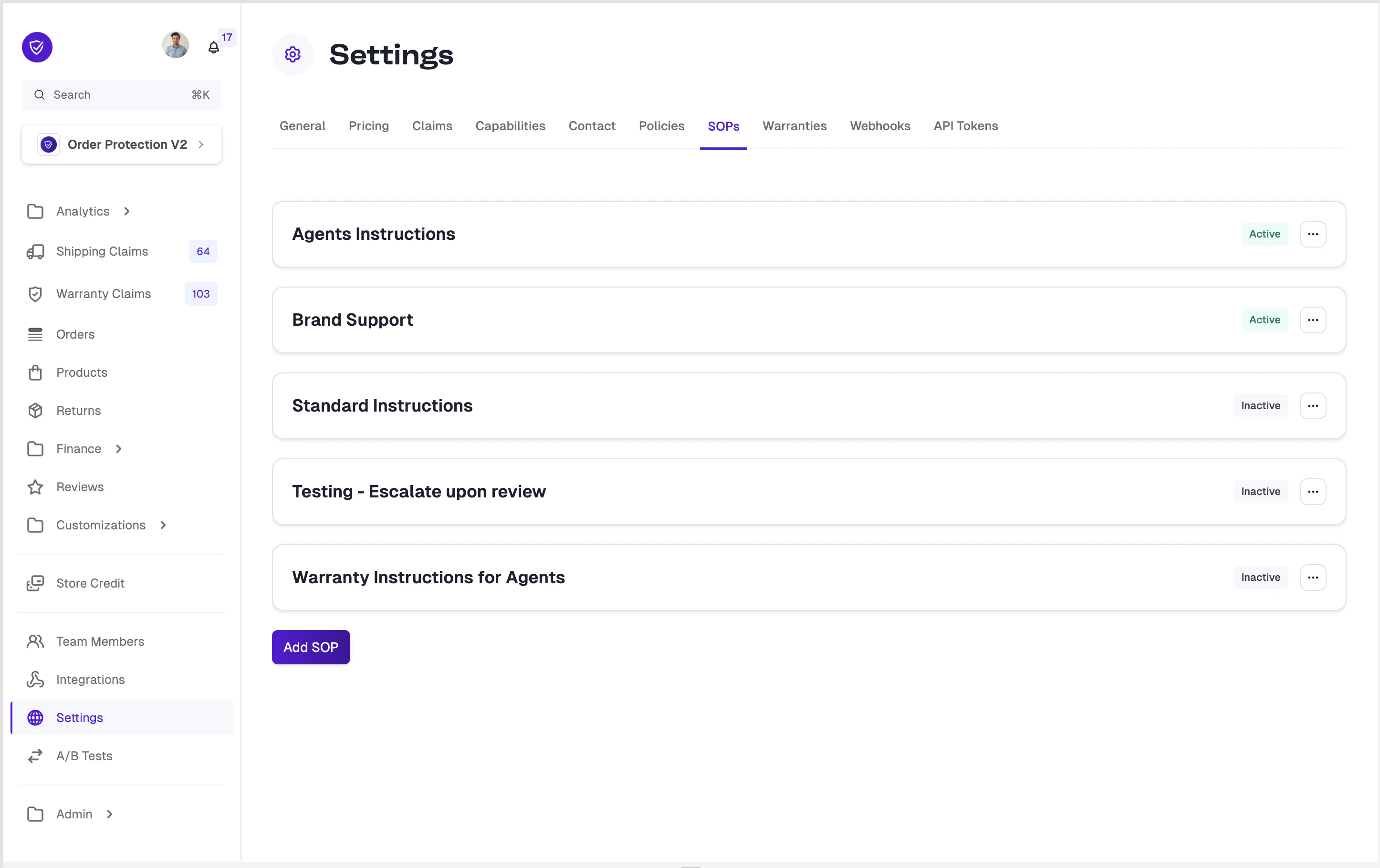 * **Active** SOPs are visible to your team on claim pages and are used by claim automation when processing claims.
* **Inactive** SOPs are hidden from claims and not used by automation. Use this state for drafts or procedures you want to temporarily disable.
## Creating an SOP
Click the **Add SOP** button at the bottom of the list to create a new procedure. You'll be prompted to enter a title, then taken to the editor where you can write your content.
SOPs support rich text formatting, so you can structure your procedures with:
* **Headings** for section titles
* **Bullet points** and **numbered lists** for step-by-step instructions
* **Bold** and *italic* text for emphasis
* **Links** and **file attachments** for reference materials
## Editing an SOP
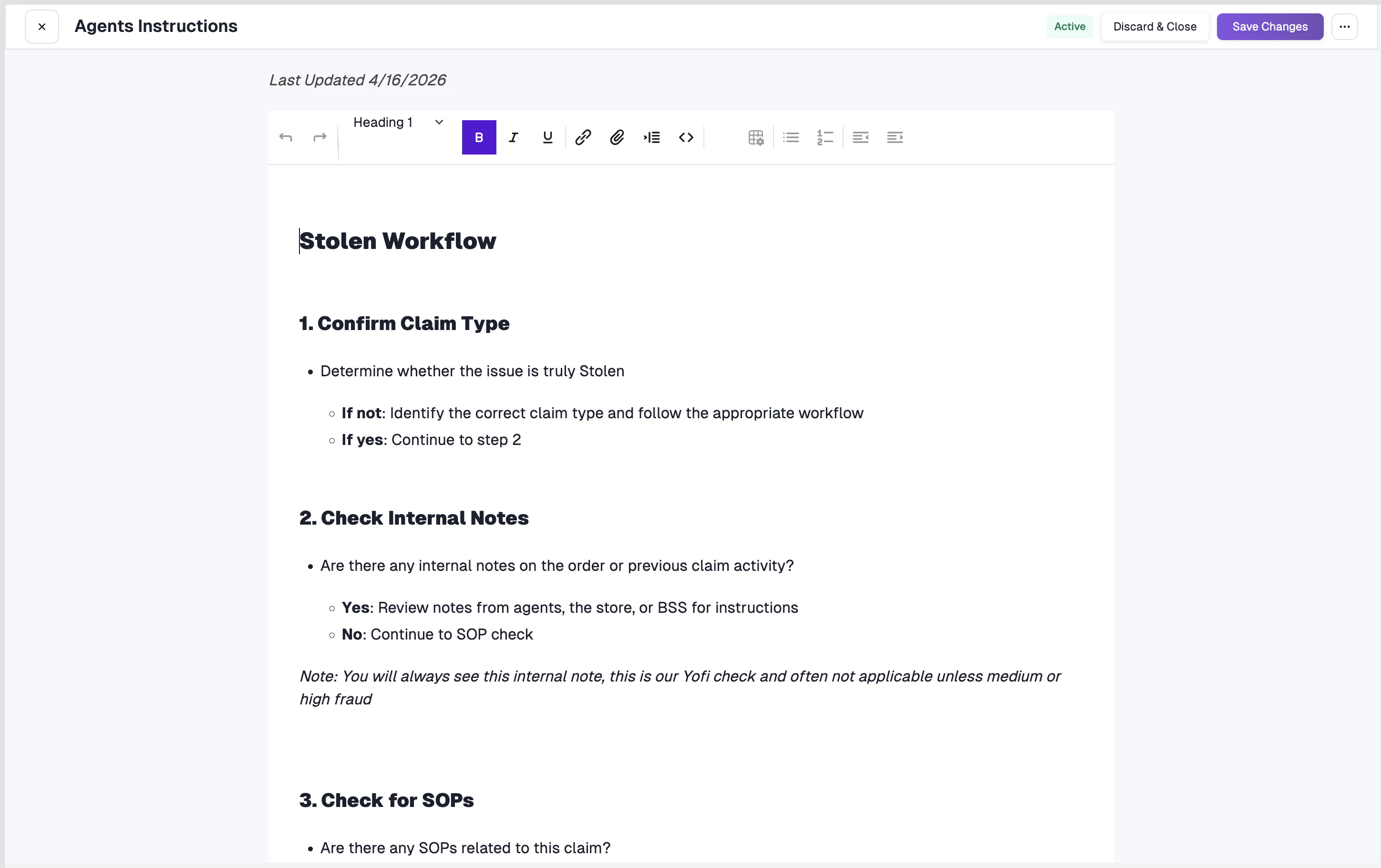
Click on any SOP from the list to open it. To make changes, click the **three-dot menu** in the top right and select **Edit**, or click directly into the content area.
* **Active** SOPs are visible to your team on claim pages and are used by claim automation when processing claims.
* **Inactive** SOPs are hidden from claims and not used by automation. Use this state for drafts or procedures you want to temporarily disable.
## Creating an SOP
Click the **Add SOP** button at the bottom of the list to create a new procedure. You'll be prompted to enter a title, then taken to the editor where you can write your content.
SOPs support rich text formatting, so you can structure your procedures with:
* **Headings** for section titles
* **Bullet points** and **numbered lists** for step-by-step instructions
* **Bold** and *italic* text for emphasis
* **Links** and **file attachments** for reference materials
## Editing an SOP
Click on any SOP from the list to open it. To make changes, click the **three-dot menu** in the top right and select **Edit**, or click directly into the content area.
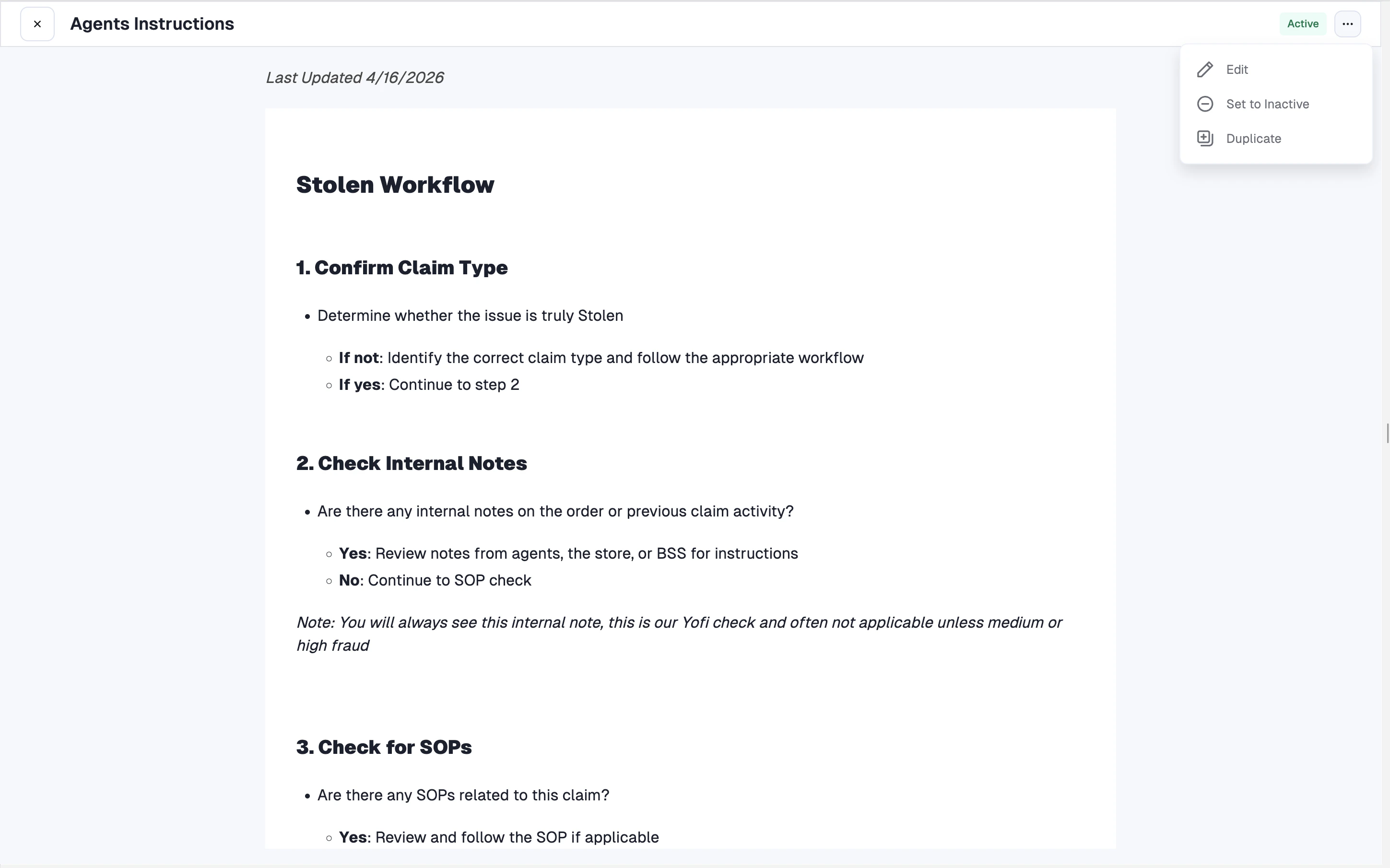 In edit mode, you'll see the rich text toolbar with formatting options. Make your changes, then click **Save Changes** to save or **Discard & Close** to cancel.
 Each time you save changes, a new version is created in the SOP's history. This allows you to track how your procedures evolve over time.
### Additional Actions
From the three-dot menu on any SOP, you can also:
* **Set to Active / Set to Inactive** — Toggle the SOP's state. Only active SOPs are visible on claims and used by automation.
* **Duplicate** — Create a copy of an existing SOP as a starting point for a new procedure.
SOPs can only be deleted when they are in an **Inactive** state. If you need to delete an SOP, set it to Inactive first.
## SOPs on Claim Pages
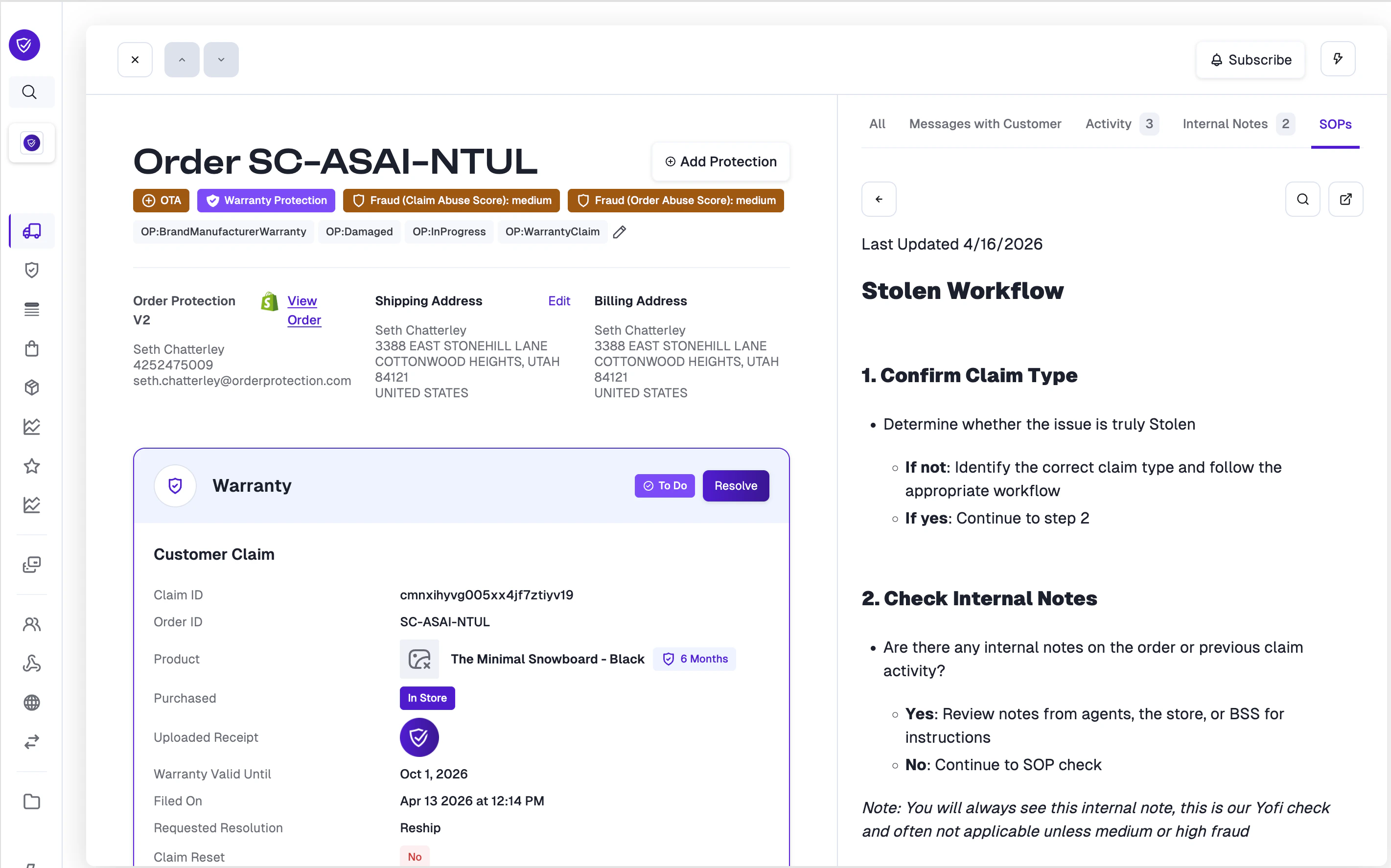
When your team opens a claim, they can access all active SOPs directly from the **SOPs** tab on the right side of the claim page. This gives agents quick access to the relevant procedures without leaving the claim.
Each time you save changes, a new version is created in the SOP's history. This allows you to track how your procedures evolve over time.
### Additional Actions
From the three-dot menu on any SOP, you can also:
* **Set to Active / Set to Inactive** — Toggle the SOP's state. Only active SOPs are visible on claims and used by automation.
* **Duplicate** — Create a copy of an existing SOP as a starting point for a new procedure.
SOPs can only be deleted when they are in an **Inactive** state. If you need to delete an SOP, set it to Inactive first.
## SOPs on Claim Pages
When your team opens a claim, they can access all active SOPs directly from the **SOPs** tab on the right side of the claim page. This gives agents quick access to the relevant procedures without leaving the claim.
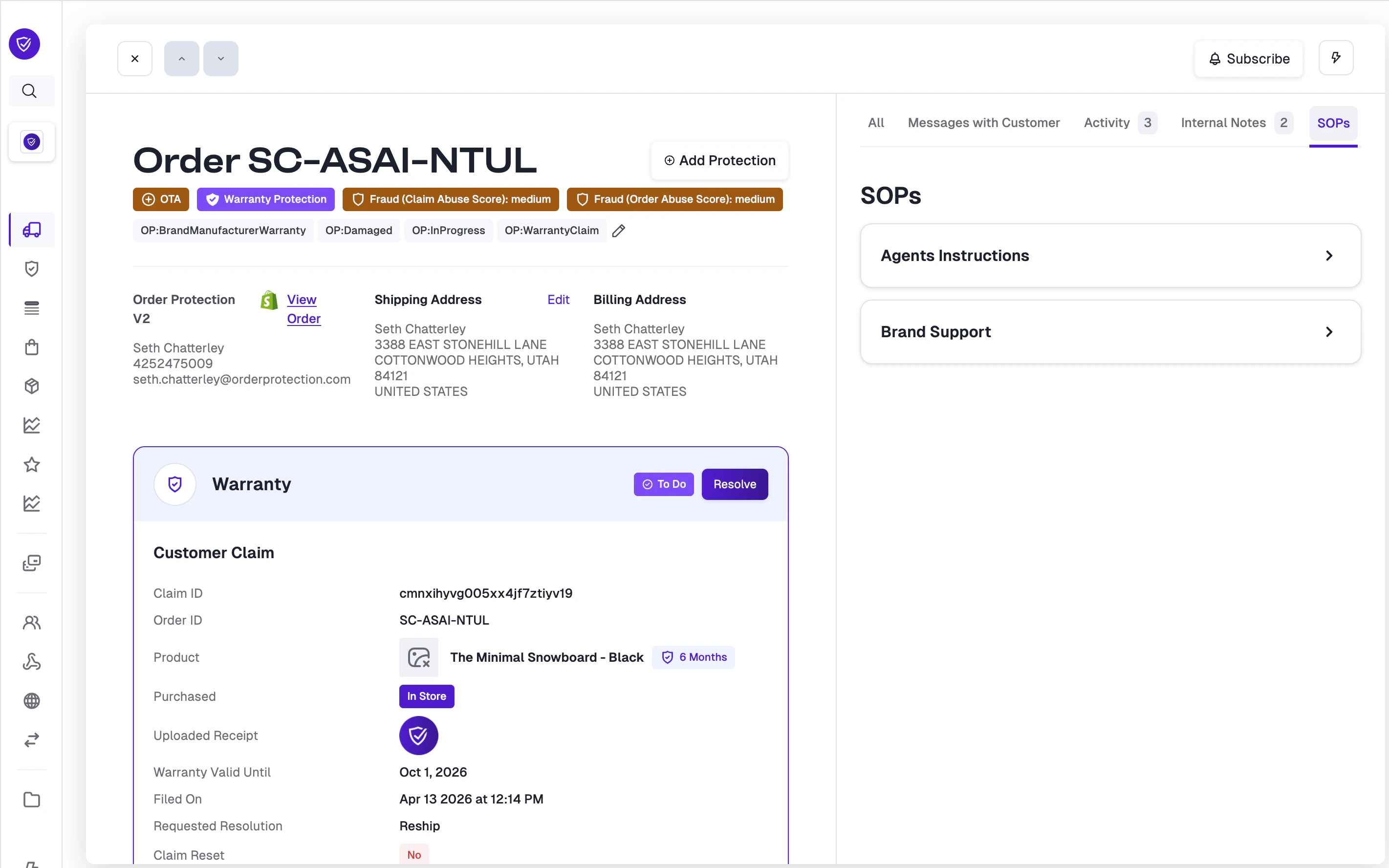 Click on any SOP to expand its full content inline, so your team can follow the procedure step by step while working the claim.
 ## SOPs and Claim Automation
Active SOPs are automatically included in the context provided to Order Protection's AI-powered claim automation. This means the automation engine follows your store's specific procedures when assessing and processing claims.
Write your SOPs with clear, specific instructions — the more detailed your procedures are, the more accurately automation will follow them when handling claims on your behalf.
### Best Practices
* **Be specific** — Include exact steps, thresholds, and decision criteria (e.g., "Escalate if order value exceeds \$500").
* **Cover edge cases** — Document how to handle exceptions and unusual situations.
* **Keep SOPs focused** — Create separate SOPs for different claim types or workflows rather than one large document.
* **Review regularly** — Update your SOPs as your policies evolve to keep automation aligned with your current practices.
* **Use Active/Inactive wisely** — Set SOPs to Inactive while drafting or when procedures are temporarily suspended, so they don't affect live claim processing.
## SOPs and Claim Automation
Active SOPs are automatically included in the context provided to Order Protection's AI-powered claim automation. This means the automation engine follows your store's specific procedures when assessing and processing claims.
Write your SOPs with clear, specific instructions — the more detailed your procedures are, the more accurately automation will follow them when handling claims on your behalf.
### Best Practices
* **Be specific** — Include exact steps, thresholds, and decision criteria (e.g., "Escalate if order value exceeds \$500").
* **Cover edge cases** — Document how to handle exceptions and unusual situations.
* **Keep SOPs focused** — Create separate SOPs for different claim types or workflows rather than one large document.
* **Review regularly** — Update your SOPs as your policies evolve to keep automation aligned with your current practices.
* **Use Active/Inactive wisely** — Set SOPs to Inactive while drafting or when procedures are temporarily suspended, so they don't affect live claim processing.