> ## Documentation Index
> Fetch the complete documentation index at: https://docs.orderprotection.com/llms.txt
> Use this file to discover all available pages before exploring further.
# Widget Customization
> Create and customize cart and checkout widgets to match your store's brand and checkout experience.
Widgets are the UI components that present Order Protection to your customers at the cart and checkout. You can customize their appearance, content, and behavior to seamlessly match your store's look and feel.
Cart and checkout widget configurations are pre-determined in partnership with the Order Protection development team. Your team will work together with OP to set up the initial widget configuration for your store.
 ## Widget Types
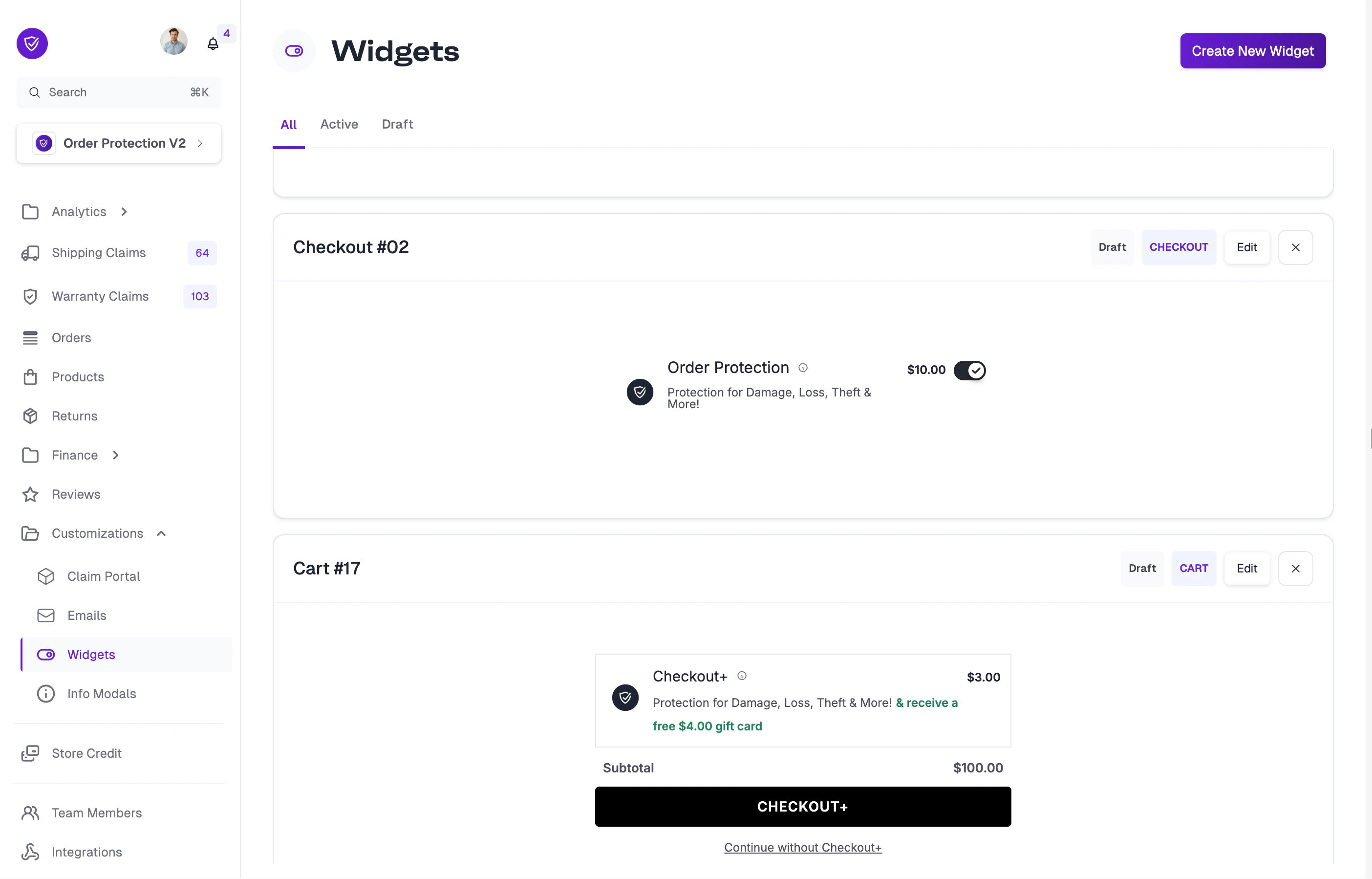
OrderProtection.com supports two primary widget types:
| Type | Description |
| ------------ | --------------------------------------------------------------------------------------------------- |
| **Cart** | Appears on the shopping cart page. Uses a web component that can be embedded anywhere on your site. |
| **Checkout** | Appears on the checkout page. Configured for the Shopify checkout experience. |
You can manage all of your widgets from the **Customizations > Widgets** tab. Use the **All**, **Active**, and **Draft** tabs to filter widgets by status.
## Editing a Widget
Click **Edit** on any widget card to open the editor. The editor uses a split-screen layout: the **Customizer sidebar** on the left and a **live widget preview** on the right.
### Checkout Widget Configuration
## Widget Types
OrderProtection.com supports two primary widget types:
| Type | Description |
| ------------ | --------------------------------------------------------------------------------------------------- |
| **Cart** | Appears on the shopping cart page. Uses a web component that can be embedded anywhere on your site. |
| **Checkout** | Appears on the checkout page. Configured for the Shopify checkout experience. |
You can manage all of your widgets from the **Customizations > Widgets** tab. Use the **All**, **Active**, and **Draft** tabs to filter widgets by status.
## Editing a Widget
Click **Edit** on any widget card to open the editor. The editor uses a split-screen layout: the **Customizer sidebar** on the left and a **live widget preview** on the right.
### Checkout Widget Configuration
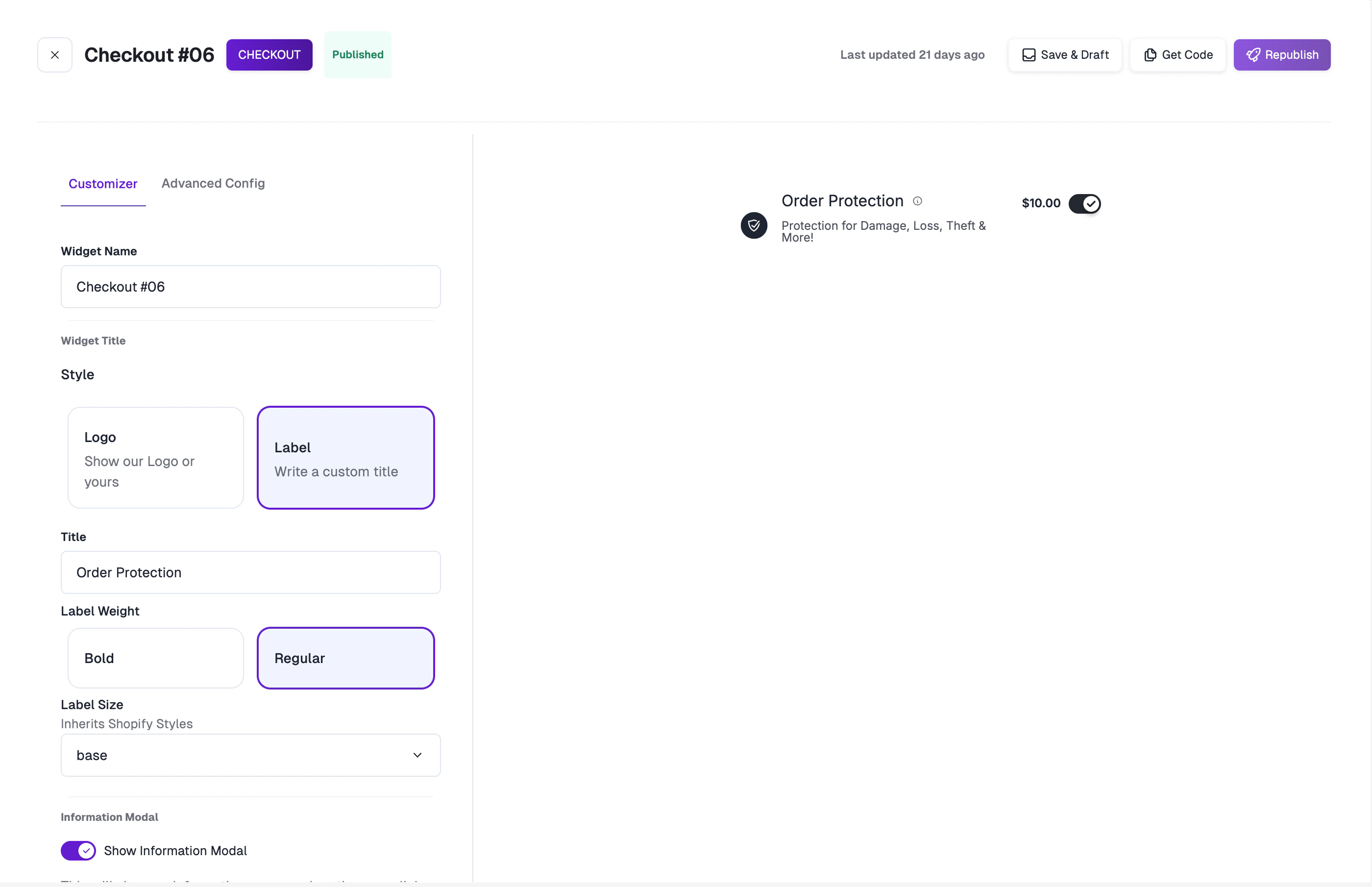 The Customizer tab for checkout widgets includes:
* **Widget Name:** A descriptive name for internal identification (e.g., "Checkout #06").
* **Widget Title Style:** Choose between:
* **Logo** — Display your store's logo or the Order Protection logo.
* **Label** — Use a custom text title with typography controls:
* Title text
* Label Weight (Bold / Regular)
* Label Size (inherits Shopify styles)
* **Information Modal:** Toggle to show a "What's this?" link that opens an informational overlay. See [Info Modals](/education-basecamp/customizations/info-modals) to configure these.
### Cart Widget Configuration
The Customizer tab for checkout widgets includes:
* **Widget Name:** A descriptive name for internal identification (e.g., "Checkout #06").
* **Widget Title Style:** Choose between:
* **Logo** — Display your store's logo or the Order Protection logo.
* **Label** — Use a custom text title with typography controls:
* Title text
* Label Weight (Bold / Regular)
* Label Size (inherits Shopify styles)
* **Information Modal:** Toggle to show a "What's this?" link that opens an informational overlay. See [Info Modals](/education-basecamp/customizations/info-modals) to configure these.
### Cart Widget Configuration
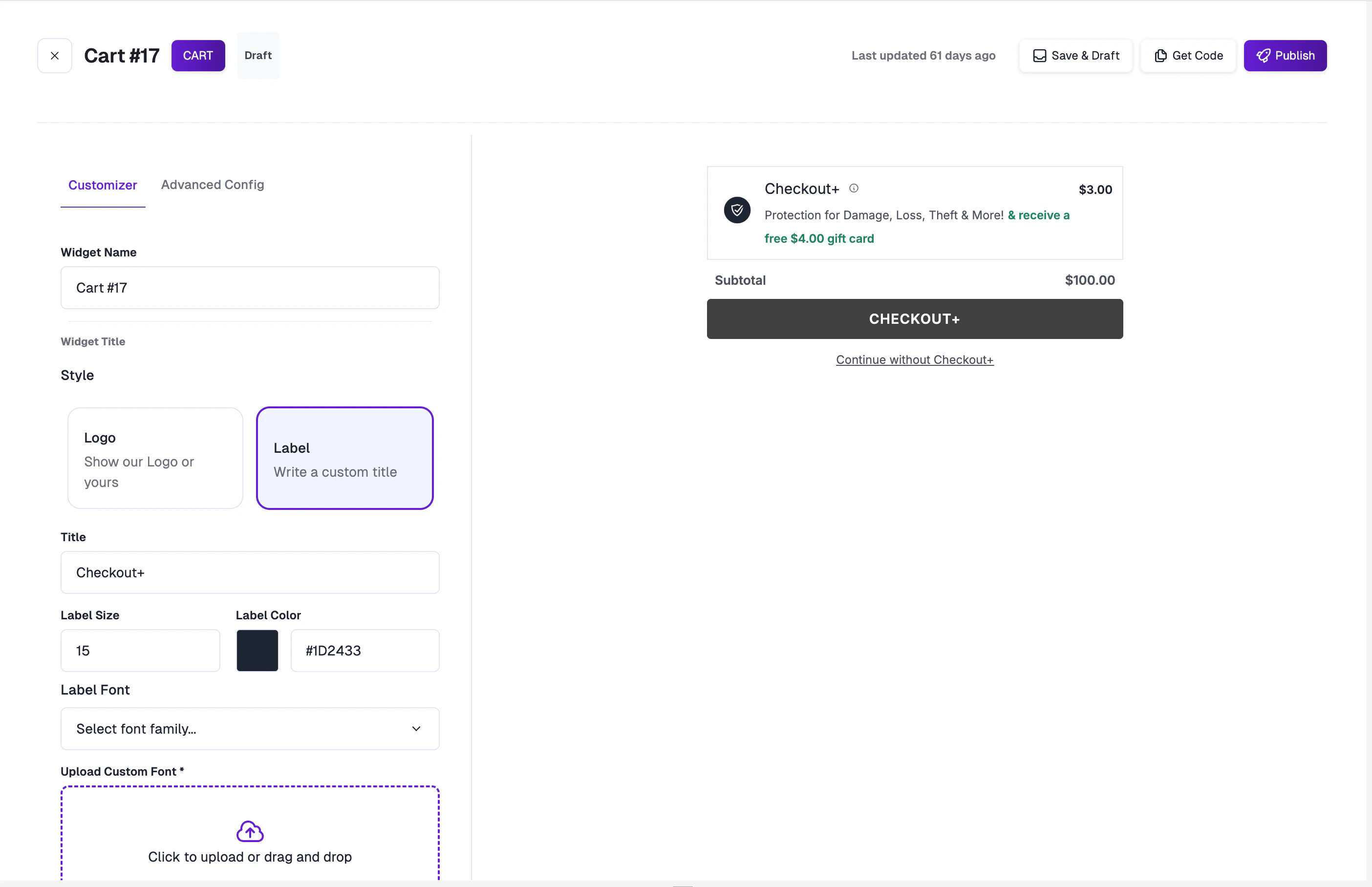 Cart widgets include the same title configuration options plus additional styling controls:
* **Label Size:** Set the font size in pixels.
* **Label Color:** Choose a custom color via the color picker.
* **Label Font:** Select from available fonts or upload a custom WOFF font file.
## Advanced Configuration
For **cart widgets only**, the **Advanced Config** tab provides a JSON editor for direct manipulation of the full widget configuration. Import your config by pasting it into the editor, or click **Open Full Screen** for an expanded editing view.
Cart widgets include the same title configuration options plus additional styling controls:
* **Label Size:** Set the font size in pixels.
* **Label Color:** Choose a custom color via the color picker.
* **Label Font:** Select from available fonts or upload a custom WOFF font file.
## Advanced Configuration
For **cart widgets only**, the **Advanced Config** tab provides a JSON editor for direct manipulation of the full widget configuration. Import your config by pasting it into the editor, or click **Open Full Screen** for an expanded editing view.
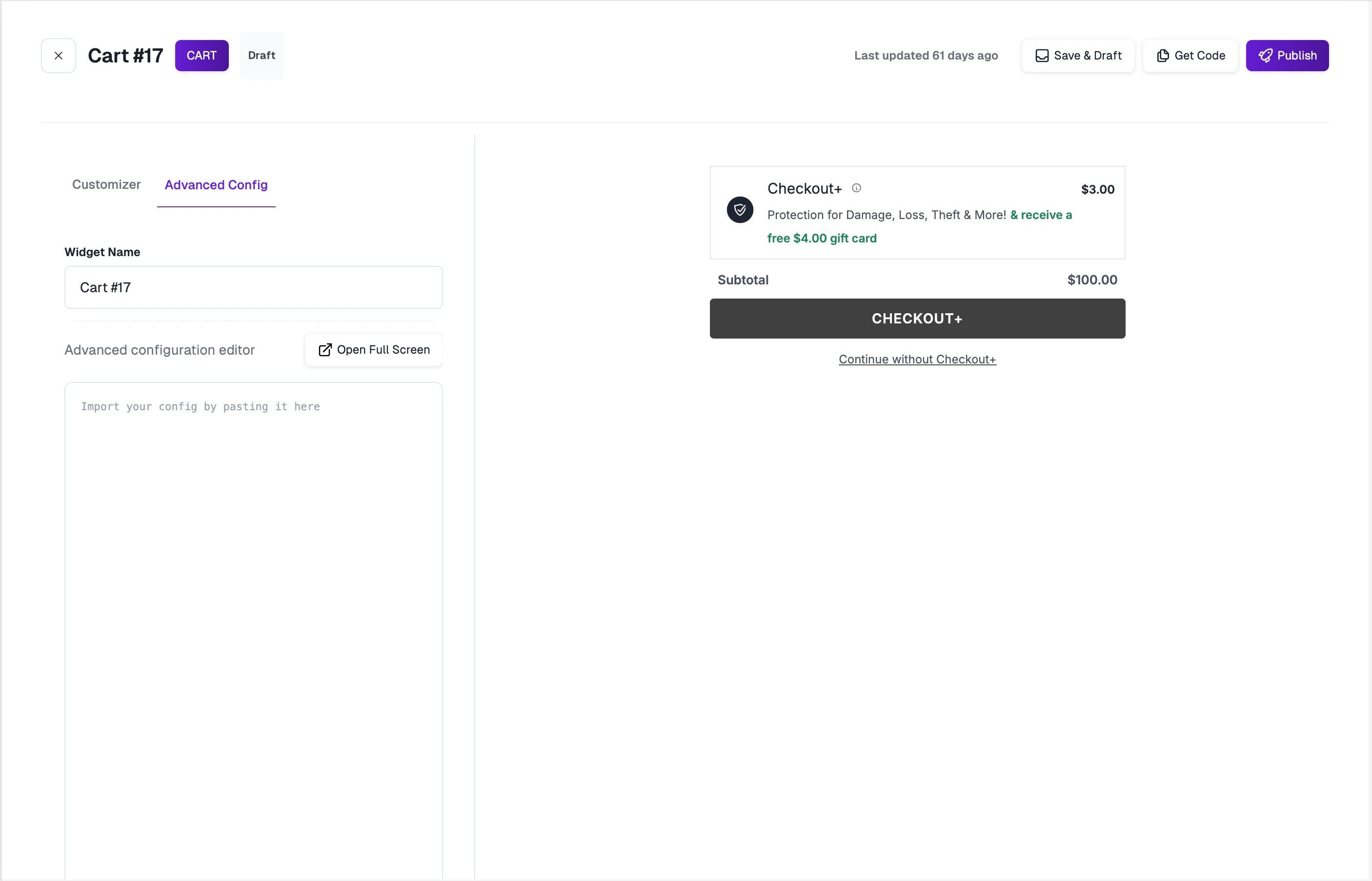 Advanced configuration is only intended for cart widget setups. Shopify merchants should not use the Advanced Config tab for checkout widgets — use the Customizer tab instead.
## Getting the Widget Code
After publishing your widget, click **Get Code** to view the embed code for your store. The modal provides:
* **Config JSON** — Your widget's configuration object.
* **JavaScript** — A `
Advanced configuration is only intended for cart widget setups. Shopify merchants should not use the Advanced Config tab for checkout widgets — use the Customizer tab instead.
## Getting the Widget Code
After publishing your widget, click **Get Code** to view the embed code for your store. The modal provides:
* **Config JSON** — Your widget's configuration object.
* **JavaScript** — A `