> ## Documentation Index
> Fetch the complete documentation index at: https://docs.orderprotection.com/llms.txt
> Use this file to discover all available pages before exploring further.
# Info Modals
> Create and customize informational modals that explain Order Protection to your customers.
Info Modals are overlay popups that explain what Order Protection is and how it works. They appear when a customer clicks a "What's this?" or information link on your cart or checkout widget, providing a clear breakdown of the protection offering.
 ## Creating a New Info Modal
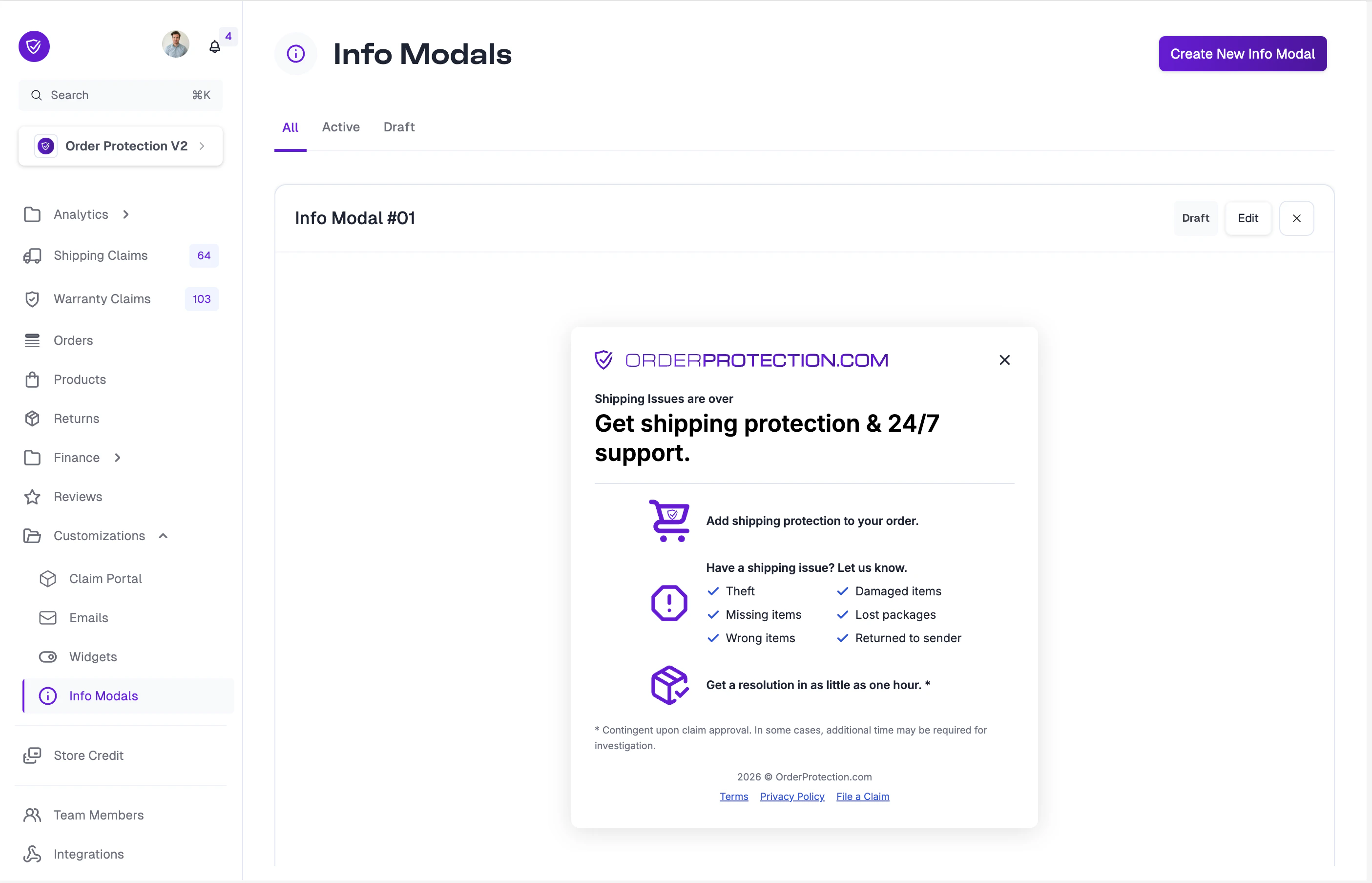
From the left-hand menu, go to **Customizations** and select the **Info Modals** tab.
Click the **Create New Info Modal** button in the top-right corner. A new modal will be created with default content that you can customize.
You can manage all of your info modals from this page. Use the **All**, **Active**, and **Draft** tabs to filter by status.
## Editing an Info Modal
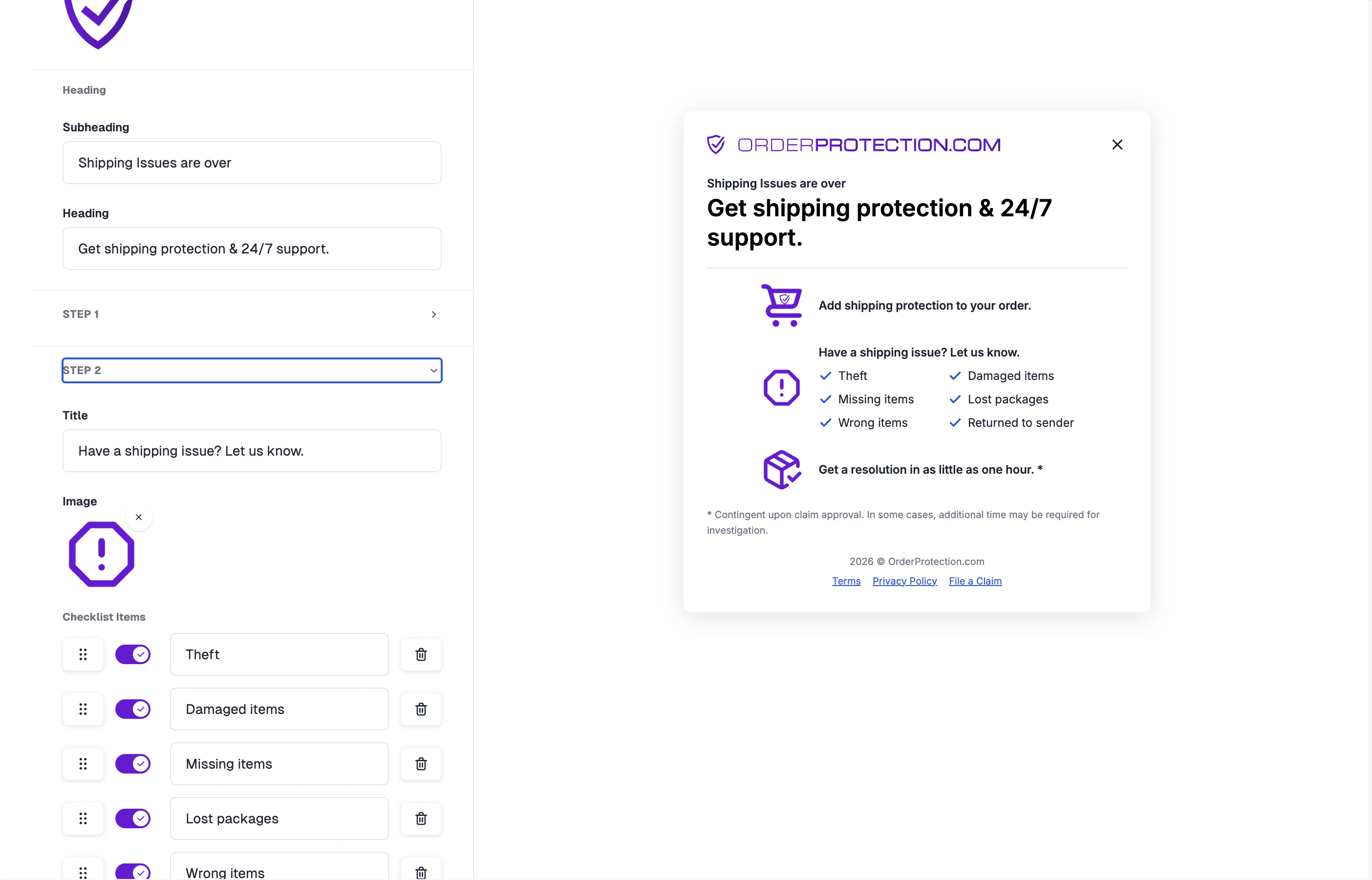
Click **Edit** on any info modal card to open the editor. The editor uses a split-screen layout: the **Customizer sidebar** on the left and a **live modal preview** on the right.
### Heading & Subheading
* **Subheading:** Appears above the main heading in smaller text (e.g., "Shipping issues are over").
* **Heading:** The main title of the modal (e.g., "Get shipping protection & 24/7 support.").
### Step Configuration
The modal uses a **three-step layout** to walk customers through how Order Protection works. Select each step tab (Step 1, Step 2, Step 3) to configure:
* **Title:** Describe what this step covers (e.g., "Have a shipping issue? Let us know.").
* **Image:** Upload a custom icon or image for the step.
### Checklist Items
Step 2 includes a **checklist** of coverage scenarios displayed in the modal. Each item is fully customizable:
* **Edit text:** Click on any checklist item to change its label to match your coverage offering.
* **Toggle on/off:** Enable or disable individual items that don't apply to your coverage.
* **Add/remove items:** Add new checklist items or remove existing ones as needed.
## Creating a New Info Modal
From the left-hand menu, go to **Customizations** and select the **Info Modals** tab.
Click the **Create New Info Modal** button in the top-right corner. A new modal will be created with default content that you can customize.
You can manage all of your info modals from this page. Use the **All**, **Active**, and **Draft** tabs to filter by status.
## Editing an Info Modal
Click **Edit** on any info modal card to open the editor. The editor uses a split-screen layout: the **Customizer sidebar** on the left and a **live modal preview** on the right.
### Heading & Subheading
* **Subheading:** Appears above the main heading in smaller text (e.g., "Shipping issues are over").
* **Heading:** The main title of the modal (e.g., "Get shipping protection & 24/7 support.").
### Step Configuration
The modal uses a **three-step layout** to walk customers through how Order Protection works. Select each step tab (Step 1, Step 2, Step 3) to configure:
* **Title:** Describe what this step covers (e.g., "Have a shipping issue? Let us know.").
* **Image:** Upload a custom icon or image for the step.
### Checklist Items
Step 2 includes a **checklist** of coverage scenarios displayed in the modal. Each item is fully customizable:
* **Edit text:** Click on any checklist item to change its label to match your coverage offering.
* **Toggle on/off:** Enable or disable individual items that don't apply to your coverage.
* **Add/remove items:** Add new checklist items or remove existing ones as needed.
 ### Footer
The bottom of the modal includes:
* **Terms** and **Privacy Policy** links
* **File a Claim** link to your claims portal
* **Copyright notice** with the current year
### Advanced Configuration
The **Advanced Config** tab provides a JSON editor for direct manipulation of the full modal configuration. Import your config by pasting it into the editor, or click **Open Full Screen** for an expanded editing view.
### Footer
The bottom of the modal includes:
* **Terms** and **Privacy Policy** links
* **File a Claim** link to your claims portal
* **Copyright notice** with the current year
### Advanced Configuration
The **Advanced Config** tab provides a JSON editor for direct manipulation of the full modal configuration. Import your config by pasting it into the editor, or click **Open Full Screen** for an expanded editing view.
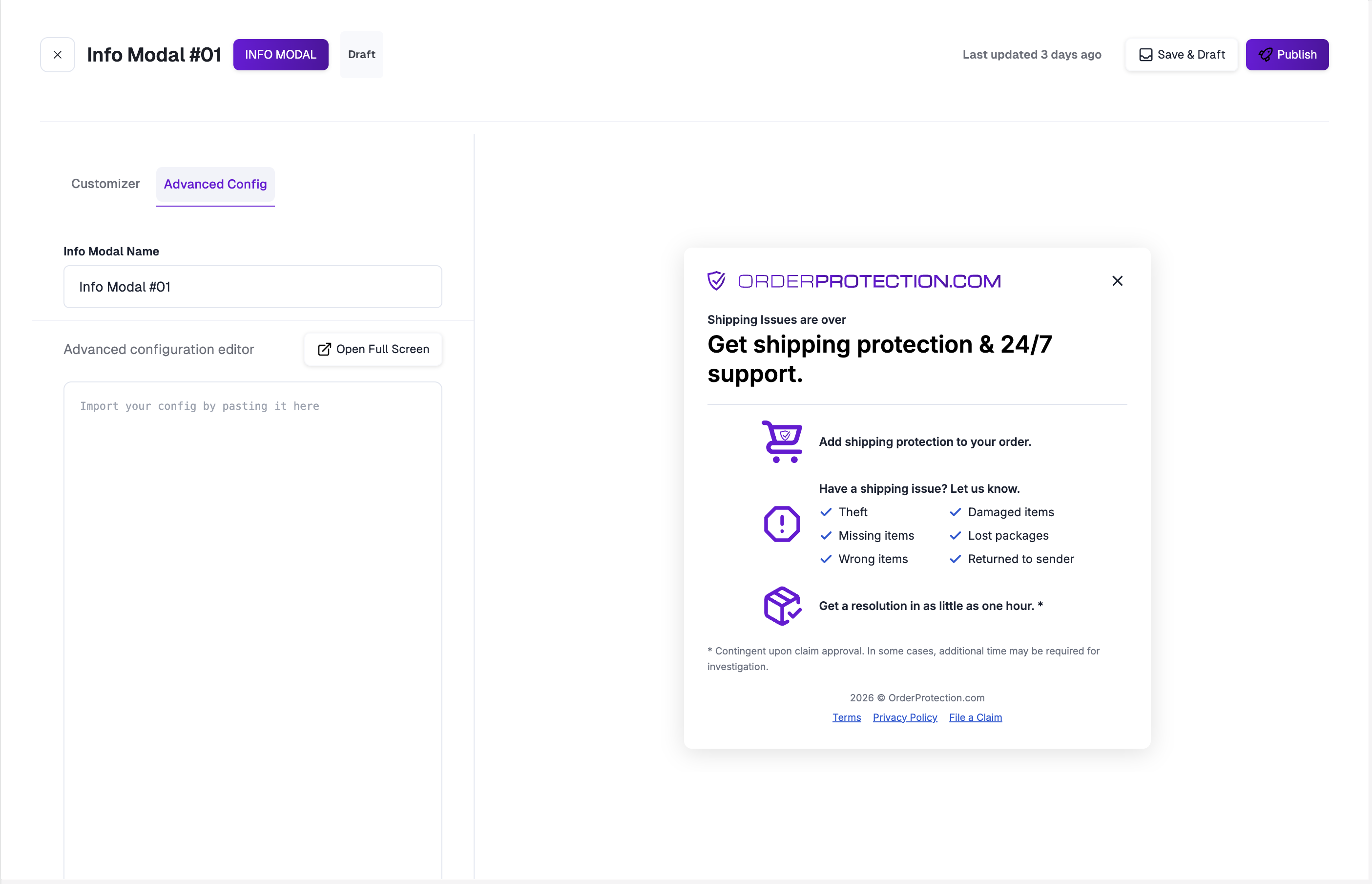 Changes made in the Advanced Config override visual Customizer settings. Use with caution.
## How It Looks On Site
Once published and linked to a widget, the info modal appears as an overlay when customers click the information link. The modal displays your configured branding, steps, checklist items, and footer links.
Changes made in the Advanced Config override visual Customizer settings. Use with caution.
## How It Looks On Site
Once published and linked to a widget, the info modal appears as an overlay when customers click the information link. The modal displays your configured branding, steps, checklist items, and footer links.
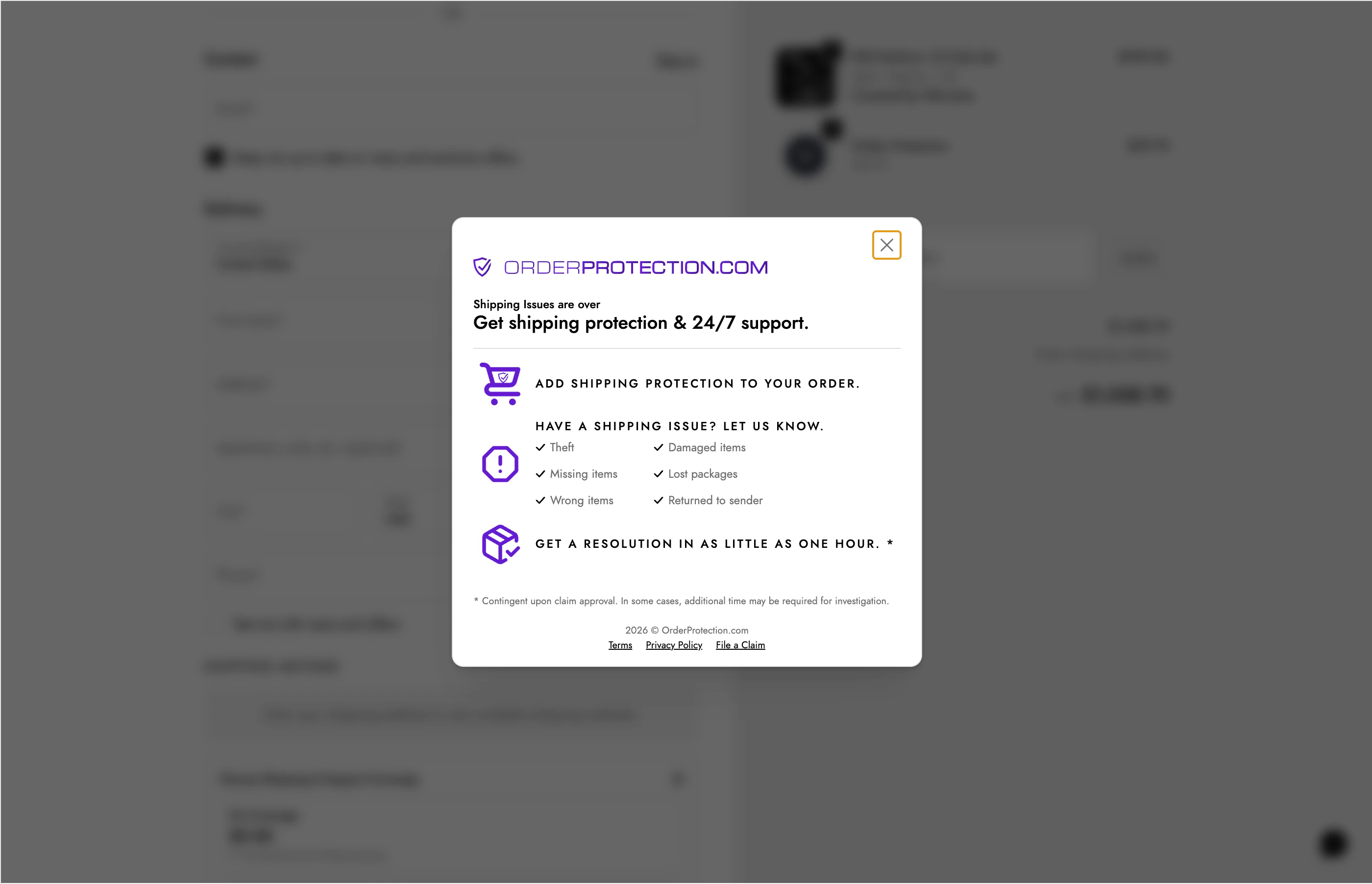 Link your published Info Modal to a widget by enabling the **Show Information Modal** toggle in the widget's Customizer.
## Publishing and Drafts
| Action | Description |
| ---------------- | --------------------------------------------------------------------------- |
| **Save & Draft** | Saves your changes as a draft. The modal will not be visible to customers. |
| **Publish** | Pushes your modal live. It will appear when triggered from a linked widget. |
| **Republish** | Available after making changes to a published modal. Pushes updates live. |
Link your published Info Modal to a widget by enabling the **Show Information Modal** toggle in the widget's Customizer.
## Publishing and Drafts
| Action | Description |
| ---------------- | --------------------------------------------------------------------------- |
| **Save & Draft** | Saves your changes as a draft. The modal will not be visible to customers. |
| **Publish** | Pushes your modal live. It will appear when triggered from a linked widget. |
| **Republish** | Available after making changes to a published modal. Pushes updates live. |