> ## Documentation Index
> Fetch the complete documentation index at: https://docs.orderprotection.com/llms.txt
> Use this file to discover all available pages before exploring further.
# Branding Your Claim Portal
> Customize logos, colors, typography, and more on your co-branded OrderProtection.com claim portal.
Below is a step-by-step overview of how you can customize and co-brand the OrderProtection.com portal that your customers use to file and track claims. By tailoring logos, colors, typography, and more, you can ensure the portal matches your store's look and feel.
## Setting Up Your Custom Claims Portal
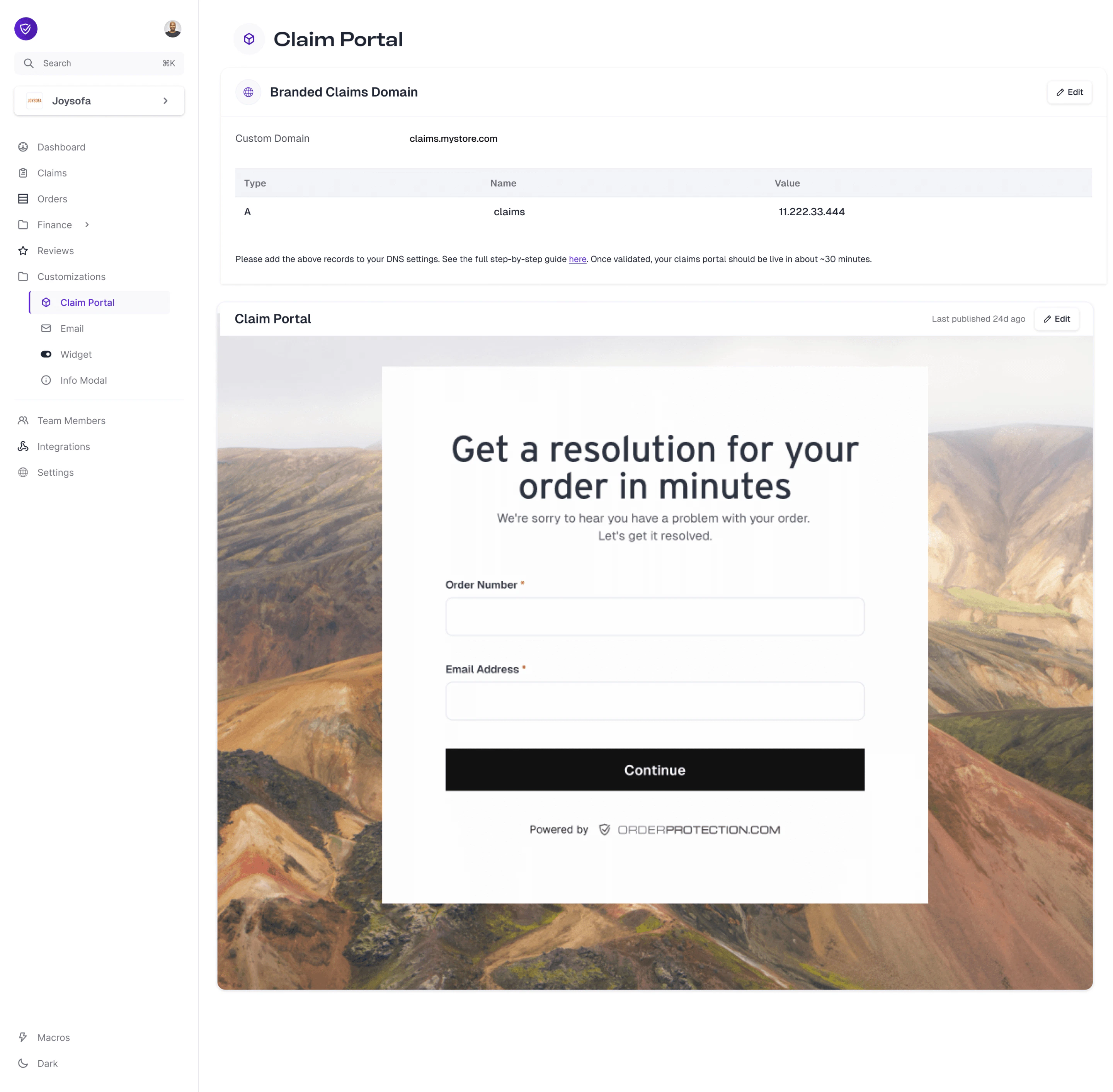
Log in to your OrderProtection.com dashboard.
From the left-hand menu, go to **Customizations**.
Click on the **Claim Portal** sub-tab. From here, you can manage all of the sections detailed below.
Make sure that the **Branded Claims Domain** section is populated with your claims URL. Once inputted, you will see help text linked to a guide with steps on how to set up the A record within your DNS settings.
It's best to set up the DNS record first prior to configuring your claim portal to be able to see changes in real time.
 ## Using the Claim Portal Designer
Once on the **Claim Portal** tab, select **Edit** to open up the designer. From here, you can customize each of the sections below. Once ready, hit **Publish** to see your changes live on your newly configured claims webpage. Not ready to publish? Hit the **Save** button and come back to it later.
## Using the Claim Portal Designer
Once on the **Claim Portal** tab, select **Edit** to open up the designer. From here, you can customize each of the sections below. Once ready, hit **Publish** to see your changes live on your newly configured claims webpage. Not ready to publish? Hit the **Save** button and come back to it later.
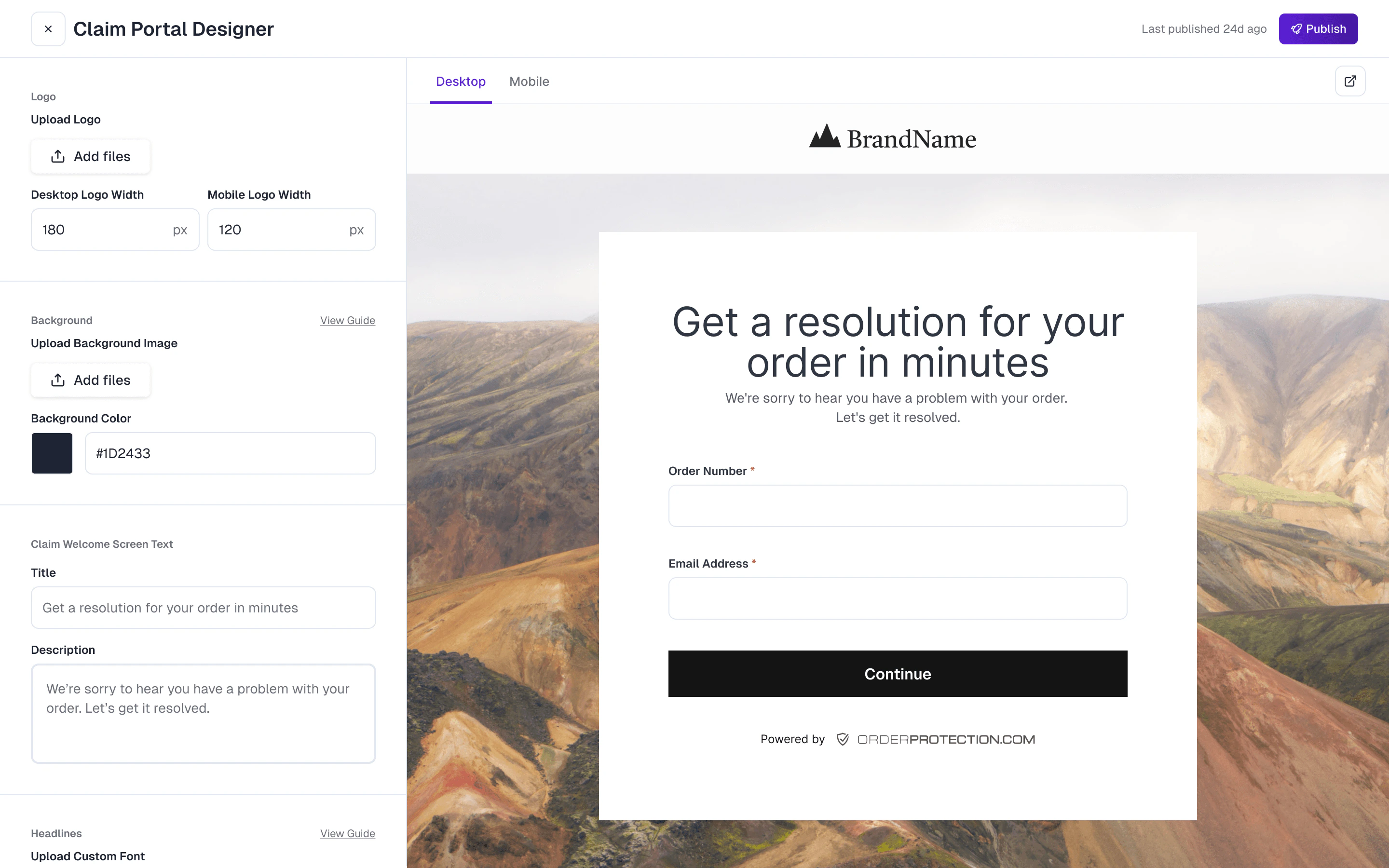 ### 1. Upload Your Logo
* **Recommended Dimensions:** Make your logo file at least twice as wide as the display size you want. For example, if you want it displayed at 200 px wide, use a 400 px wide image.
* **File Format:** Use a high-quality PNG with a transparent background if possible.
* **Desktop & Mobile Sizes:** You can set different logo widths for desktop and mobile to maintain optimal clarity on every device.
### 1. Upload Your Logo
* **Recommended Dimensions:** Make your logo file at least twice as wide as the display size you want. For example, if you want it displayed at 200 px wide, use a 400 px wide image.
* **File Format:** Use a high-quality PNG with a transparent background if possible.
* **Desktop & Mobile Sizes:** You can set different logo widths for desktop and mobile to maintain optimal clarity on every device.
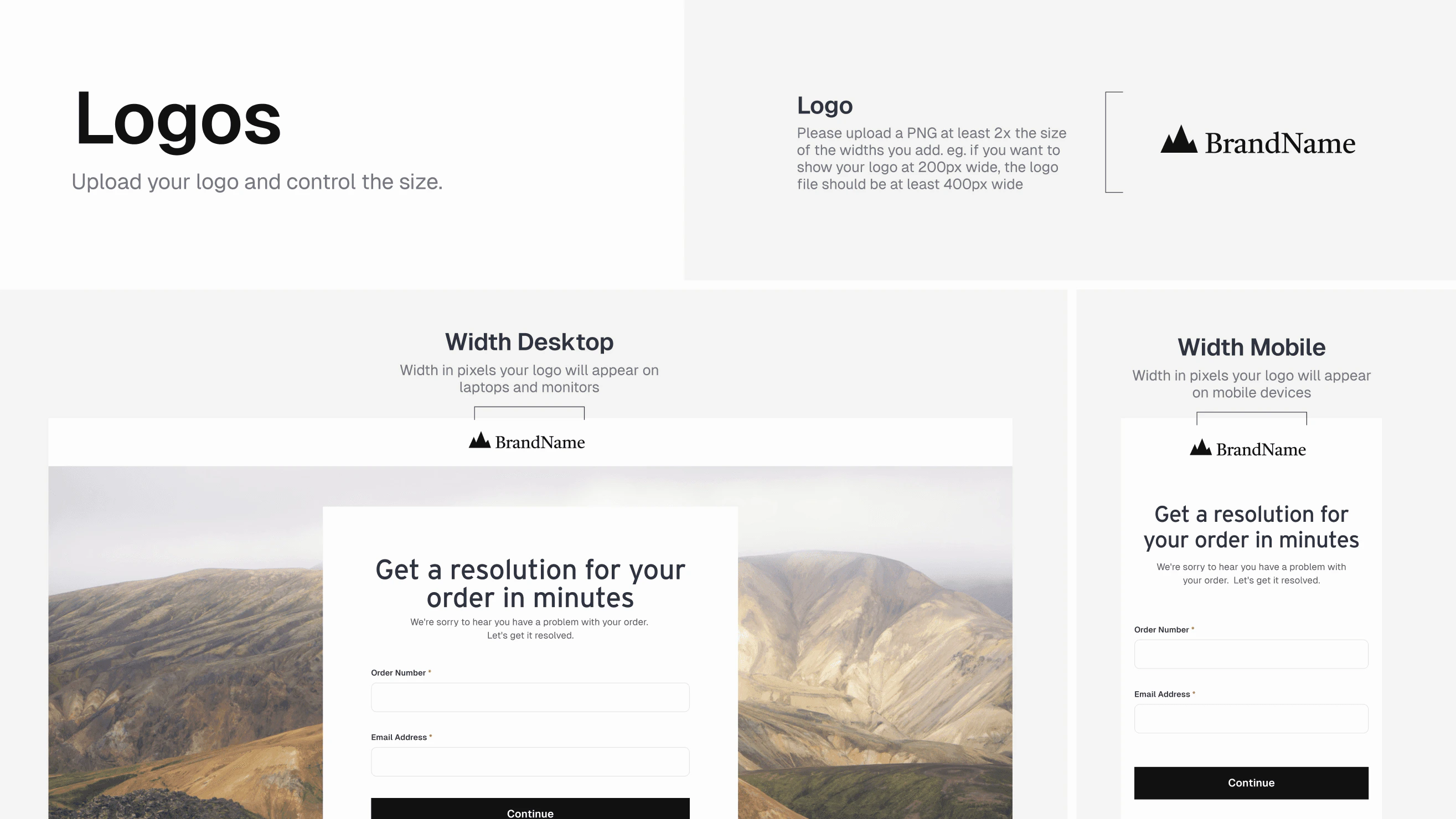 ### 2. Set Your Background
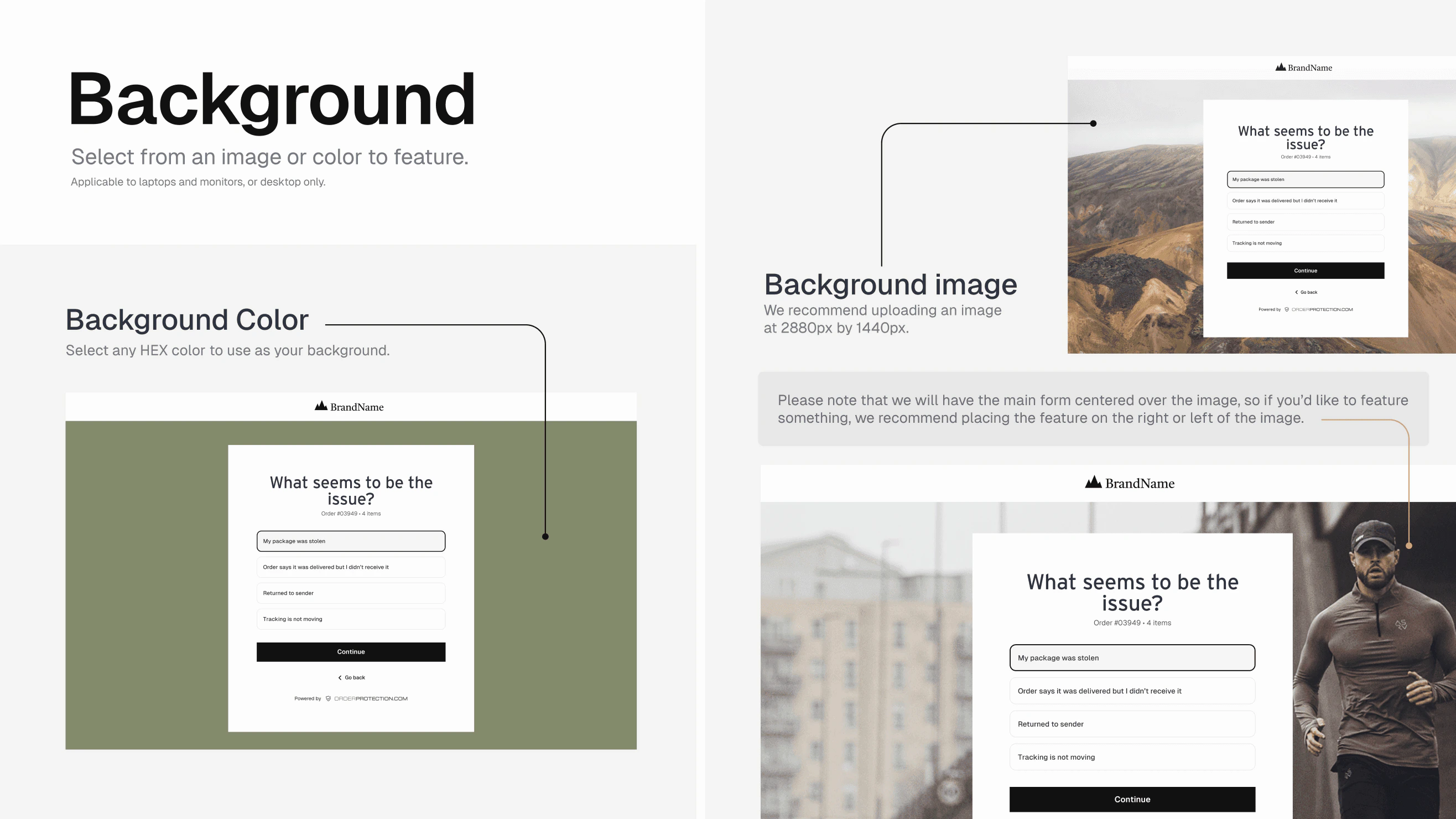
* **Background Color:** Choose any HEX code to serve as the background behind the main claim form (on desktops/laptops).
* **Background Image:** For a more personalized look, you can upload a background image (recommended size around 2880 px by 1440 px).
The main form is centered. If you'd like to feature a specific part of your image, place the focal point to the sides.
### 2. Set Your Background
* **Background Color:** Choose any HEX code to serve as the background behind the main claim form (on desktops/laptops).
* **Background Image:** For a more personalized look, you can upload a background image (recommended size around 2880 px by 1440 px).
The main form is centered. If you'd like to feature a specific part of your image, place the focal point to the sides.
 ### 3. Pick Your Colors
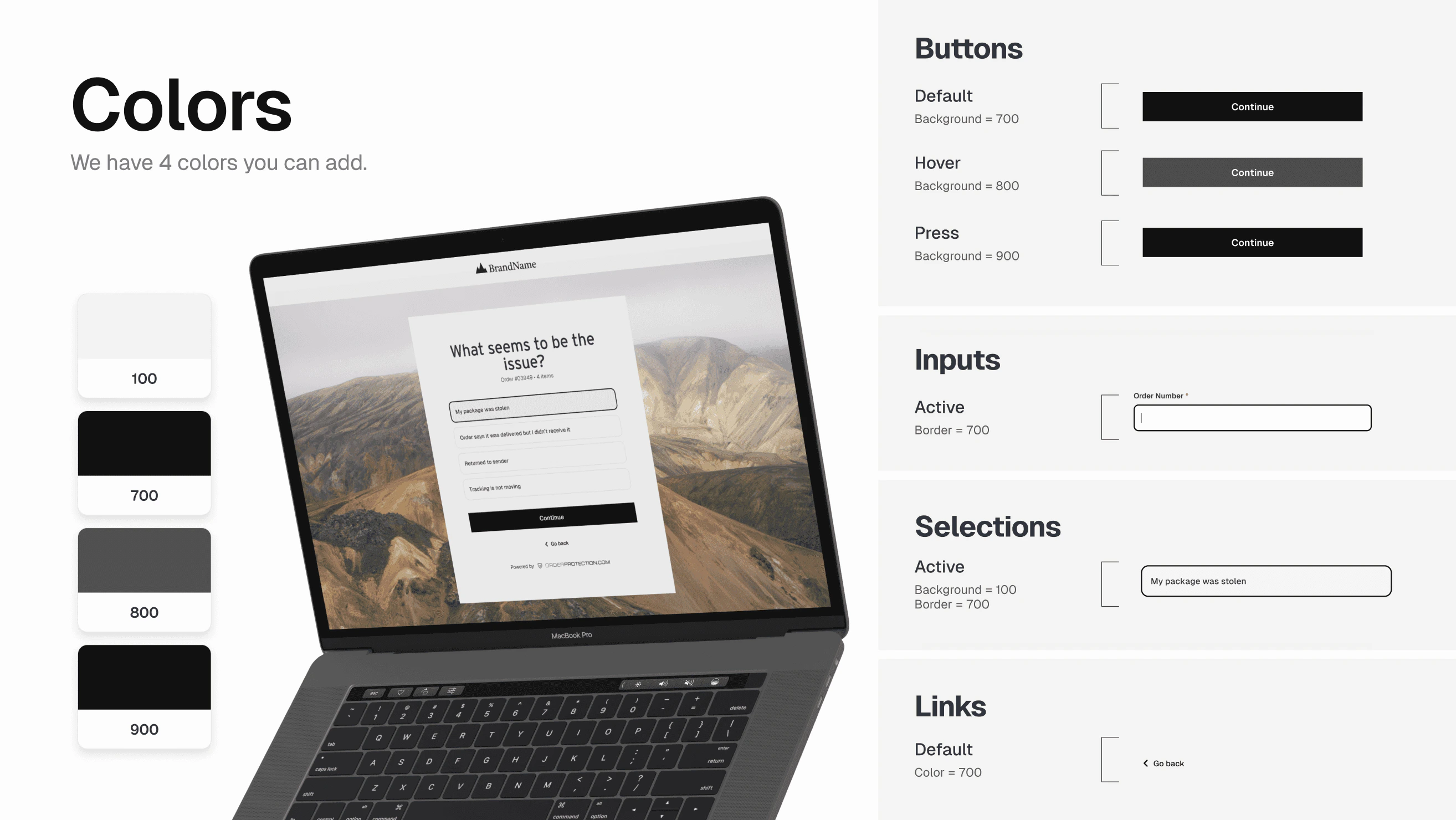
You can define up to four custom colors (e.g., `#FFFFFF`, `#000000`, `#CCCCCC`, etc.) for different elements:
* Backgrounds (e.g., hover states, active states)
* Buttons
* Inputs and selections
* Links
### 3. Pick Your Colors
You can define up to four custom colors (e.g., `#FFFFFF`, `#000000`, `#CCCCCC`, etc.) for different elements:
* Backgrounds (e.g., hover states, active states)
* Buttons
* Inputs and selections
* Links
 ### 4. Choose Your Button Styles
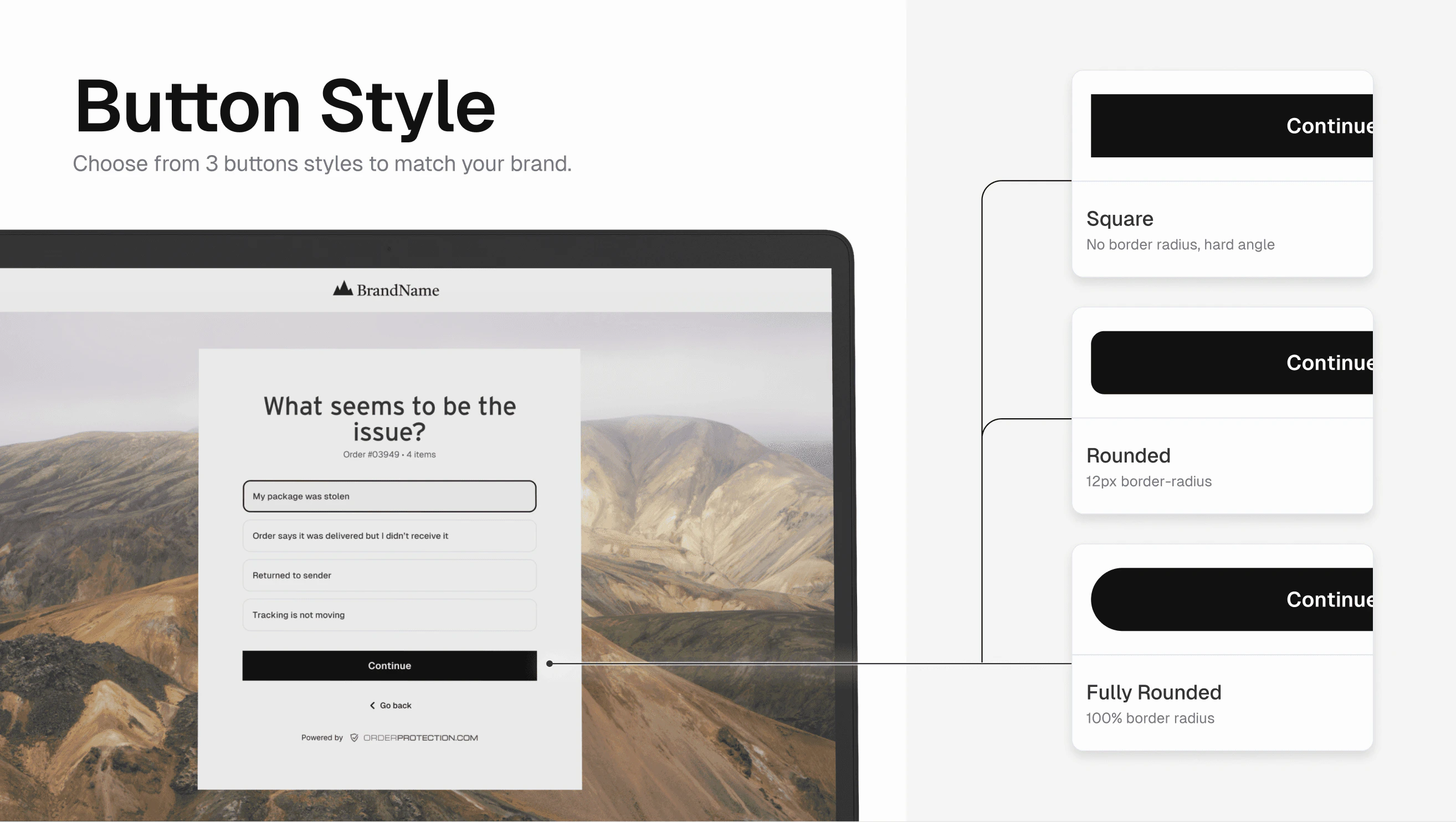
**Shape Options:** Square (no border radius), rounded (12 px radius), or fully rounded (circular).
**Button States:**
| State | Description |
| ----------- | ---------------------------------------------- |
| **Default** | The normal button color |
| **Hover** | Color when the user's mouse is over the button |
| **Press** | Color when the button is being clicked |
For example, you might choose Black (`#000`) for default, Dark Gray (`#333`) for hover, and Light Gray (`#555`) for press.
### 4. Choose Your Button Styles
**Shape Options:** Square (no border radius), rounded (12 px radius), or fully rounded (circular).
**Button States:**
| State | Description |
| ----------- | ---------------------------------------------- |
| **Default** | The normal button color |
| **Hover** | Color when the user's mouse is over the button |
| **Press** | Color when the button is being clicked |
For example, you might choose Black (`#000`) for default, Dark Gray (`#333`) for hover, and Light Gray (`#555`) for press.
 ### 5. Customize Your Typography
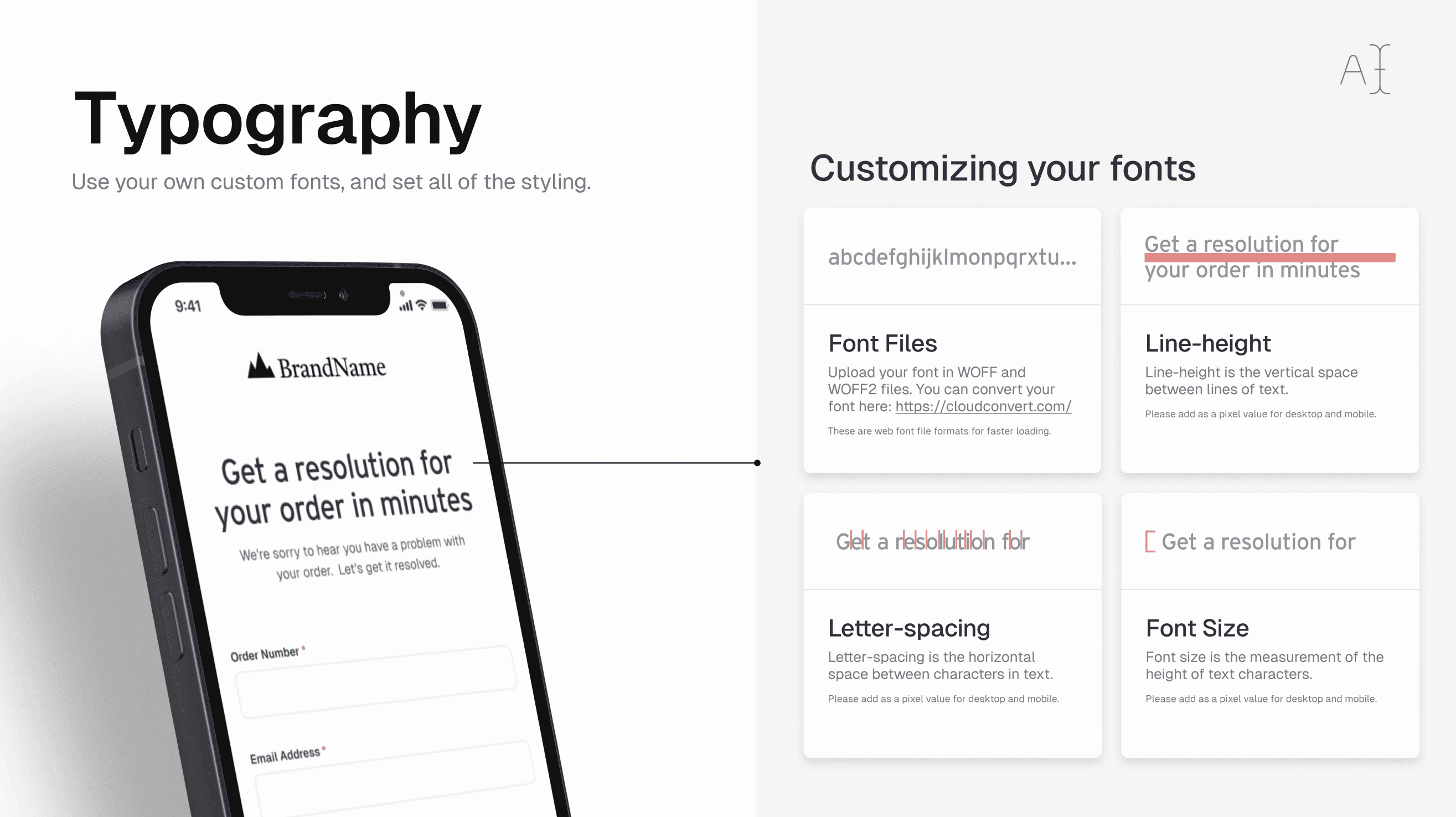
* **Upload Custom Fonts:** We support WOFF and WOFF2 files. You can convert your font to these formats (e.g., via cloudconvert.com).
* **Font Size & Line-Height:** Control how large the text appears and the spacing between lines.
* **Letter-Spacing:** Adjust the horizontal space between each character.
* **Desktop vs. Mobile:** You can configure separate values for each view to ensure optimal readability across devices.
### 5. Customize Your Typography
* **Upload Custom Fonts:** We support WOFF and WOFF2 files. You can convert your font to these formats (e.g., via cloudconvert.com).
* **Font Size & Line-Height:** Control how large the text appears and the spacing between lines.
* **Letter-Spacing:** Adjust the horizontal space between each character.
* **Desktop vs. Mobile:** You can configure separate values for each view to ensure optimal readability across devices.
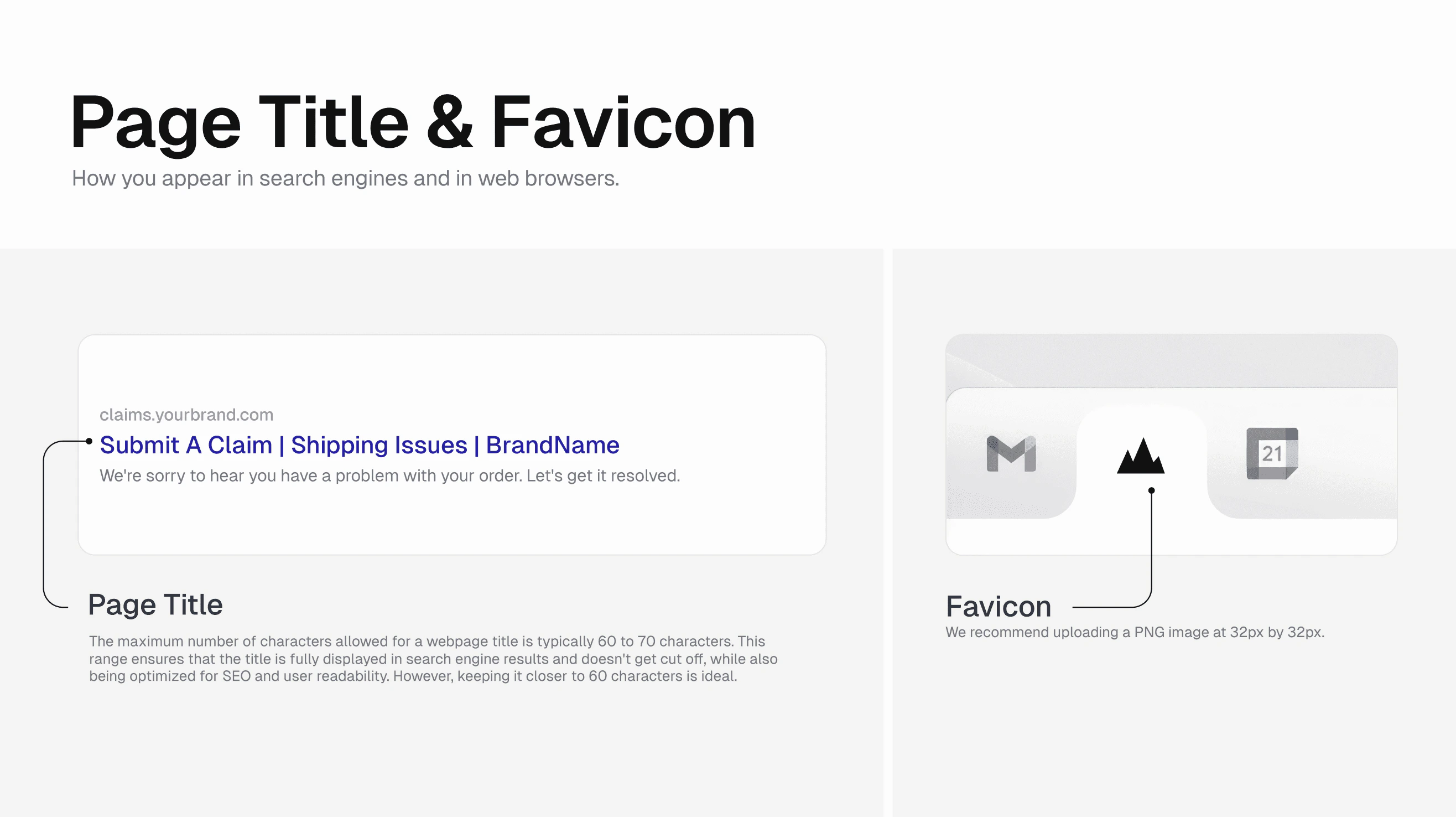
 ### 6. Page Title & Favicon
**Page Title:**
* Keep your title between 60-70 characters to ensure it displays properly in search results.
* Example: "Submit a Claim | Shipping Issues | YourBrand"
**Meta Description (Optional):** Add a short summary (under \~160 characters) to improve SEO and clarity.
**Favicon:**
* Use a 32 px x 32 px PNG (or ICO) image.
* The favicon appears in browser tabs and bookmark lists to represent your brand.
### 6. Page Title & Favicon
**Page Title:**
* Keep your title between 60-70 characters to ensure it displays properly in search results.
* Example: "Submit a Claim | Shipping Issues | YourBrand"
**Meta Description (Optional):** Add a short summary (under \~160 characters) to improve SEO and clarity.
**Favicon:**
* Use a 32 px x 32 px PNG (or ICO) image.
* The favicon appears in browser tabs and bookmark lists to represent your brand.