> ## Documentation Index
> Fetch the complete documentation index at: https://docs.orderprotection.com/llms.txt
> Use this file to discover all available pages before exploring further.
# Product Taxonomy (Components & Bundles)
> Map product components and bundle items so customers can file a claim against a single part instead of the whole product.
Product Taxonomy lets you describe the relationships between your products so customers can file a claim against a **single part of a product** (a component) or a **single item within a bundle** -- rather than the entire purchase. You define these relationships by downloading a CSV template, filling in the relationship columns, and re-uploading it.
## Why use Product Taxonomy
By default, a claim is filed against a product as a whole. Taxonomy adds structure so customers can be more specific about what went wrong:
* **Components** -- Parts that make up a single product. For example, a bed frame might have a *headboard*, *side rails*, and *hardware kit* as components. If only the headboard arrives damaged, the customer can file a claim against just that part.
* **Bundles** -- Separate products sold together as a set or kit. For example, a *skincare bundle* might contain a cleanser, toner, and moisturizer. If only the toner leaks in transit, the customer can file a claim against just that item.
This results in faster, more accurate resolutions because both you and the customer know exactly which part of the order is affected.
## Where to find it
From the dashboard, go to **Settings → Claims**.
Scroll to the **Product Taxonomy** card. Here you'll find the **Download Template** and **Upload Catalog** buttons.
 ## How to upload your taxonomy
Click **Download Template** on the Product Taxonomy card. This generates a `product_taxonomy.csv` file pre-populated with all of your existing top-level products, so you have the correct product IDs to work from.
Open the CSV in your spreadsheet tool of choice. For each product that is a component or a bundle item, fill in the **`parent_source_product_id`** and **`relationship_type`** columns to point it at its parent product. (See [CSV structure](#csv-structure) below.)
Back on the Product Taxonomy card, click **Upload Catalog** and select your edited CSV. You'll see a confirmation summarizing how many relationships were mapped, how many parent products were updated, any new products that were created, and any rows that were skipped.
## CSV structure
Each row in the CSV represents one product. A product becomes a **component** or **bundle item** by pointing it at a parent product using the last two columns.
| Column | Required | Description |
| -------------------------- | -------- | -------------------------------------------------------------------------------------------------------------------- |
| `source_product_id` | **Yes** | The unique product ID for this row's product (matches the ID in your store/platform). |
| `sku` | No | The product's SKU. |
| `name` | **Yes** | The product's display name. |
| `price` | **Yes** | The product's price. |
| `status` | **Yes** | The product's status (e.g., `ACTIVE`, `ARCHIVED`, `DRAFT`). |
| `product_image` | No | URL to the product's image. |
| `parent_source_product_id` | No | The `source_product_id` of the **parent** product this item rolls up to. Leave blank for a top-level/parent product. |
| `relationship_type` | No | Either `COMPONENT` or `BUNDLE`. Must be blank for a top-level/parent product. |
### How rows are interpreted
* **Parent / top-level rows** -- Leave `parent_source_product_id` and `relationship_type` blank. These rows simply describe a product and act as the parent that components or bundle items attach to.
* **Relationship rows** -- A row with a `relationship_type` of `COMPONENT` or `BUNDLE` **must** also include a valid `parent_source_product_id`. This is what links the child product to its parent.
If a `source_product_id` or `parent_source_product_id` in your CSV doesn't yet exist in your catalog, it is created automatically as a new product using the `name`, `sku`, `price`, `status`, and `product_image` values from the row.
### Example
| source\_product\_id | name | parent\_source\_product\_id | relationship\_type |
| ------------------- | ---------------- | --------------------------- | ------------------ |
| `1001` | Modern Bed Frame | | |
| `1002` | Headboard | `1001` | `COMPONENT` |
| `1003` | Side Rails | `1001` | `COMPONENT` |
| `2001` | Skincare Bundle | | |
| `2002` | Gentle Cleanser | `2001` | `BUNDLE` |
| `2003` | Hydrating Toner | `2001` | `BUNDLE` |
In this example, the Bed Frame has two components (Headboard, Side Rails), and the Skincare Bundle contains two bundle items (Cleanser, Toner). A customer could file a claim against just the Headboard or just the Toner.
Download a filled-in `product_taxonomy.csv` showing both a component relationship (Sterling Chain Necklace) and a bundle relationship (Skincare Bundle) to use as a starting point.
## Rules & limitations
Keep these constraints in mind to avoid skipped rows or unexpected results.
* **One level of nesting only.** A product can be a parent *or* a child, but not both. A component or bundle item cannot itself have its own components.
* **A child has one parent.** Each product can be linked to a single parent product.
* **Uploads replace each parent's relationships.** When you upload a CSV, the components/bundle items listed for a given parent **replace** that parent's existing links. To make a change, re-download the current template, edit it, and re-upload.
* **Blanking out rows does not remove links.** Removing all of a parent's relationship rows from the CSV will *not* clear its existing components or bundle items. To remove a relationship entirely, contact your Customer Success Manager.
* **CSV format only.** The upload accepts `.csv` files up to the platform's file-size limit. Invalid rows (e.g., a `relationship_type` other than `COMPONENT` or `BUNDLE`, or a relationship row missing its parent) are skipped and reported back in the upload summary.
## The customer experience
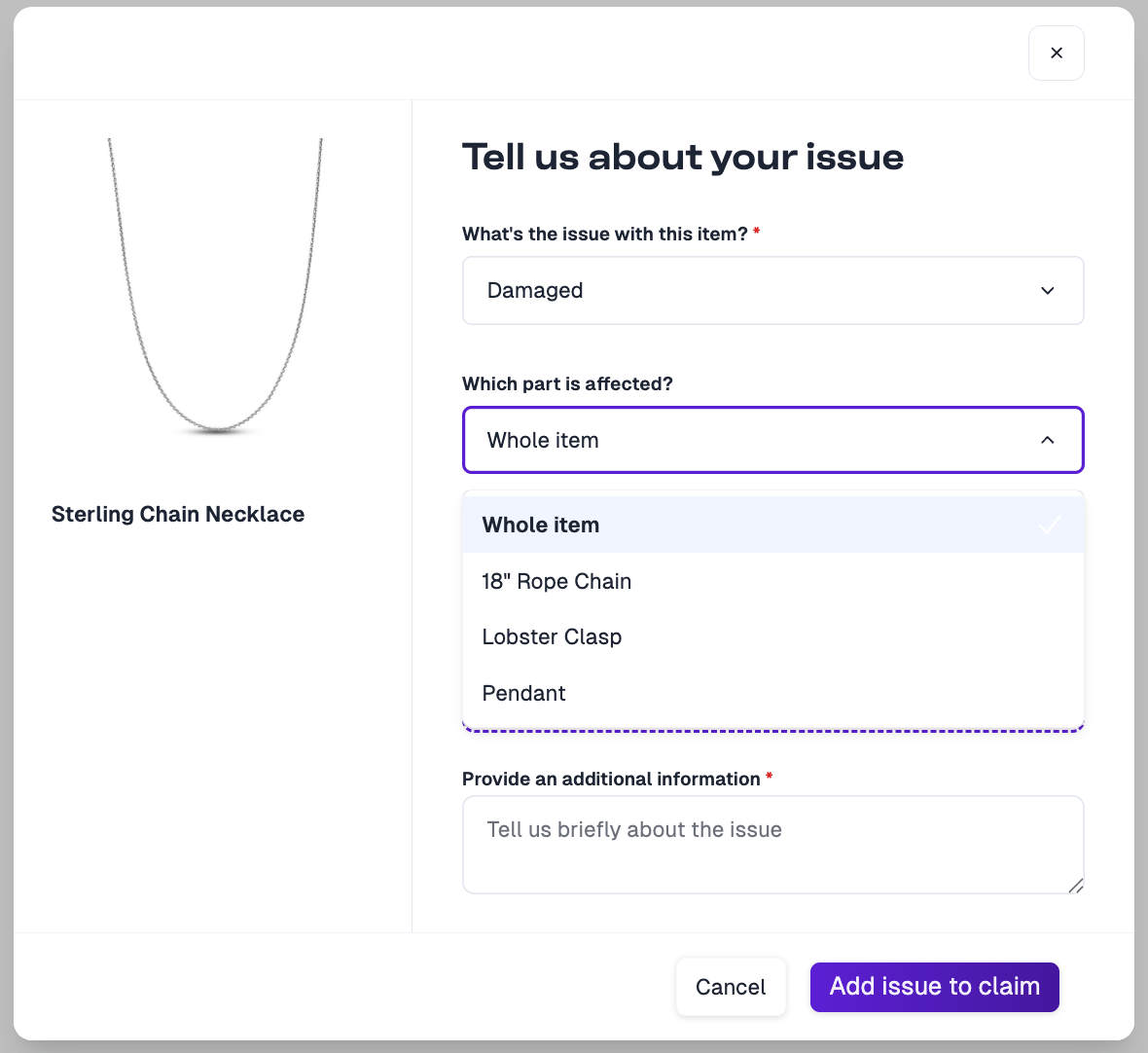
Once your taxonomy is uploaded, customers filing a claim will see a **Which part is affected?** dropdown when describing their issue. It defaults to **Whole item**, with each mapped component or bundle item listed as an option. This lets the customer pinpoint exactly which part has the issue.
The **Which part is affected?** selector appears when the issue type is **Damaged** or **Defective**. **Missing** is also available for **bundle items** -- a bundle can arrive with one of its items missing -- but not for components, since a component is part of a single product and can't go missing on its own. For all other issue types, the claim is filed against the whole item.
## How to upload your taxonomy
Click **Download Template** on the Product Taxonomy card. This generates a `product_taxonomy.csv` file pre-populated with all of your existing top-level products, so you have the correct product IDs to work from.
Open the CSV in your spreadsheet tool of choice. For each product that is a component or a bundle item, fill in the **`parent_source_product_id`** and **`relationship_type`** columns to point it at its parent product. (See [CSV structure](#csv-structure) below.)
Back on the Product Taxonomy card, click **Upload Catalog** and select your edited CSV. You'll see a confirmation summarizing how many relationships were mapped, how many parent products were updated, any new products that were created, and any rows that were skipped.
## CSV structure
Each row in the CSV represents one product. A product becomes a **component** or **bundle item** by pointing it at a parent product using the last two columns.
| Column | Required | Description |
| -------------------------- | -------- | -------------------------------------------------------------------------------------------------------------------- |
| `source_product_id` | **Yes** | The unique product ID for this row's product (matches the ID in your store/platform). |
| `sku` | No | The product's SKU. |
| `name` | **Yes** | The product's display name. |
| `price` | **Yes** | The product's price. |
| `status` | **Yes** | The product's status (e.g., `ACTIVE`, `ARCHIVED`, `DRAFT`). |
| `product_image` | No | URL to the product's image. |
| `parent_source_product_id` | No | The `source_product_id` of the **parent** product this item rolls up to. Leave blank for a top-level/parent product. |
| `relationship_type` | No | Either `COMPONENT` or `BUNDLE`. Must be blank for a top-level/parent product. |
### How rows are interpreted
* **Parent / top-level rows** -- Leave `parent_source_product_id` and `relationship_type` blank. These rows simply describe a product and act as the parent that components or bundle items attach to.
* **Relationship rows** -- A row with a `relationship_type` of `COMPONENT` or `BUNDLE` **must** also include a valid `parent_source_product_id`. This is what links the child product to its parent.
If a `source_product_id` or `parent_source_product_id` in your CSV doesn't yet exist in your catalog, it is created automatically as a new product using the `name`, `sku`, `price`, `status`, and `product_image` values from the row.
### Example
| source\_product\_id | name | parent\_source\_product\_id | relationship\_type |
| ------------------- | ---------------- | --------------------------- | ------------------ |
| `1001` | Modern Bed Frame | | |
| `1002` | Headboard | `1001` | `COMPONENT` |
| `1003` | Side Rails | `1001` | `COMPONENT` |
| `2001` | Skincare Bundle | | |
| `2002` | Gentle Cleanser | `2001` | `BUNDLE` |
| `2003` | Hydrating Toner | `2001` | `BUNDLE` |
In this example, the Bed Frame has two components (Headboard, Side Rails), and the Skincare Bundle contains two bundle items (Cleanser, Toner). A customer could file a claim against just the Headboard or just the Toner.
Download a filled-in `product_taxonomy.csv` showing both a component relationship (Sterling Chain Necklace) and a bundle relationship (Skincare Bundle) to use as a starting point.
## Rules & limitations
Keep these constraints in mind to avoid skipped rows or unexpected results.
* **One level of nesting only.** A product can be a parent *or* a child, but not both. A component or bundle item cannot itself have its own components.
* **A child has one parent.** Each product can be linked to a single parent product.
* **Uploads replace each parent's relationships.** When you upload a CSV, the components/bundle items listed for a given parent **replace** that parent's existing links. To make a change, re-download the current template, edit it, and re-upload.
* **Blanking out rows does not remove links.** Removing all of a parent's relationship rows from the CSV will *not* clear its existing components or bundle items. To remove a relationship entirely, contact your Customer Success Manager.
* **CSV format only.** The upload accepts `.csv` files up to the platform's file-size limit. Invalid rows (e.g., a `relationship_type` other than `COMPONENT` or `BUNDLE`, or a relationship row missing its parent) are skipped and reported back in the upload summary.
## The customer experience
Once your taxonomy is uploaded, customers filing a claim will see a **Which part is affected?** dropdown when describing their issue. It defaults to **Whole item**, with each mapped component or bundle item listed as an option. This lets the customer pinpoint exactly which part has the issue.
The **Which part is affected?** selector appears when the issue type is **Damaged** or **Defective**. **Missing** is also available for **bundle items** -- a bundle can arrive with one of its items missing -- but not for components, since a component is part of a single product and can't go missing on its own. For all other issue types, the claim is filed against the whole item.
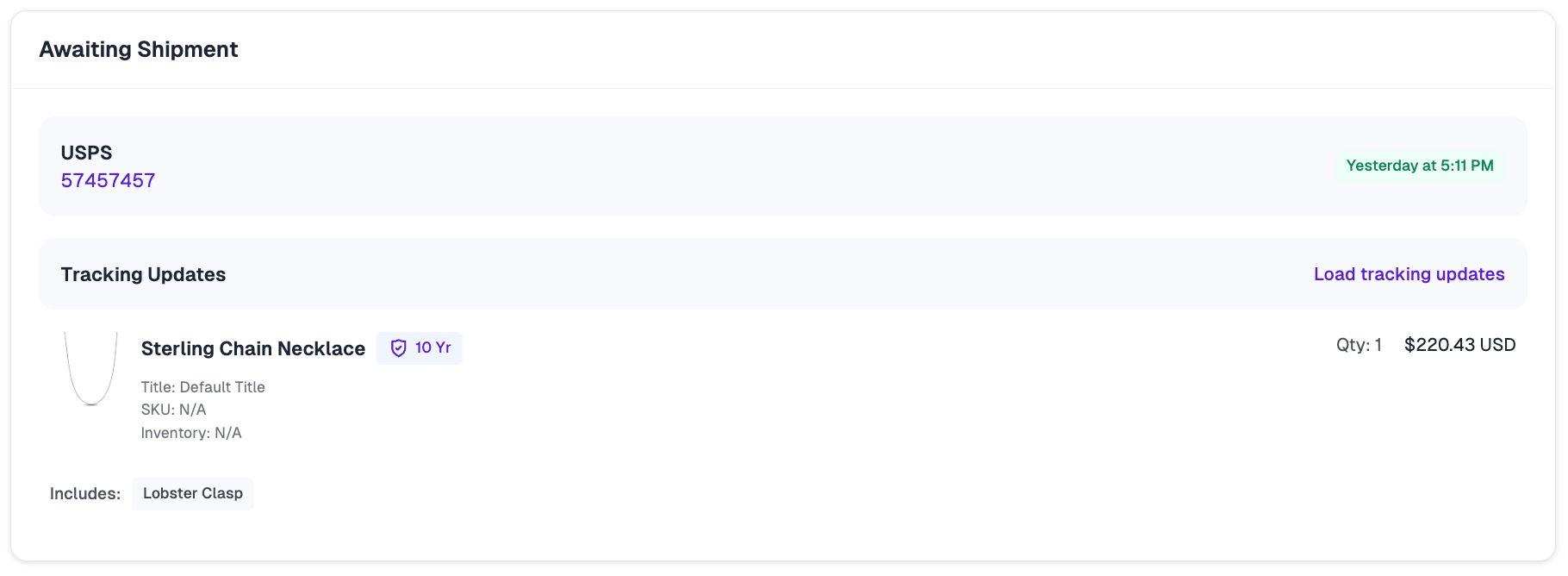
 After the claim is filed, the selected part is carried through to the claim itself. The affected component or bundle item appears under **Includes:** on the line item, so your team can see exactly which part the customer is claiming against.
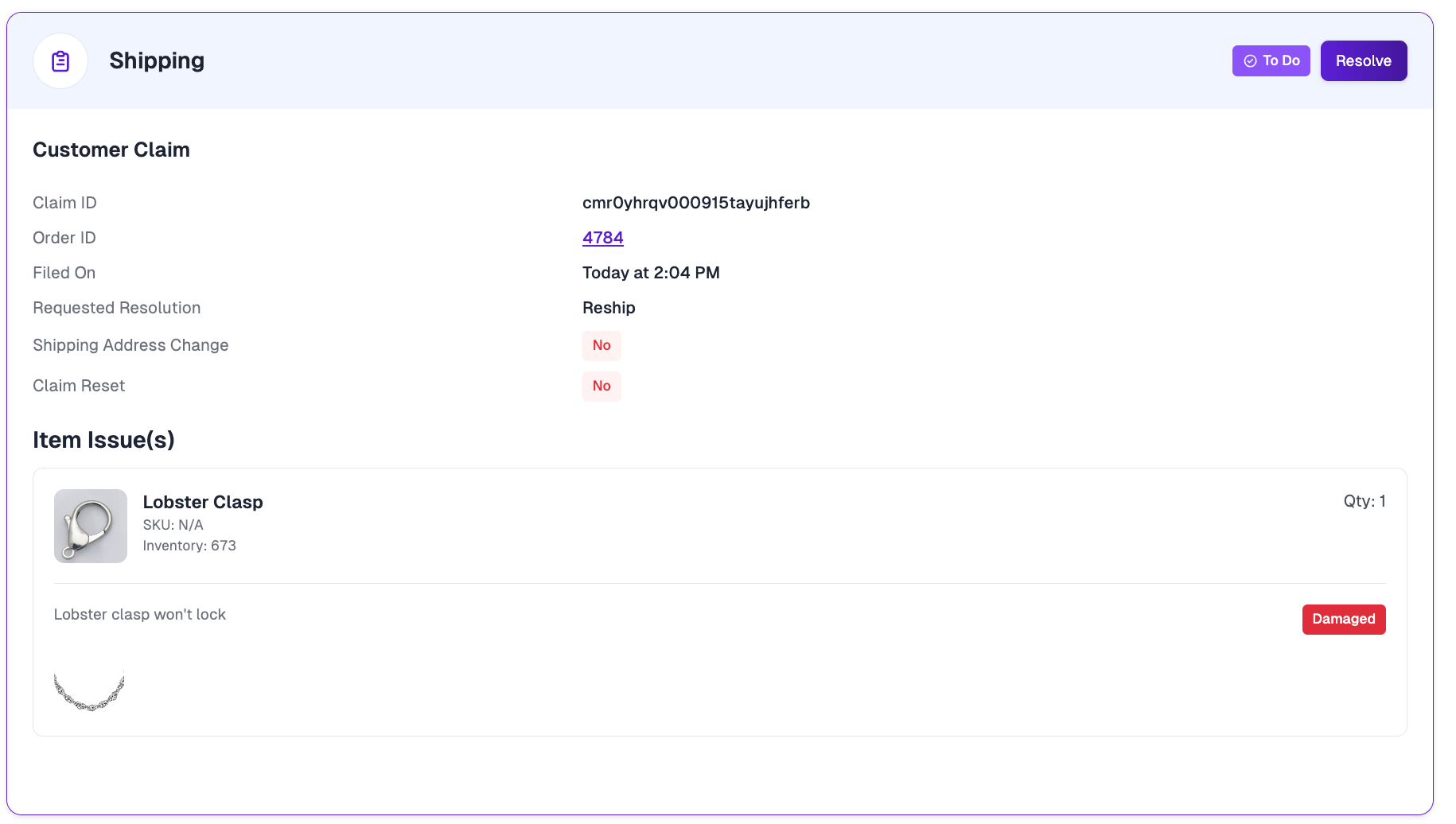
 In the claim detail view, the affected part is listed under **Item Issue(s)** with its issue type and the customer's description -- in this example, the *Lobster Clasp* component is flagged as **Damaged** ("Lobster clasp won't lock").
 If you have questions about setting up your product taxonomy, reach out to your Customer Success Manager or your shared Slack channel.