> ## Documentation Index
> Fetch the complete documentation index at: https://docs.orderprotection.com/llms.txt
> Use this file to discover all available pages before exploring further.
# How the Claim Queue Works
> Understanding claim statuses, queue organization, and how claims progress through resolution.
Below is a quick guide on how the Claim Queue at OrderProtection.com works, including what each status means and how claims typically progress. This helps you stay organized and know exactly what actions are needed to move claims forward.
## How the Queue Is Organized
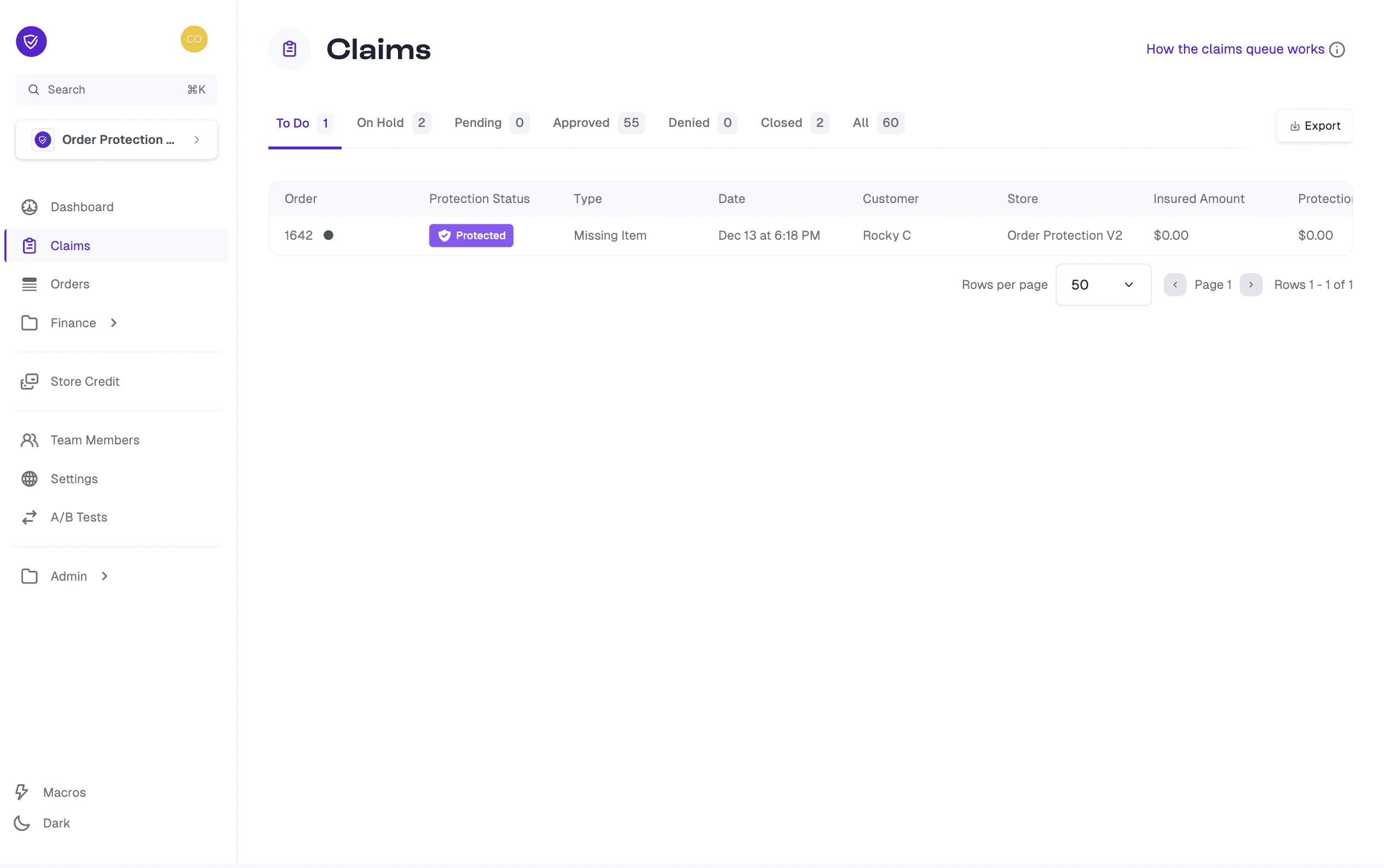
When you open the **Claims** page, you'll see tabs at the top for each claim status. These statuses reflect where a claim currently sits in the resolution process:
| Status | Description |
| ------------ | ------------------------------------------------------------------------------------------------------------------------------------------------------------- |
| **To Do** | These claims require a response or action. It might be the first time a claim is filed, or it could be waiting on your final decision. |
| **On Hold** | OrderProtection.com is waiting on additional information from you (the brand). Until you respond or provide the requested details, the claim remains on hold. |
| **Pending** | We are waiting to hear back from the customer. If the customer needs to provide photos, confirm details, or otherwise respond, the claim stays pending. |
| **Approved** | The claim has been approved and the resolution (refund or reshipment) has been issued to the customer. |
| **Denied** | The customer's issue was not covered under OrderProtection.com policies. The customer has been notified of the denial. |
| **Closed** | The customer is no longer responding or the claim has reached a point where no clear resolution is possible (e.g., the customer withdrew their request). |
You can also view the **All** tab to see every claim, regardless of status.
 ## Moving Through the Claim Stages
Claims typically start in **To Do** when first created. Depending on what's needed to move forward, claims can shift to **On Hold** or **Pending** until the required information is received.
* If approved, the claim moves to **Approved**, triggering a reshipment or refund.
* If the issue isn't covered by our protection policies, it becomes **Denied**.
* If no further action can be taken (e.g., no response from the customer), it is marked **Closed**.
## Moving Through the Claim Stages
Claims typically start in **To Do** when first created. Depending on what's needed to move forward, claims can shift to **On Hold** or **Pending** until the required information is received.
* If approved, the claim moves to **Approved**, triggering a reshipment or refund.
* If the issue isn't covered by our protection policies, it becomes **Denied**.
* If no further action can be taken (e.g., no response from the customer), it is marked **Closed**.
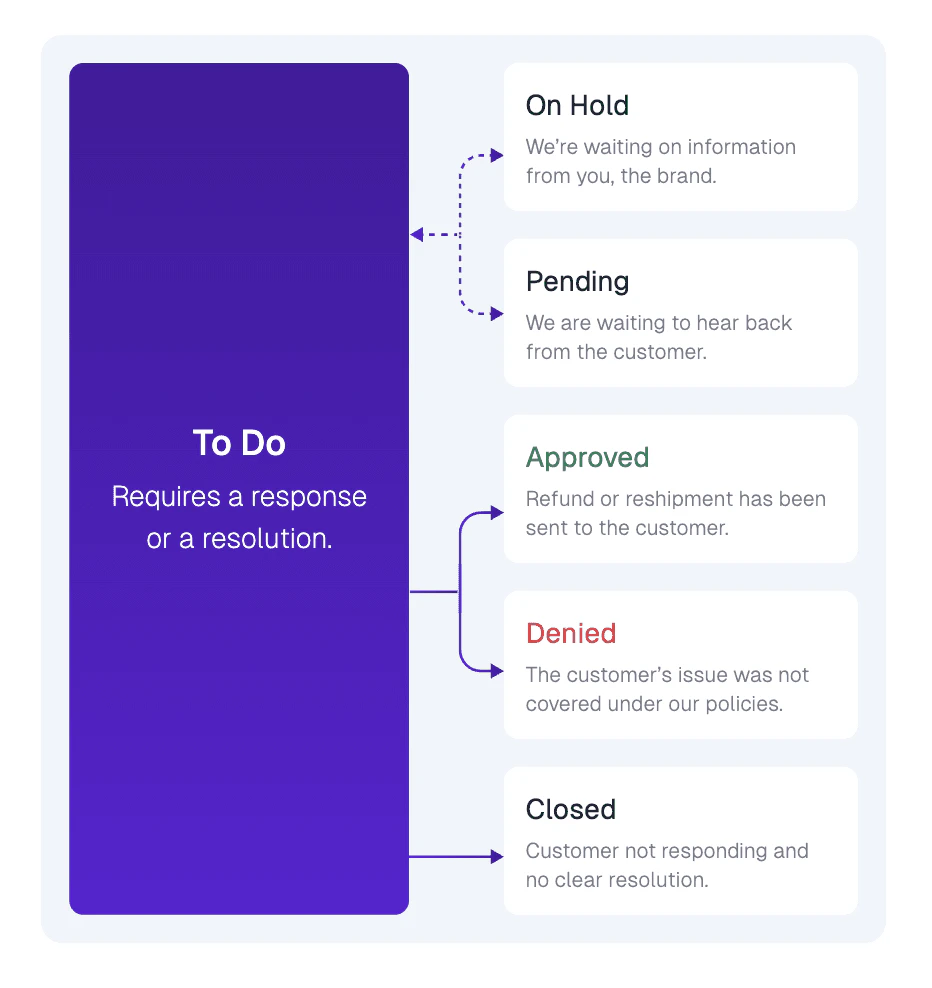 You can reference this workflow directly in your dashboard by going to the **Claims** page and clicking the link "How the claims queue works" in the top right.
If you have a question about a specific claim, please reach out to your Customer Success Manager or in your shared Slack channel.
## Exporting Claim Data
If you'd like to download a list of claims for your own records or analysis:
Navigate to the **Claims** page.
Select the specific status (or **All**) you'd like to export.
Click the **Export** button in the top-right corner to generate a CSV file of the visible claims.
You can reference this workflow directly in your dashboard by going to the **Claims** page and clicking the link "How the claims queue works" in the top right.
If you have a question about a specific claim, please reach out to your Customer Success Manager or in your shared Slack channel.
## Exporting Claim Data
If you'd like to download a list of claims for your own records or analysis:
Navigate to the **Claims** page.
Select the specific status (or **All**) you'd like to export.
Click the **Export** button in the top-right corner to generate a CSV file of the visible claims.