> ## Documentation Index
> Fetch the complete documentation index at: https://docs.orderprotection.com/llms.txt
> Use this file to discover all available pages before exploring further.
# Filing a Claim
> Step-by-step guide for how customers file claims through the OrderProtection.com portal.
Below is a step-by-step overview of how your customers can file a claim through the OrderProtection.com portal. Feel free to share or adapt this information for your own support documentation.
All descriptions in this guide reference our default OrderProtection.com-branded portal. Your own portal can be co-branded or customized. To learn more, see [Branding Your Claim Portal](/education-basecamp/customizations/branding-your-portal).
Customers must file their claim within **45 days** of the order being fulfilled. Once this window passes, the portal will not accept new claims for that order.
There may be exceptions depending on your contract with us.
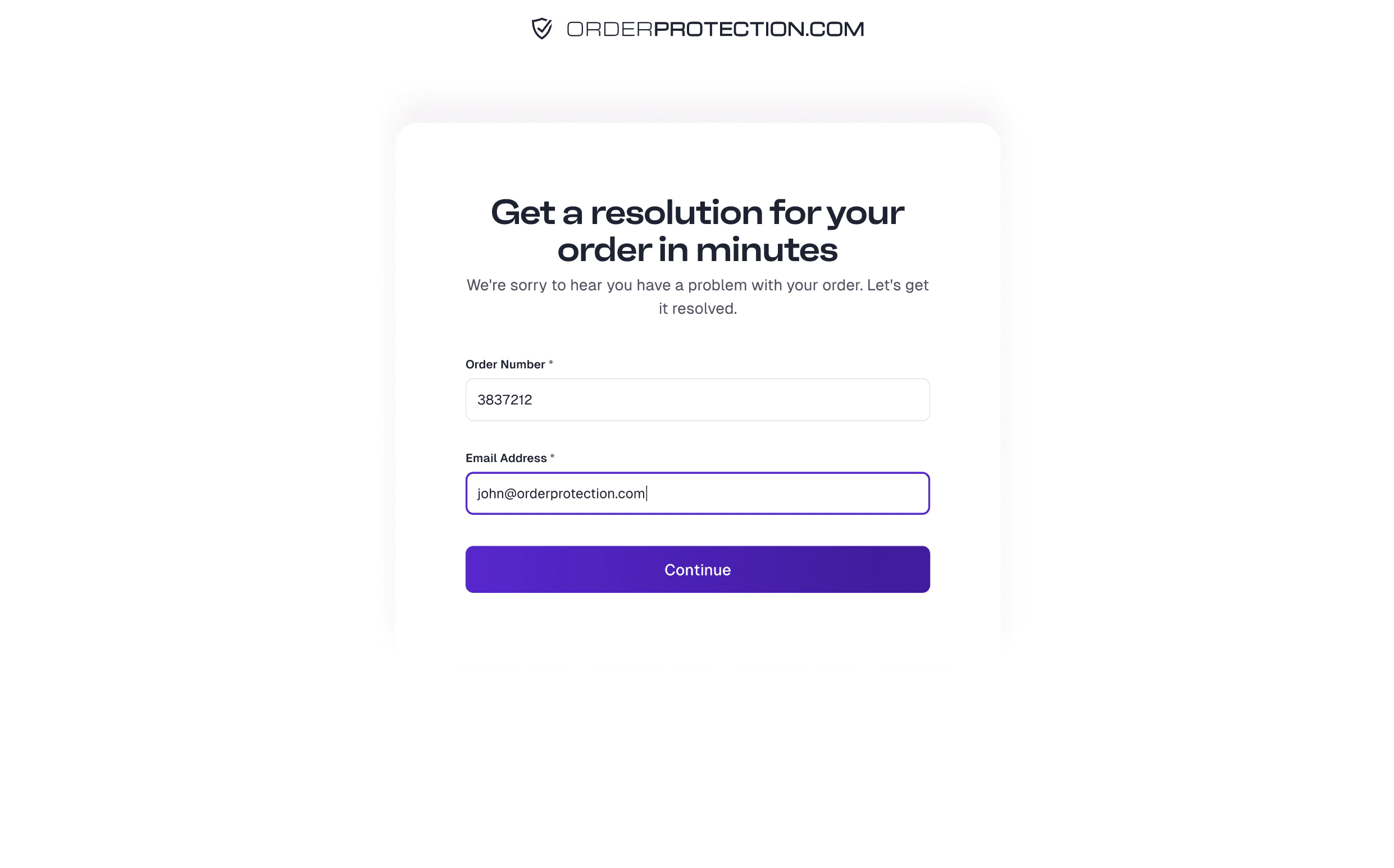
The customer navigates to the claim-filing page or portal link you provide. They are prompted to enter their **Order Number** and the **Email Address** used at checkout.
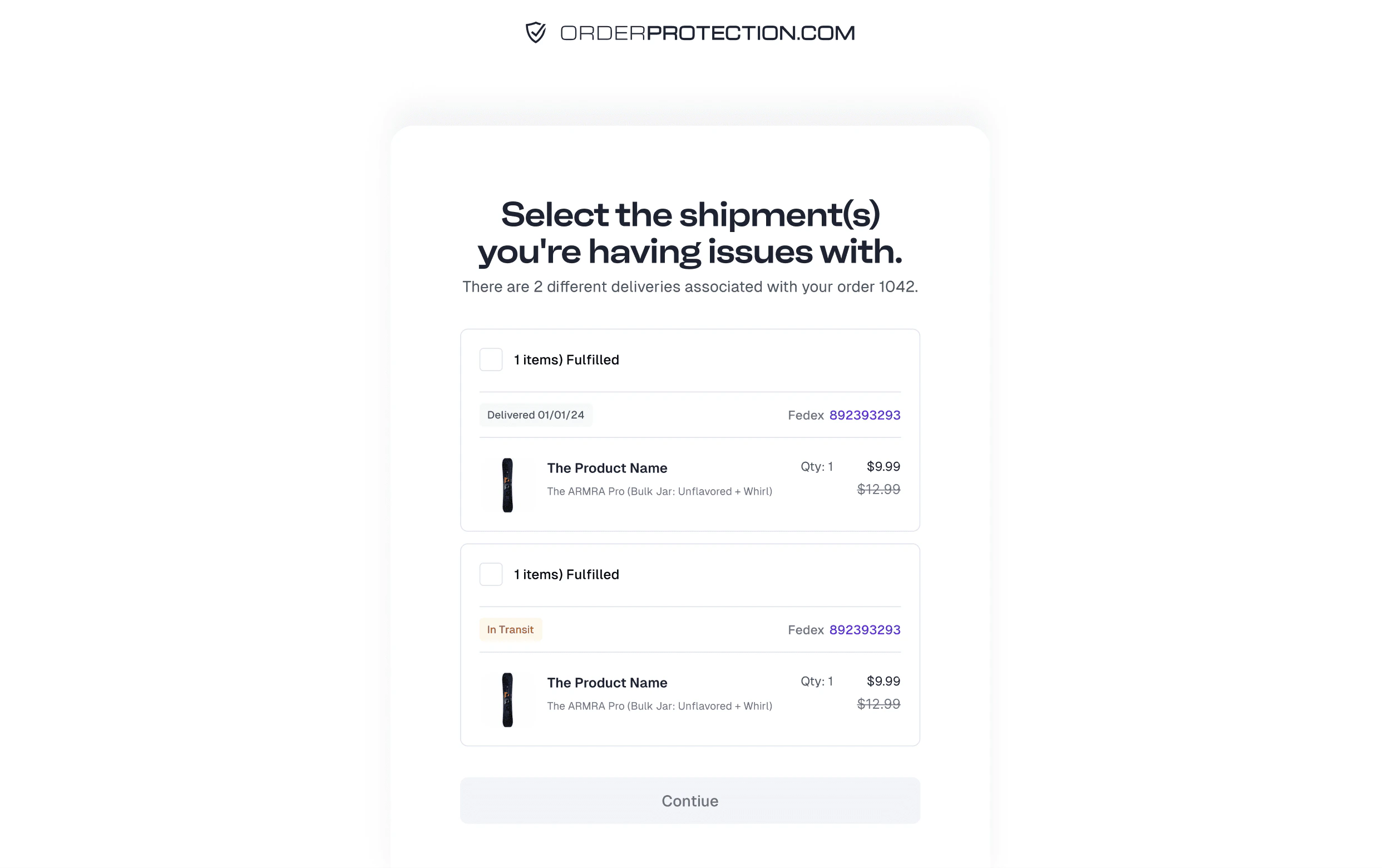
 If the order shipped in multiple parts, the customer will be asked which shipment has the issue. If not, they skip directly to the next step.
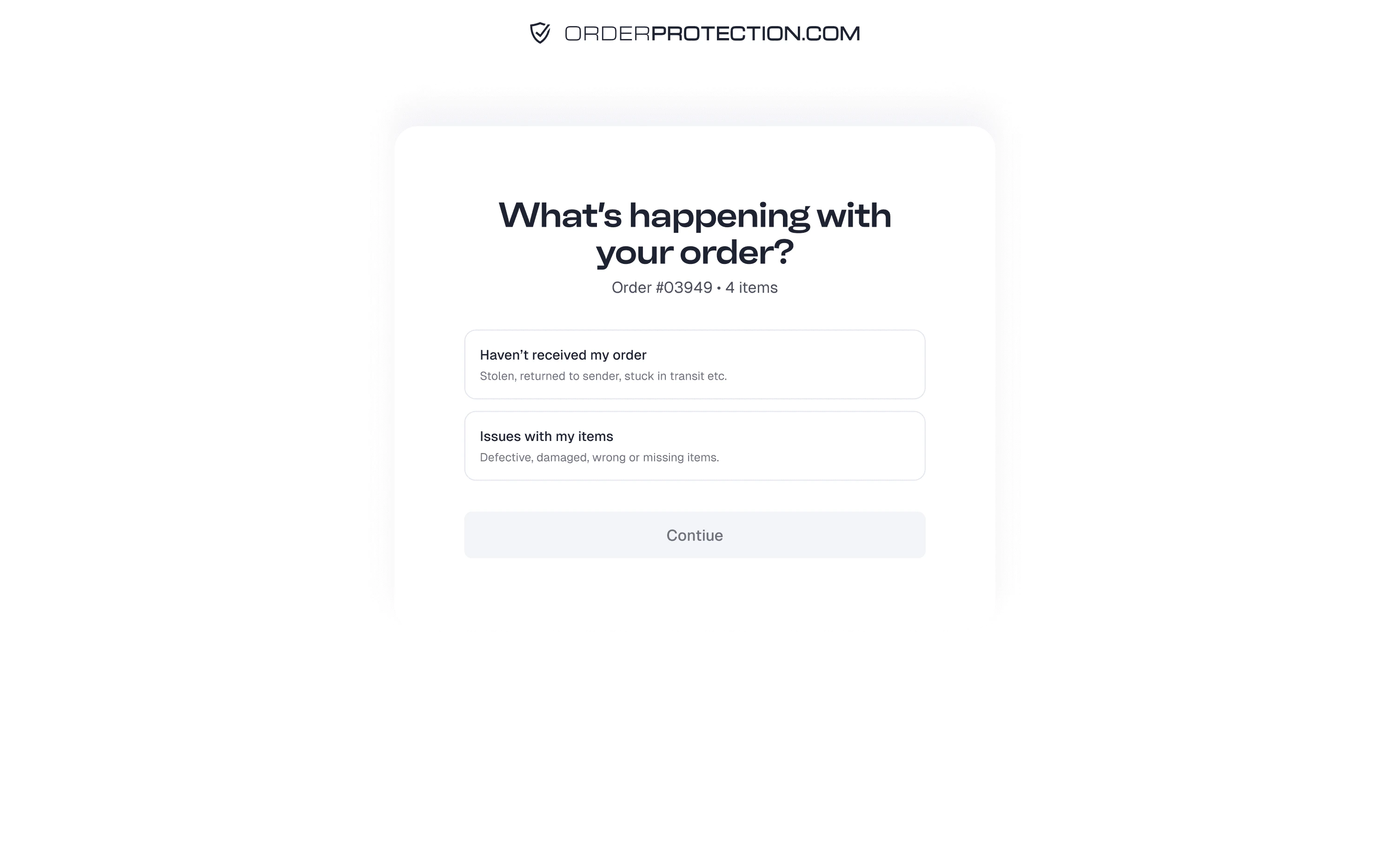
 The customer selects whether the problem is a **Shipping issue** or an **Item issue**:
* **Shipping Issues:** stolen package, returned to sender, tracking not moving, order says delivered but not received, etc.
* **Item Issues:** defective, damaged, wrong item, or missing item.
The customer selects whether the problem is a **Shipping issue** or an **Item issue**:
* **Shipping Issues:** stolen package, returned to sender, tracking not moving, order says delivered but not received, etc.
* **Item Issues:** defective, damaged, wrong item, or missing item.
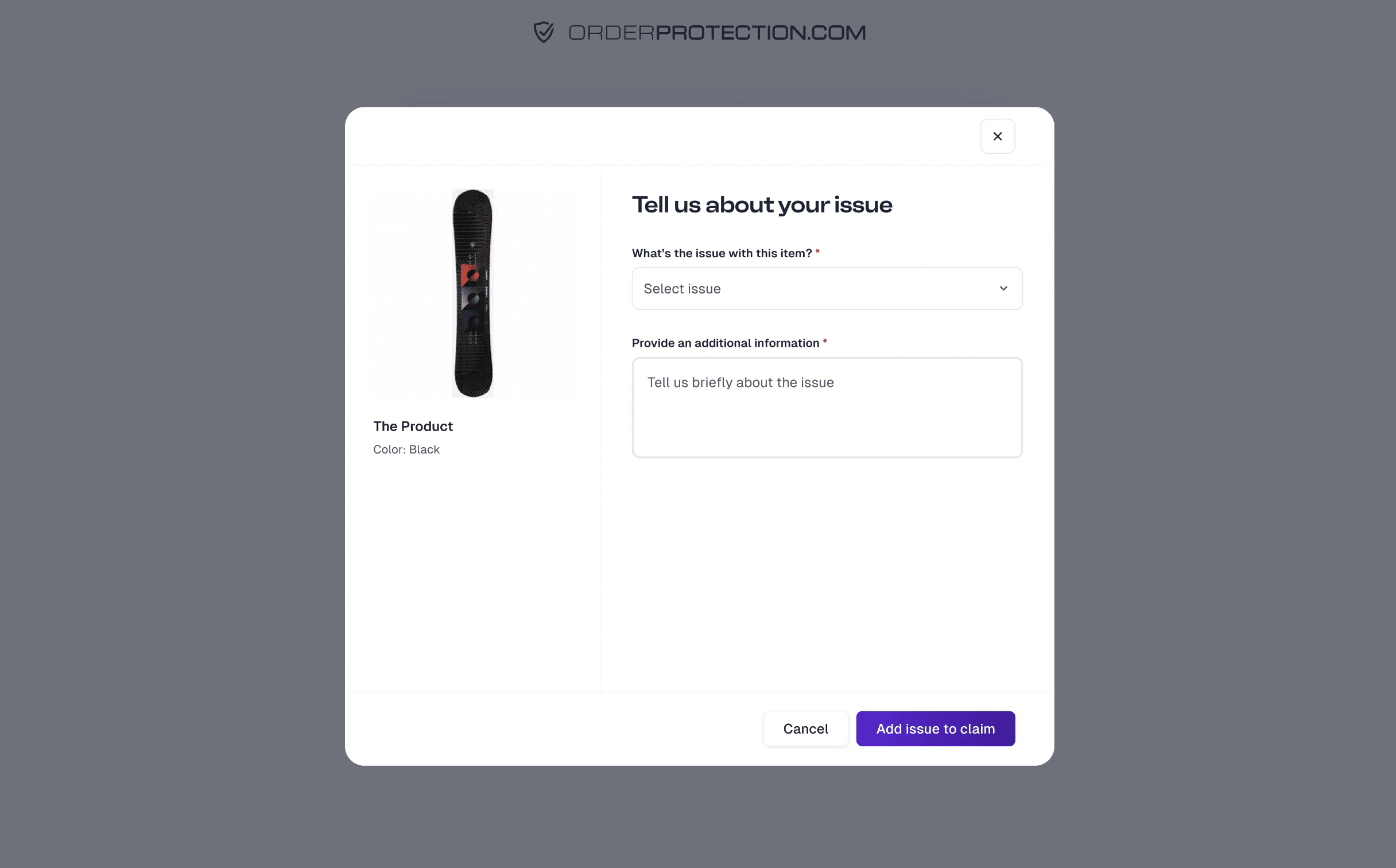
 If the customer selects an **Item issue**:
* They are asked which item(s) are affected and how many.
* If the issue is Damaged, Defective, or Wrong Item, the portal prompts them to upload photos showing the problem.
If the customer selects an **Item issue**:
* They are asked which item(s) are affected and how many.
* If the issue is Damaged, Defective, or Wrong Item, the portal prompts them to upload photos showing the problem.
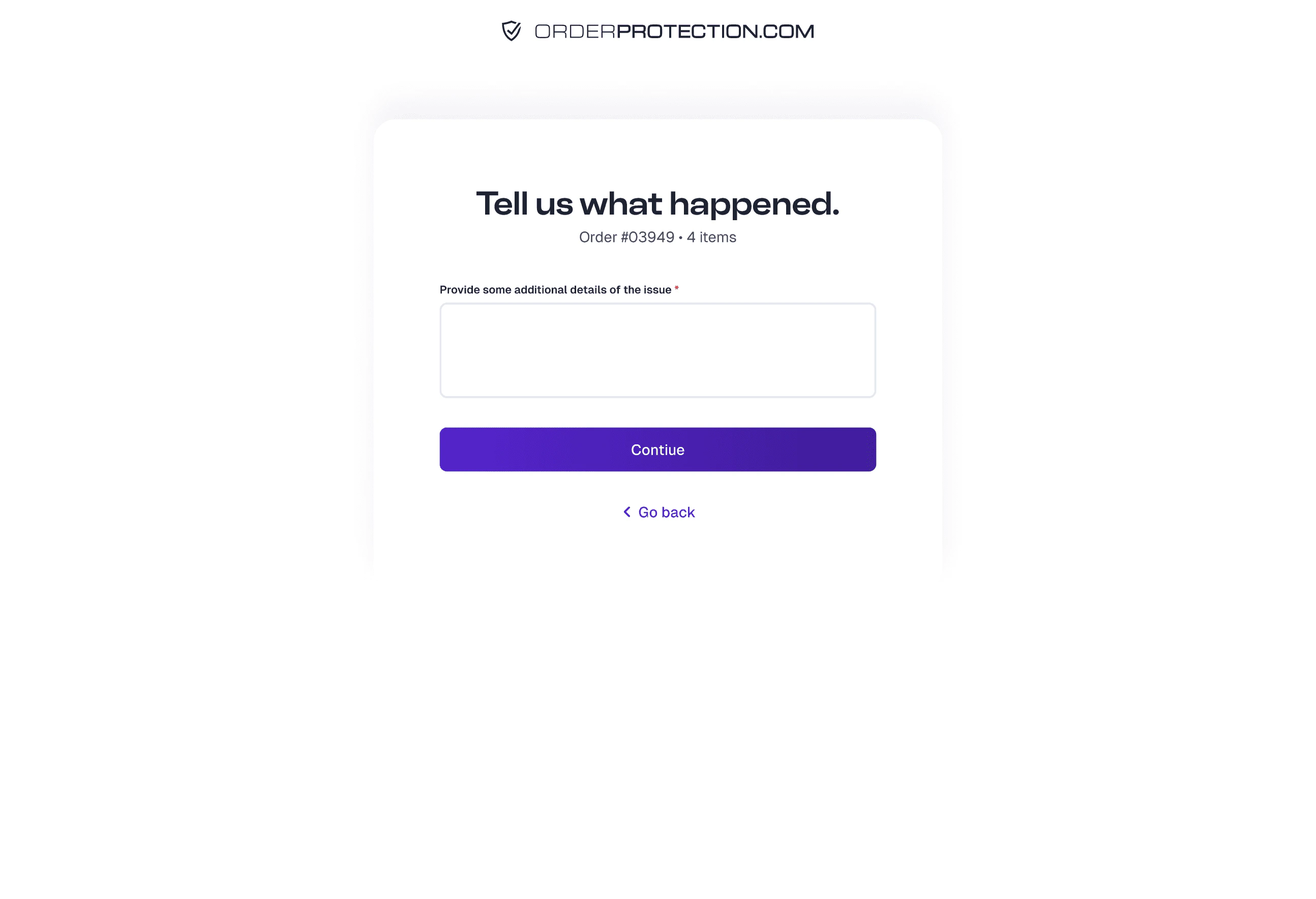
 If the customer selects a **Shipping issue** (e.g., stolen, tracking not moving, or returned to sender):
* They pick the scenario that best describes the situation.
* They provide additional comments (e.g., describing where the package was left or when they last saw movement on the tracking).
If the customer selects a **Shipping issue** (e.g., stolen, tracking not moving, or returned to sender):
* They pick the scenario that best describes the situation.
* They provide additional comments (e.g., describing where the package was left or when they last saw movement on the tracking).
 The portal asks the customer how they'd like to resolve the claim. Depending on availability and your store's settings, options typically include:
* **Store Credit** -- Generated as a discount code or gift card (Shopify only).
* **Reshipment** -- Another item is shipped to replace the missing/damaged items (subject to stock availability).
* **Refund** -- The amount for the affected items is refunded to the original payment method.
The final decision on issuing store credit, reshipments, or refunds will be determined by our team and may be dependent on stock levels or claim eligibility. If a claim is denied, none of these resolutions will be offered.
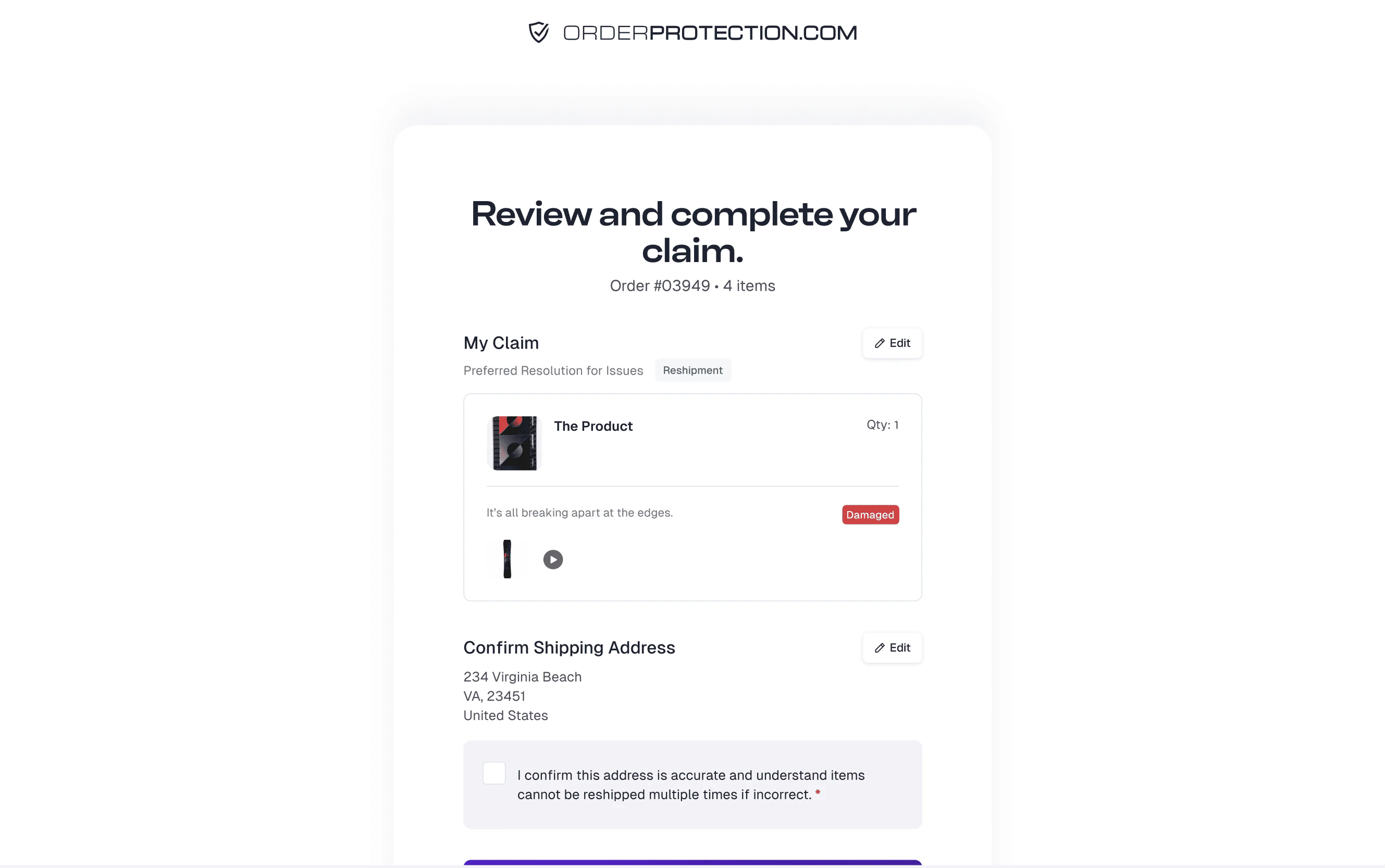
The customer sees a **Review** screen summarizing the claim details. They confirm that everything is correct and complete.
The portal asks the customer how they'd like to resolve the claim. Depending on availability and your store's settings, options typically include:
* **Store Credit** -- Generated as a discount code or gift card (Shopify only).
* **Reshipment** -- Another item is shipped to replace the missing/damaged items (subject to stock availability).
* **Refund** -- The amount for the affected items is refunded to the original payment method.
The final decision on issuing store credit, reshipments, or refunds will be determined by our team and may be dependent on stock levels or claim eligibility. If a claim is denied, none of these resolutions will be offered.
The customer sees a **Review** screen summarizing the claim details. They confirm that everything is correct and complete.
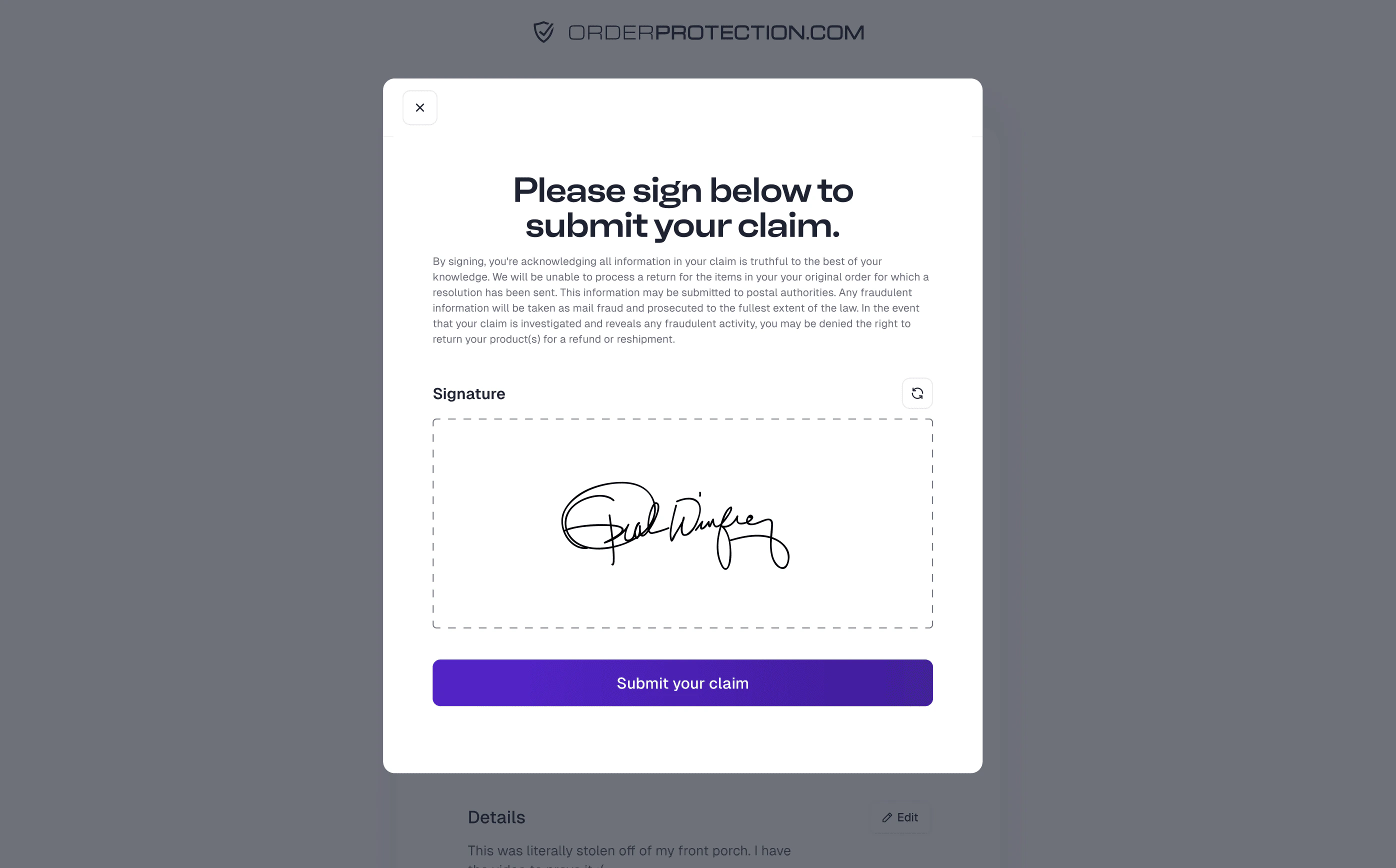
 The customer is prompted to add a signature (e.g., typed or drawn), confirming they have provided accurate information.
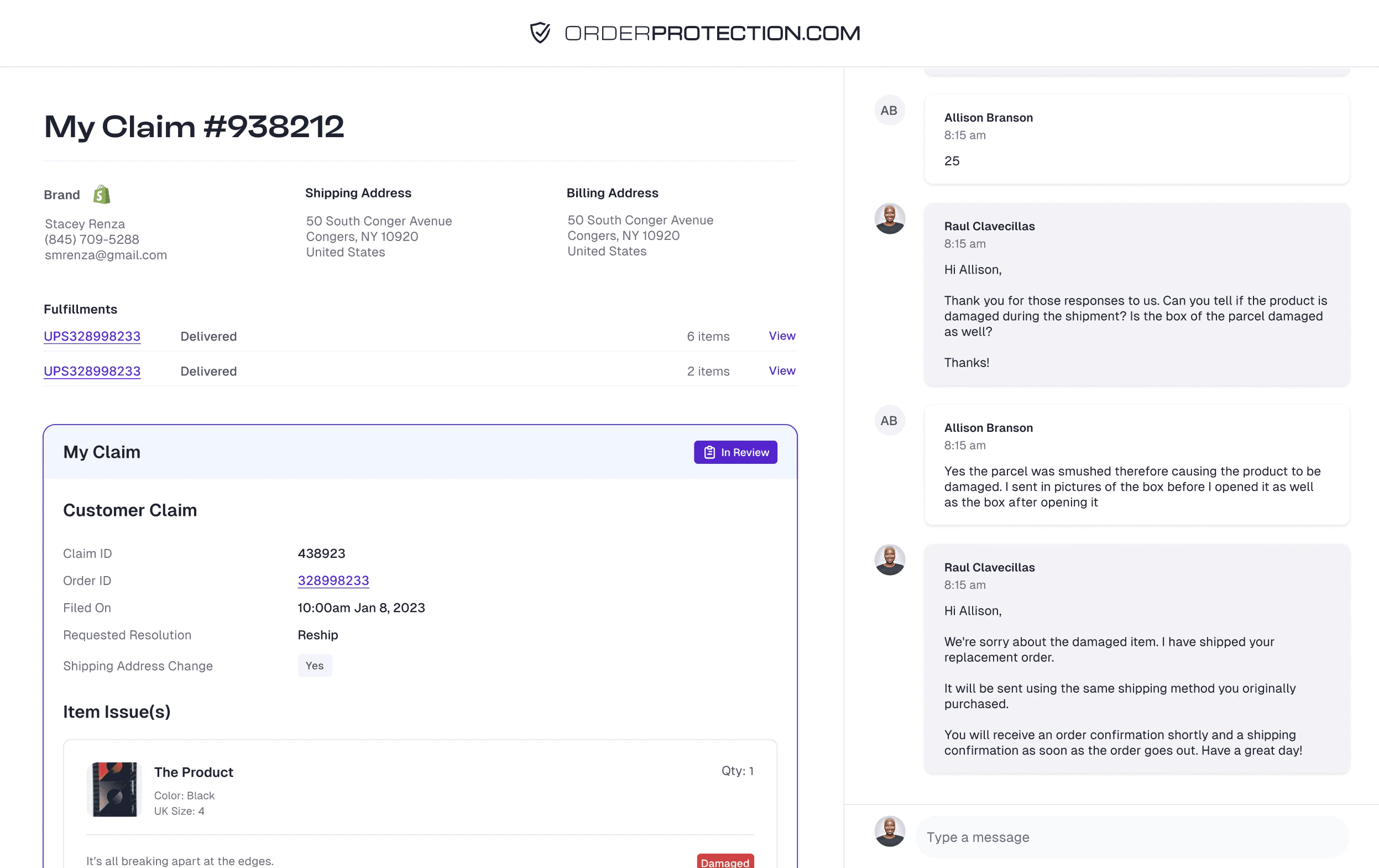
 A confirmation page appears with a message that the claim was received. A link to **View My Claim** is provided, allowing the customer to check claim status and communicate further if needed.
Anytime after filing, the customer can:
* Return to the claim portal and enter their Order Number and Email again.
* View the **Claim Status**, **Claim Details**, and **Chat** with support if needed.
They will also receive email notifications when you or the OrderProtection.com team sends them a new message, and when a claim is Approved or Denied. Customers can respond to claim-related emails directly from their inbox or by logging back into the portal.
A confirmation page appears with a message that the claim was received. A link to **View My Claim** is provided, allowing the customer to check claim status and communicate further if needed.
Anytime after filing, the customer can:
* Return to the claim portal and enter their Order Number and Email again.
* View the **Claim Status**, **Claim Details**, and **Chat** with support if needed.
They will also receive email notifications when you or the OrderProtection.com team sends them a new message, and when a claim is Approved or Denied. Customers can respond to claim-related emails directly from their inbox or by logging back into the portal.